You've got a great photo. A product shot, a landscape, a character from your AI image generator. Now you want it to move.
Not a slideshow with a zoom effect. Actual motion. Water rippling, hair blowing, a character turning their head.
That's exactly what image-to-video AI tools do. And in this guide, I'll walk you through the process step by step using Runway's Motion Brush feature.
- Runway (now at Gen-4) with Motion Brush transforms images into short AI videos with precise animation control
- Free alternatives 2026: Pika 2.0, Kling AI, OpenAI Sora (via ChatGPT Plus), and Stable Video Diffusion (local)
- Best results with high-resolution, square images (1024x1024+) and subtle animations like hair movements
1. Sign Up & Pricing
Before getting started with Runway, you need to create an account. You can do this either by entering your email address or using a Google, Apple, or Facebook account.
Thanks to the "Free Forever" plan, you can test and use Runway directly without worrying about any payment processing:
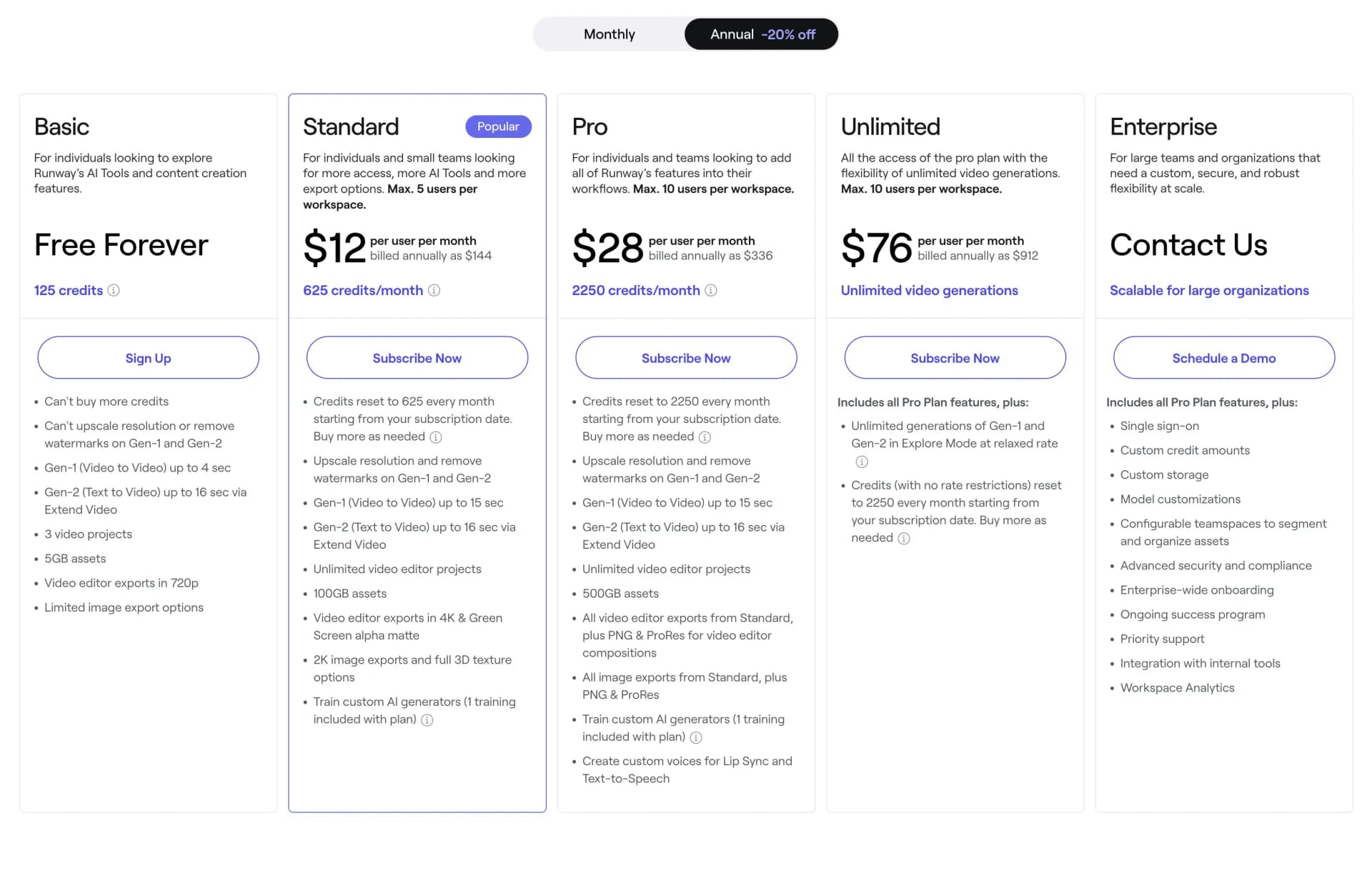
The Free plan is actually free and offers you a limited number of credits every month. Originally, this equaled 25 seconds for Gen-2 (Text-to-Video), 8 seconds for Gen-1 (Video-to-Video), or 25 image generations. Since then, Runway has released Gen-3 Alpha (mid-2024) and Gen-4 (2025), which offer significantly improved quality and longer clips.
However, you cannot edit the videos and they will be watermarked. If you want more, you should upgrade to the Standard Plan:
The Standard Plan originally cost $12 per month with annual billing. It included 625 credits per month, equivalent to 125 seconds for Gen-2, 44 seconds for Gen-1, or 125 image generations. Additionally, watermarks are removed, you can export videos up to 4K resolution, and train your own "AI Generator." Check Runway's website for current pricing and credit allocations, as these have changed with the release of Gen-3 and Gen-4.
Runway's popularity is also reflected in the numbers: The company reached annual recurring revenue of $90 million USD by mid-2025, highlighting the strong demand for AI video tools. The space has become even more competitive since then, with OpenAI's Sora (launched December 2024) and Runway Gen-4 (2025) pushing quality to new heights.
2. Create Video
Once you're logged in, you'll be redirected to your dashboard. Here you have access to all of Runway's tools and features:
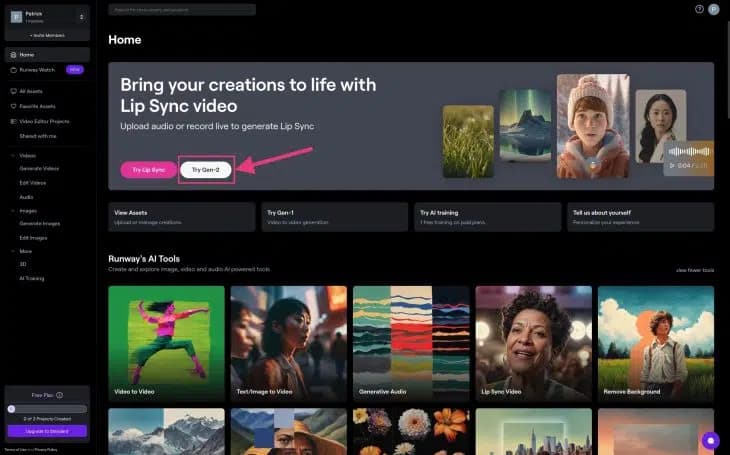
To "bring your images to life," select the image-to-video option (previously labeled "Try Gen-2," now updated for Gen-4) and go directly to the editor.
If you don't yet have an image you want to animate with Motion Brush, but only have a rough initial idea, first click on "Text-to-Image" in the dashboard.
There you can create an image using a text prompt that you can then continue working with.
For this example, I created the following image of a rubber duck with Runway:
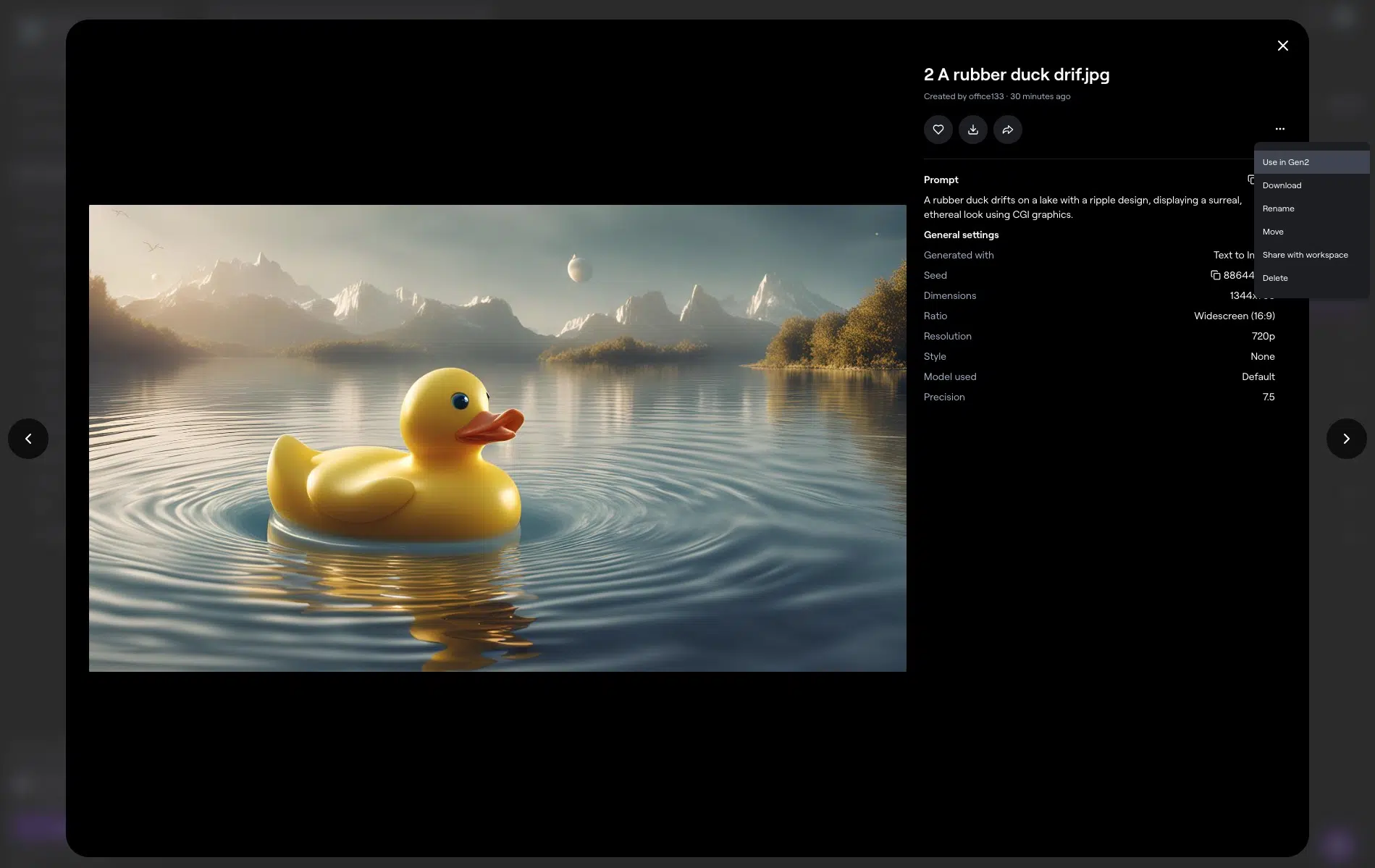
By clicking on "..." you can easily continue editing and use it in Runway's Image-to-Video mode.
In addition to general settings like resolution, negative prompts, and (with premium plans) the option to remove the watermark, you can set up the dynamic camera and use the "Motion Brush Feature" in the editor:
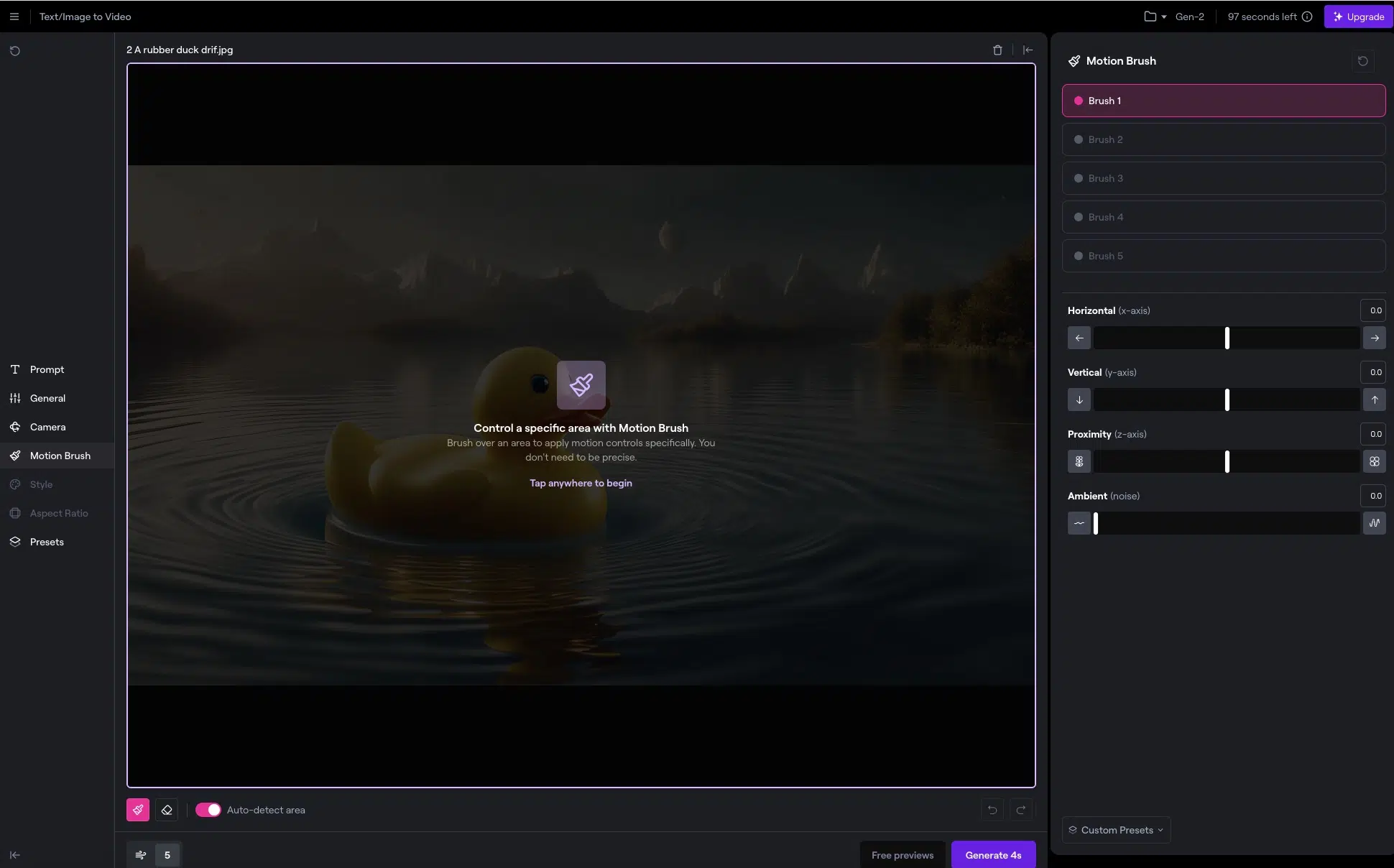
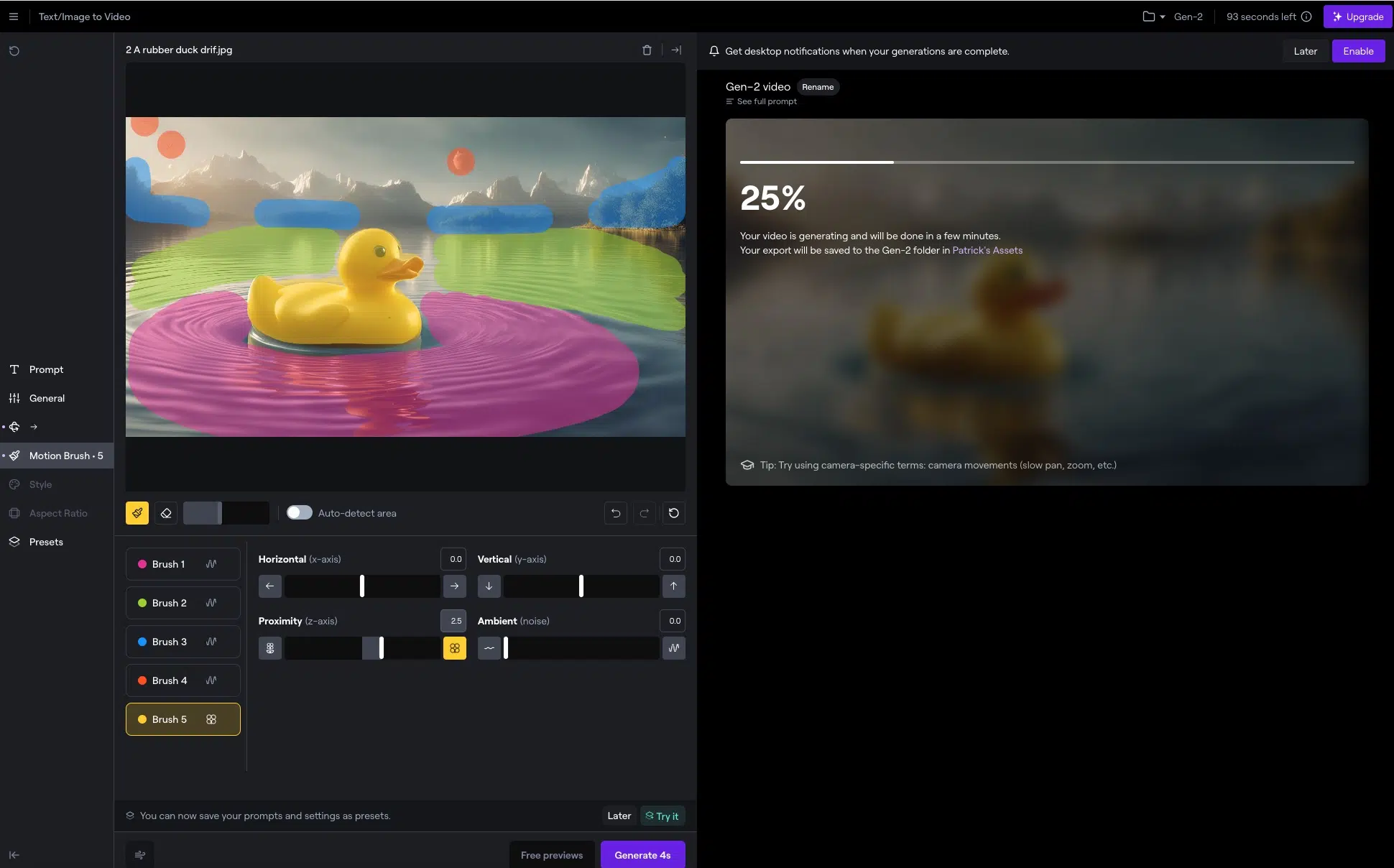
Now you have five brushes available and can animate five different areas independently.
Use the Motion Brush tool to mark areas in the image that you want to animate. Draw paths and choose motion directions to achieve the desired effects:
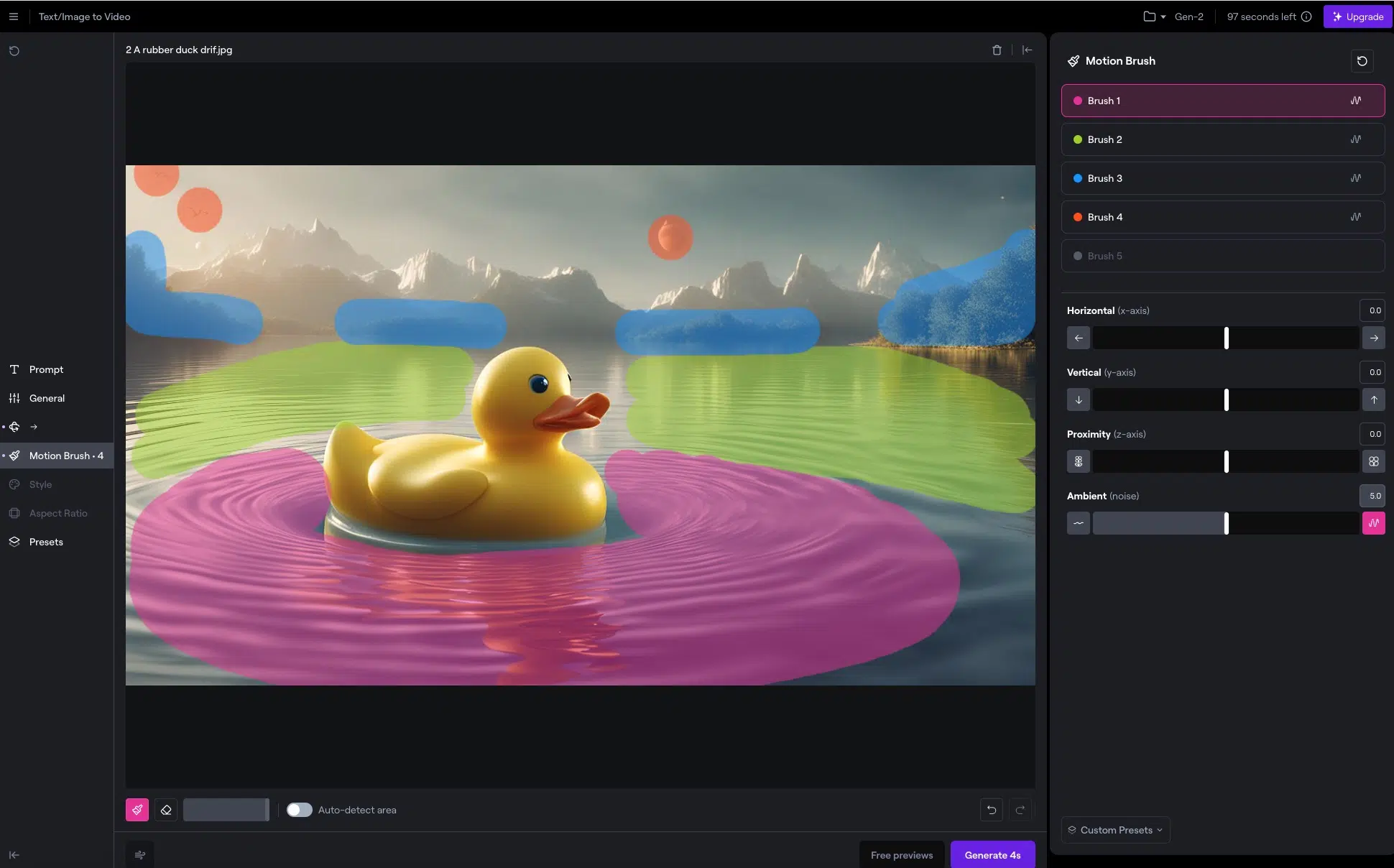
The brushes are marked with different colors, so you can see at a glance which different areas you've designated for animation.
The brushes themselves are self-explanatory. You simply paint the areas to be animated with the brush.
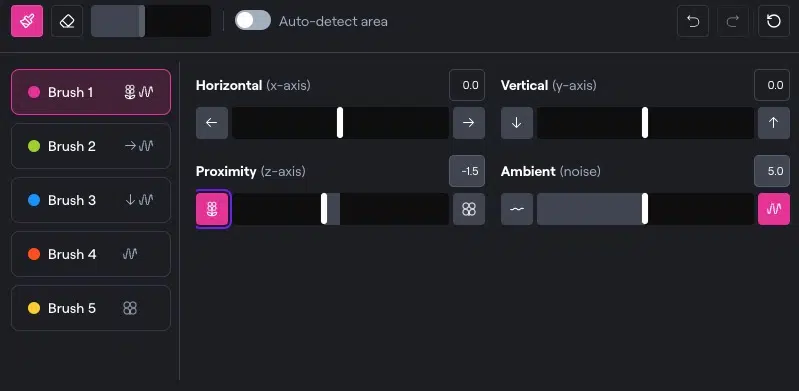
For each brush, you can set the camera movement separately. Simply select the desired brush at the top right and then adjust the horizontal, vertical, and movement strength:
Once you've set up all brushes and started the generation, Runway takes a while until your AI video is ready:
3. Export, Publish, and Share Video
Once the animation looks right to you, export the video in your preferred format. Runway offers various export options for different needs.
Here you can see our video of the animated rubber duck:
4. Tips for Optimal Results
Results in image-to-video conversion are often not good. The reason is usually that the movements look unnatural and don't "fit together."
To avoid this, it's important to work from layer to layer when creating:
Think of your video in "layers," where each represents a different depth/distance. Objects that are closer are in the front layers, and objects that are farther away are in the back layers.
Important to understand:
Closer objects appear to move faster to the human eye than distant ones (this concept is called "motion parallax").
So always start with the frontmost layer and with a correspondingly faster movement.
Switch to Brush 2 for your next layer and apply a somewhat slower movement, as the layer is further back.
Continue with the remaining layers and reduce the movement as you move to the back layers.