Claude Code works directly with your project from the terminal. It can read and edit files, run commands, and check changes. Your task brief remains the decisive part. The clearer the outcome, boundaries, and verification are, the more dependable the result becomes.
Plans, models, and usage limits change. Check your Claude account and the official documentation for those current details.
- Install Claude Code through the official native installer, then check the version and installation with claude --version and claude doctor.
- Start Claude Code inside the project directory and give every task an outcome, scope, boundaries, and a concrete verification step.
- For longer work, CLAUDE.md, a short progress recap, and /compact preserve the thread. Use /clear only for genuinely unrelated work.
What Claude Code does in a project
Claude Code is an agentic coding assistant for the terminal. You describe a task in natural language. Claude then investigates relevant files, proposes changes, uses tools, and can run existing checks.
It does not remove product responsibility. Before you approve an action, read the affected files and commands. Data, credentials, infrastructure, payments, and external messages need a clear instruction and a reviewable verification path.
Requirements before installation
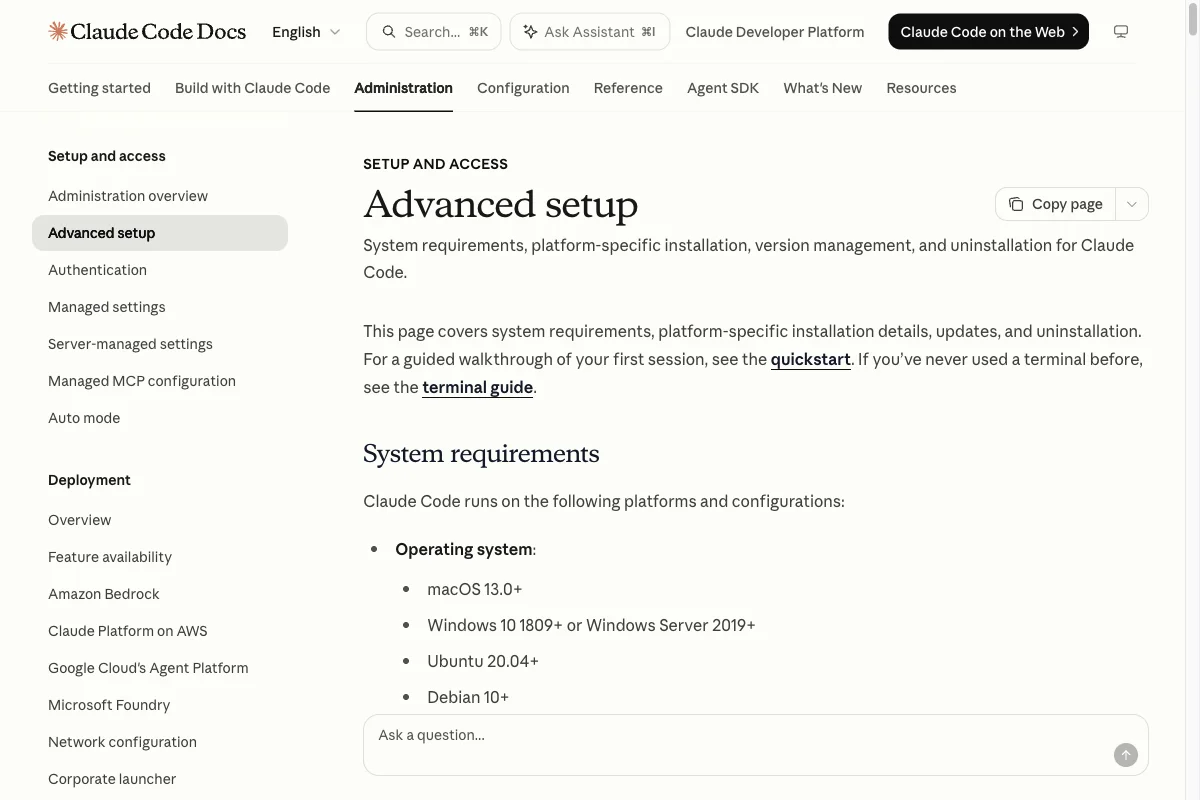
Anthropic’s official installation documentation lists macOS 13 or later, Windows 10 version 1809 or later, Ubuntu 20.04 or later, Debian 10 or later, and Alpine 3.19 or later for the native installer. Anthropic also lists at least 4 GB of RAM. You also need a terminal and a directory you trust.
The native installer is the recommended option and does not require Node.js. Open Anthropic’s official installation guide for the current option that matches your operating system.
Install and check Claude Code
1. Use the native installer
Do not blindly pipe an installation script into a shell. On macOS and Linux, download it into a temporary directory and read it first. Run it only when you are comfortable with its source and contents.
curl -fsSL https://claude.ai/install.sh -o /tmp/claude-install.sh
less /tmp/claude-install.sh
bash /tmp/claude-install.sh
On Windows, use the current PowerShell or CMD option described on the official page. That avoids stale commands from posts or forums. If you use WSL, follow the Linux instructions in the documentation.
2. Check the installation
Open a new terminal and first check whether the command is available. claude doctor runs read-only installation and settings diagnostics in the terminal without starting a session.
claude --version
claude doctor
3. Start in the right project and sign in
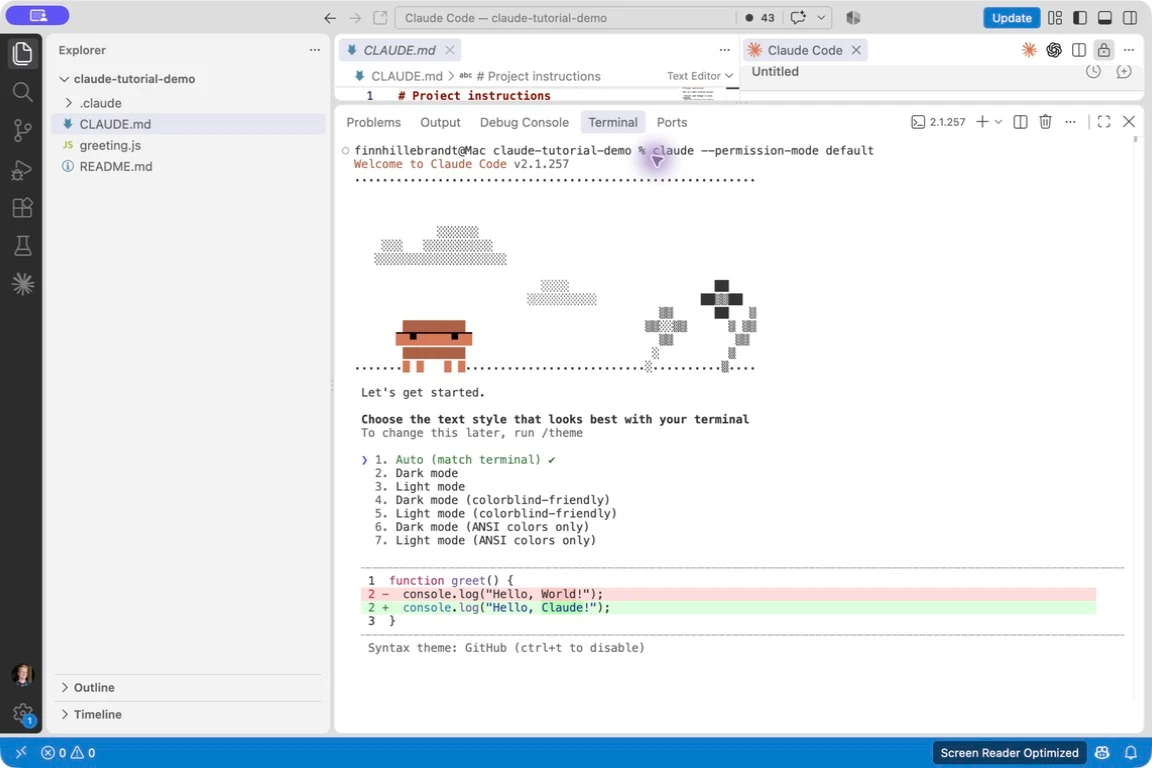
Change to the directory where Claude should work, then start claude. In the first interactive session, you choose a display style and sign in. The access options available depend on your account.
cd /path/to/your/project
claude
The first launch in VS Code’s integrated terminal shows the text-style selection:
How to write your first task
A request such as “fix the bug” leaves too much open. Describe the result so you can check it at the end. Claude Code then does not have to guess what matters or what must stay untouched.
Outcome:
The sign-in flow shows a clear error message after invalid credentials.

Scope:
Inspect the existing sign-in flow first. Change only the sign-in code and its tests.

Do not change:
No database migration, dependency update, or copy outside the form.

Done when:
The failure case is tested, existing checks pass, and you summarize the changed files.
Step 1: Read first, change nothing
In an unfamiliar project, start with a request that makes no changes. It shows whether Claude found the right files, commands, and risks.
> What does this project do?
> Do not edit files or run commands.
> Name the entry point, important directories, and existing checks.
Step 2: Make one small, verifiable change
Next, choose something small that you can see in a browser or test. Ask Claude to identify the file and verification step before it edits anything.
> Add a short welcome sentence below the heading on the homepage.
> Change only the relevant page.
> Then show the changed file and tell me how to verify the result.
Step 3: Review the Git diff and prepare a commit
Ask for an explanation of the diff before you create a commit. A commit changes the repository history and should happen only when both the content and message are right.
> Summarize the current Git diff.
> Do not create a commit yet.
> Suggest a short commit message.

> The diff is correct. Create a commit with the suggested message.Choose permissions deliberately
In Manual mode, Claude Code asks before file edits and most shell commands. Other permission modes can reduce those prompts for a particular workflow. That speeds up routine work, but increases the risk of a wrong action.
Review the command, affected files, and external consequences before you approve. Choose a mode with fewer prompts only when the scope and working environment are clearly bounded. Anthropic’s Permission Modes documentation explains the differences.
The most useful commands
The Claude Code commands guide covers more commands. You can also run /help in your installed version to see what is currently available. For recurring tasks, our directory of 400+ ready-made Claude Code Skills is worth a look too.
When Claude loses the thread
Long sessions can be compacted. The broad working state remains, but early details from the conversation may no longer be as reliable. Do not rely on an important constraint that appeared only once in a chat.
- Put durable project rules in CLAUDE.md.
- Before a major handoff, ask for a short recap of completed work, remaining work, changed files, and the next check.
- Use /compact when a conversation gets long and you need to preserve the active focus.
- When continuing, restate the outcome, boundaries, completed steps, and next concrete test.
/clear is not a cleanup tool for an ongoing task. It starts a new context. Use it only when you really move to another topic. claude -c and claude -r are the better choices for interrupted work.
CLAUDE.md as a shared working foundation
CLAUDE.md captures what a compacted chat must not lose: reliable commands, architecture, boundaries, and verification criteria. Keep it short, specific, and easy to find at the project root.
# Project name

## Run and verify
```bash
npm run lint
npm run test
```

## Rules
- Check existing components before creating new ones.
- Validate input at API boundaries.

## Boundaries
- Do not print or store secrets.
- Do not run data migrations without a confirmed plan.

## Done when
- Affected tests and checks pass.
The CLAUDE.md guide explains the complete structure for global, local, and folder-specific rules.
Using Claude Code in VS Code
The official extension brings Claude Code into VS Code. It requires VS Code 1.94 or later and suitable Claude access. The extension includes its own Claude Code installation for editor use. Install Claude Code separately if you also want to use the terminal.
Anthropic documents the current setup and supported editors in its IDE integrations documentation.
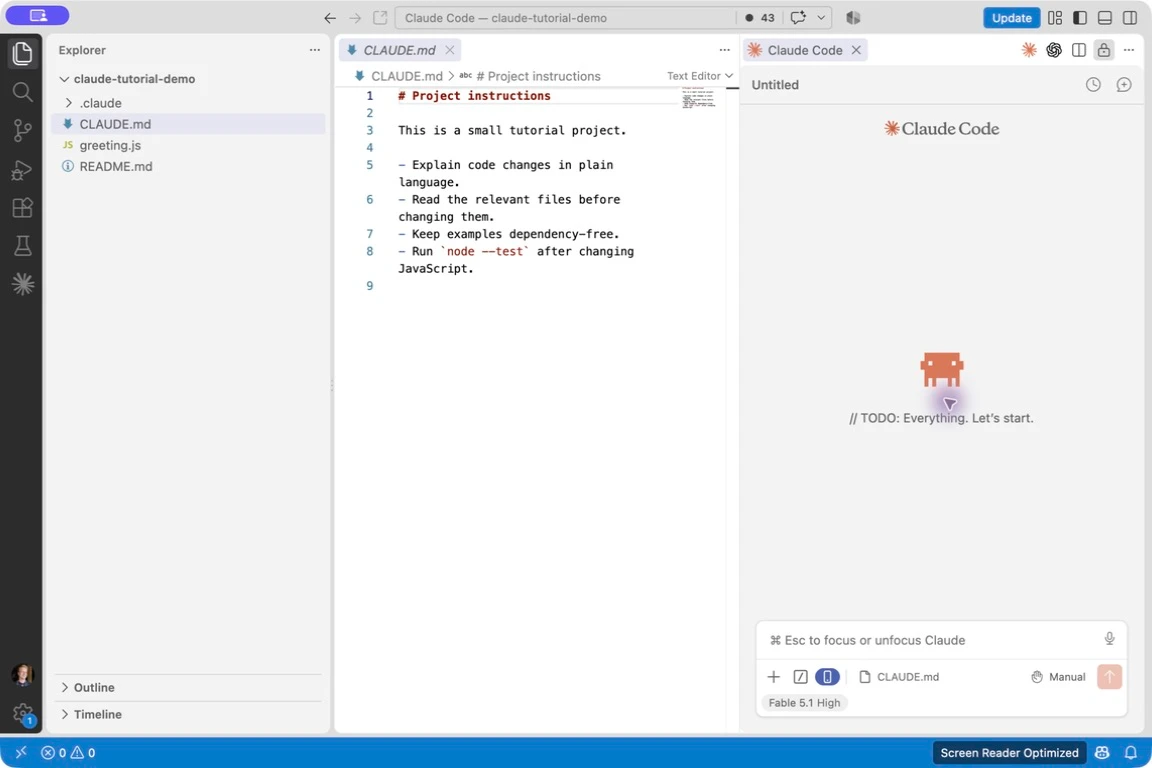
You can open the extension next to a project file. It shows the active permission mode at the bottom: