You've already got a library of long-form YouTube videos sitting on your channel. Each one took hours (maybe days) to create.
Meanwhile, TikTok, Instagram Reels, and YouTube Shorts are where the growth is happening. But creating short-form content from scratch on top of everything else? That's a recipe for burnout.
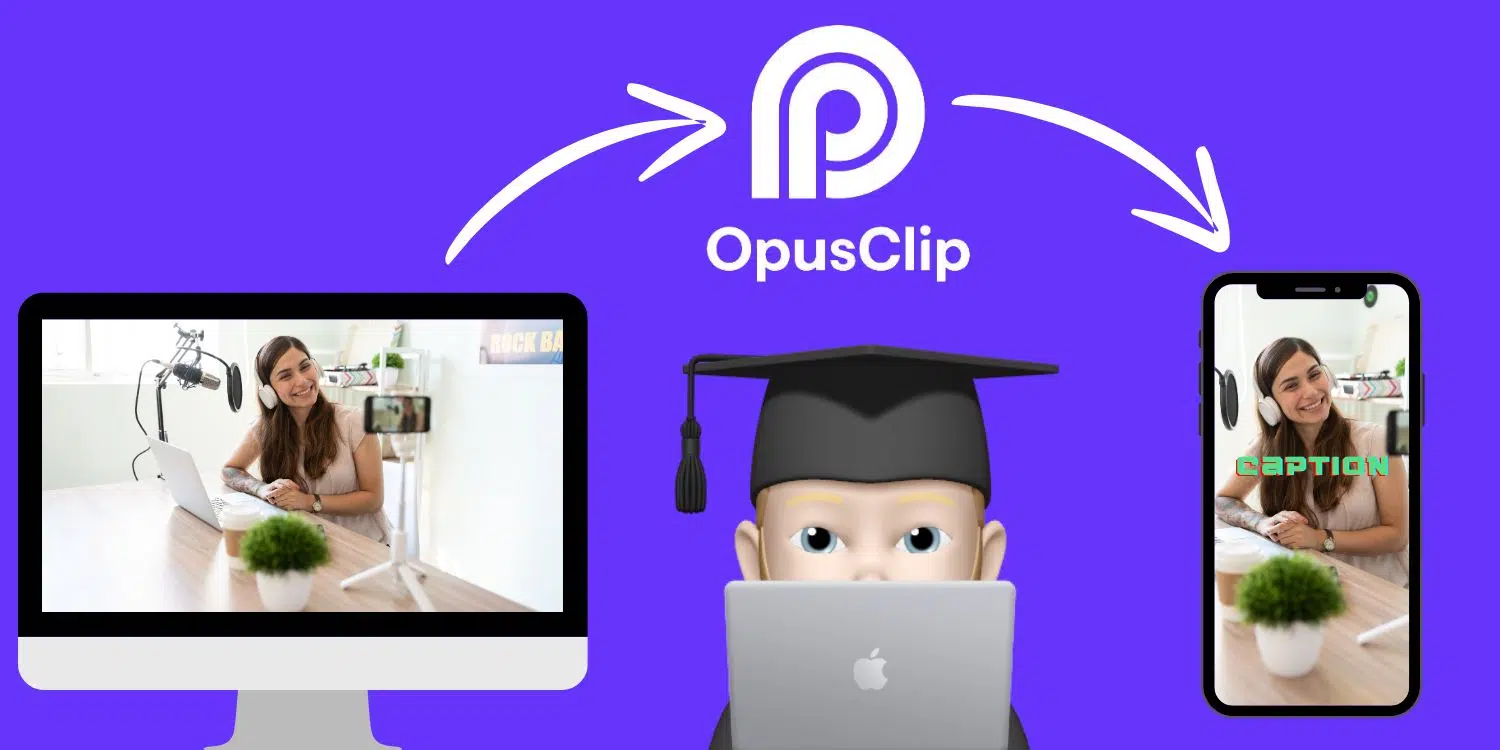
The smarter approach is to repurpose what you already have. Pull the best moments from your existing videos and turn them into Shorts. And with AI, this process takes minutes instead of hours.
Fortunately, your pace doesn't have to suffer here. Opus Clip is the prodigy among tools, equipped with AI power to:
- Find the viral moments in your video.
- Pack them into short clips, perfect for TikTok, YouTube Shorts, or Instagram Reels.
- Manage everything that makes videos successful on these platforms: a captivating title, automatically styled subtitles with emojis, and (soon) AI B-Roll to make your message really pop.
Using it is a breeze. You simply submit the URL of the video you want to repurpose. Then treat yourself to a quick coffee break, or take care of other work if you prefer.
Opus Clip works in the background and creates magic. When it's done, an email notification arrives.
But let's start from the beginning, because in this article I'll show you the entire process, from signing up to uploading your first Short video on TikTok, YouTube, or Instagram...
- Opus Clip automatically converts long videos into viral Shorts (with AI analysis of the best moments)
- 7 days free Pro version, then 60 minutes monthly free or from $9/month for unlimited use
- Automatic subtitles, various creator styles (MrBeast, etc.) and direct posting to all platforms
1. Sign Up and Pricing
Before getting started with Opus Clip, you need to create an account. You can do this either by entering your email address or using your Google or Facebook account.
Thanks to the "Free Forever" plan, you can use and test OpusClip directly without worrying about any payment processing.
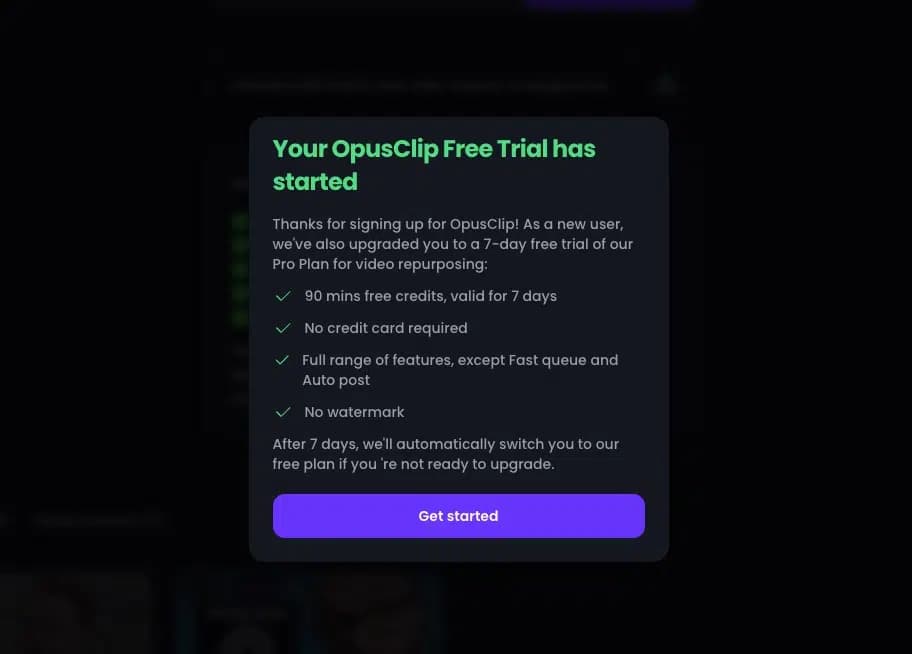
As a new user, you can really test extensively since you have access to the Pro version for 7 days before being moved to the "Free" plan, meaning you can have 90 minutes of video material analyzed in the first week and your videos won't be watermarked with the Opus Clip logo, so you can test their viral potential on TikTok, Instagram, or as YouTube Shorts right away.
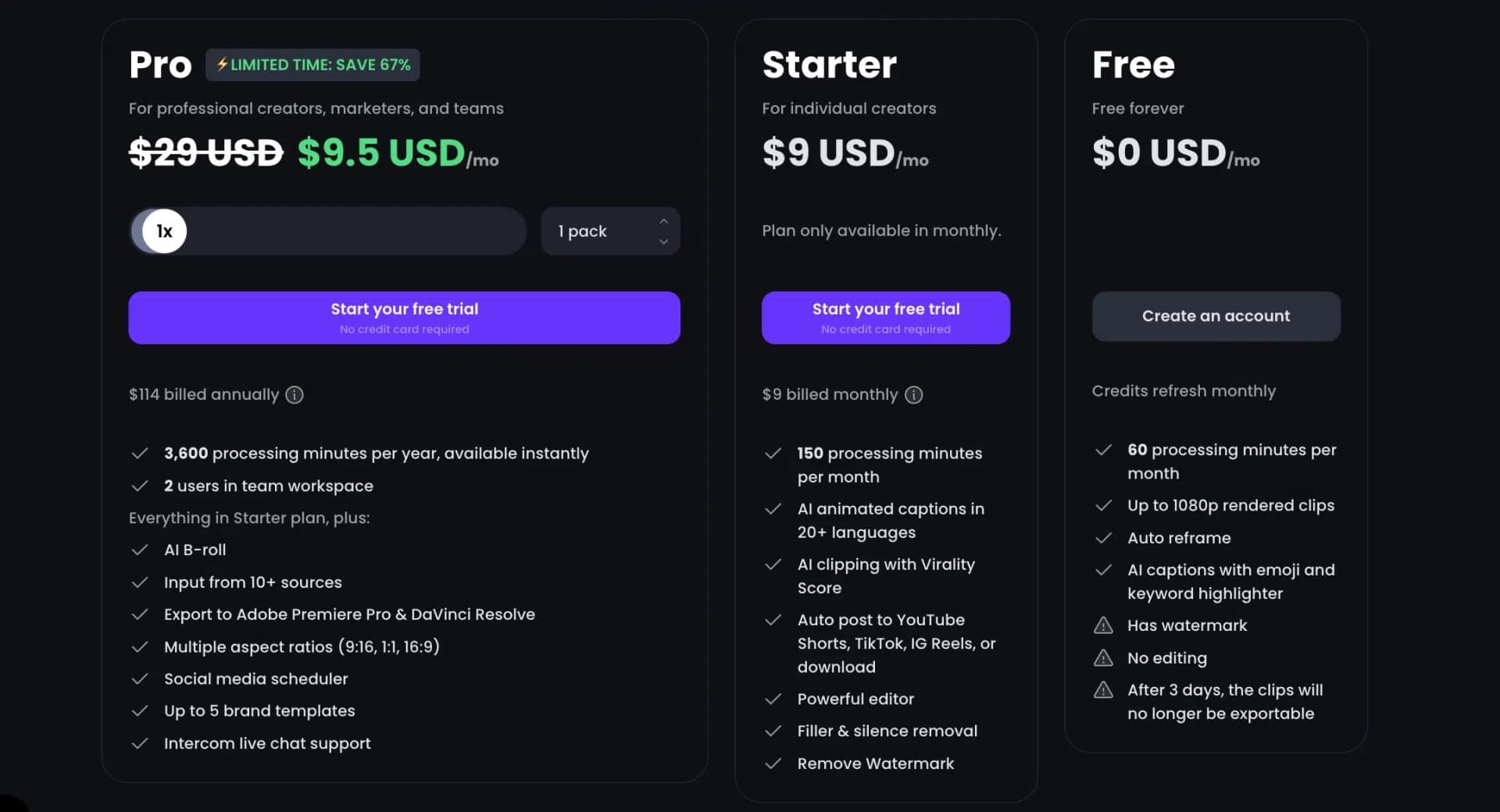
The Free plan is actually free and offers you 60 processing minutes every month. You cannot edit the videos and they will be watermarked. Sufficient for hobbyists; those who want more should upgrade to at least the Starter plan.
The Starter plan is $9/month, offers 150 upload minutes, AI curation, and automatic posting to YouTube, TikTok, and Instagram, as well as the full editor and videos without watermarks.
The Pro plan isn't much more expensive and offers so much more. The only catch is that you commit to OpusClip for a year, meaning instead of $9 monthly for the Starter plan, you pay $9.50 monthly here. But in one sum for a year, so $114 for 3,600 processing minutes (equivalent to 60 hours of video material), 2 accounts for potential team members, and much more is totally reasonable.
2. Upload
To recycle your content with OpusClip for other social media platforms, it's a prerequisite that you've already created content in video form. If you're still lacking ideas or tools for this, check out our AI video generators comparison, where we've presented a comprehensive selection of tools that anyone can use to create high-quality videos.
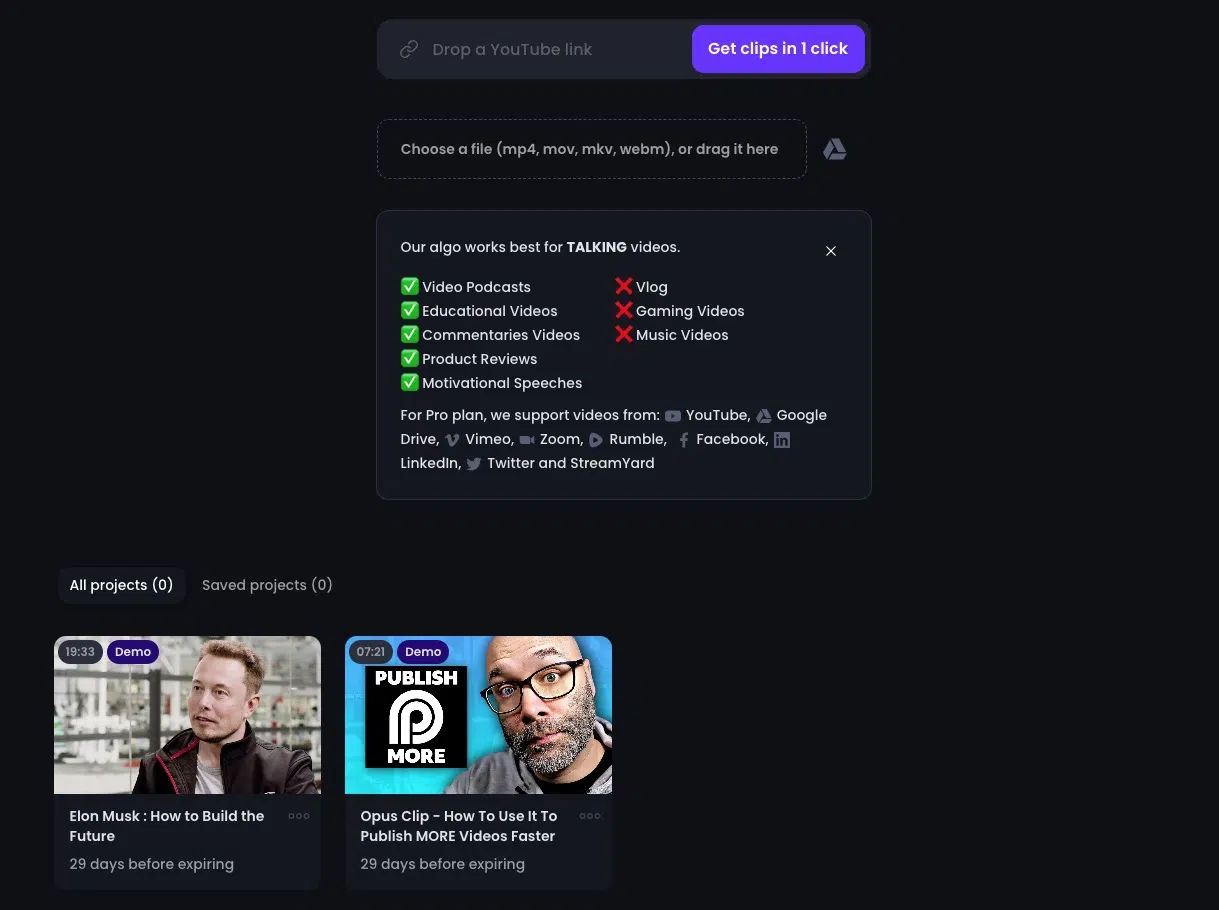
To get started with OpusClip, you can either upload your video file directly in mp4, mov, mkv, or webm format, or link to an already published video on YouTube, Vimeo, Facebook, LinkedIn, Twitter (or X), as well as Google Drive, Zoom, and Rumble. Once you've uploaded the video or entered your link, it's on to the second-to-last step, the settings...
3. Settings & Templates
To use your videos perfectly for their intended purpose, you now have a few choices on how OpusClip should process your video.
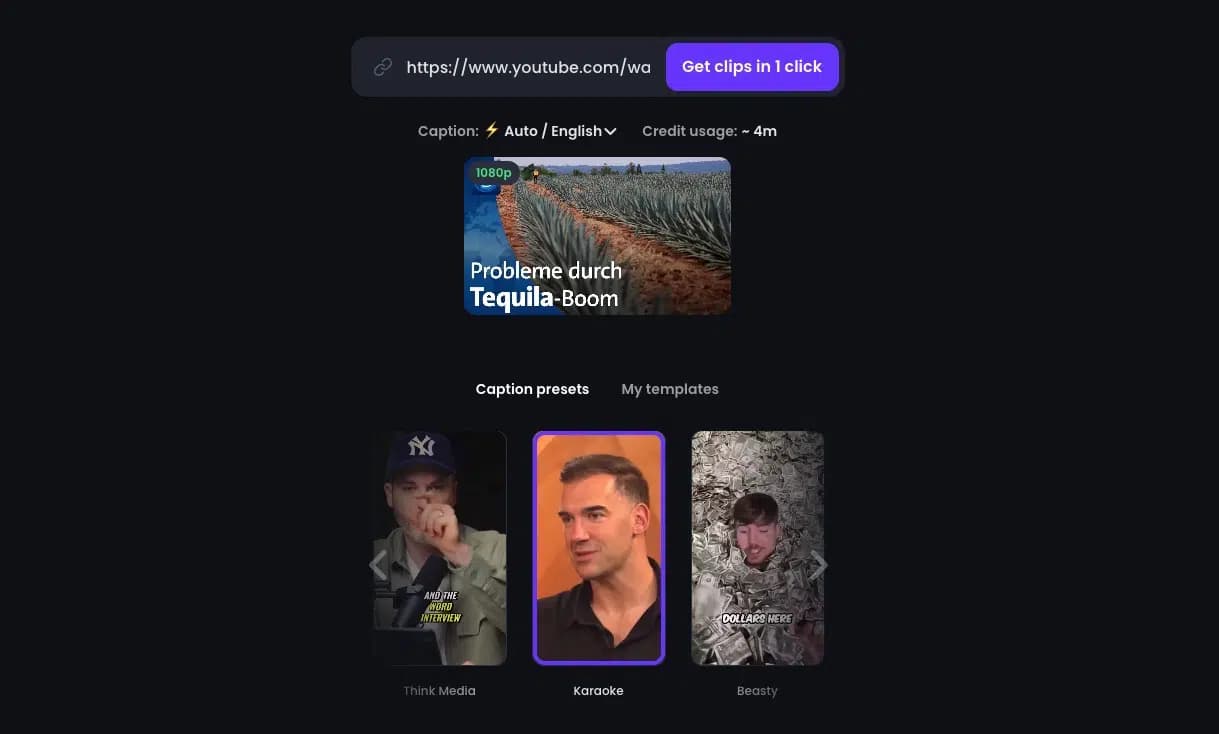
First, you select the language for the captions (subtitles). Your options range from "Auto" (the video language is automatically detected if possible) to German, English, French, and 17 other languages. On request, the video can also be translated into English.
Your next option is the so-called "Caption presets" (or your own templates, but more on that later). Here you can view 9 templates of how other creators have successfully incorporated captions into their short videos, e.g., like MrBeast, Youshaei, or Alex Hormozi, or OpusClip's own templates Simple, Karaoke, or Popline. (My colleague Patrick always uses the "Beasty" style for his Shorts. Hey, after all, MrBeast is the most successful YouTuber of recent years.)
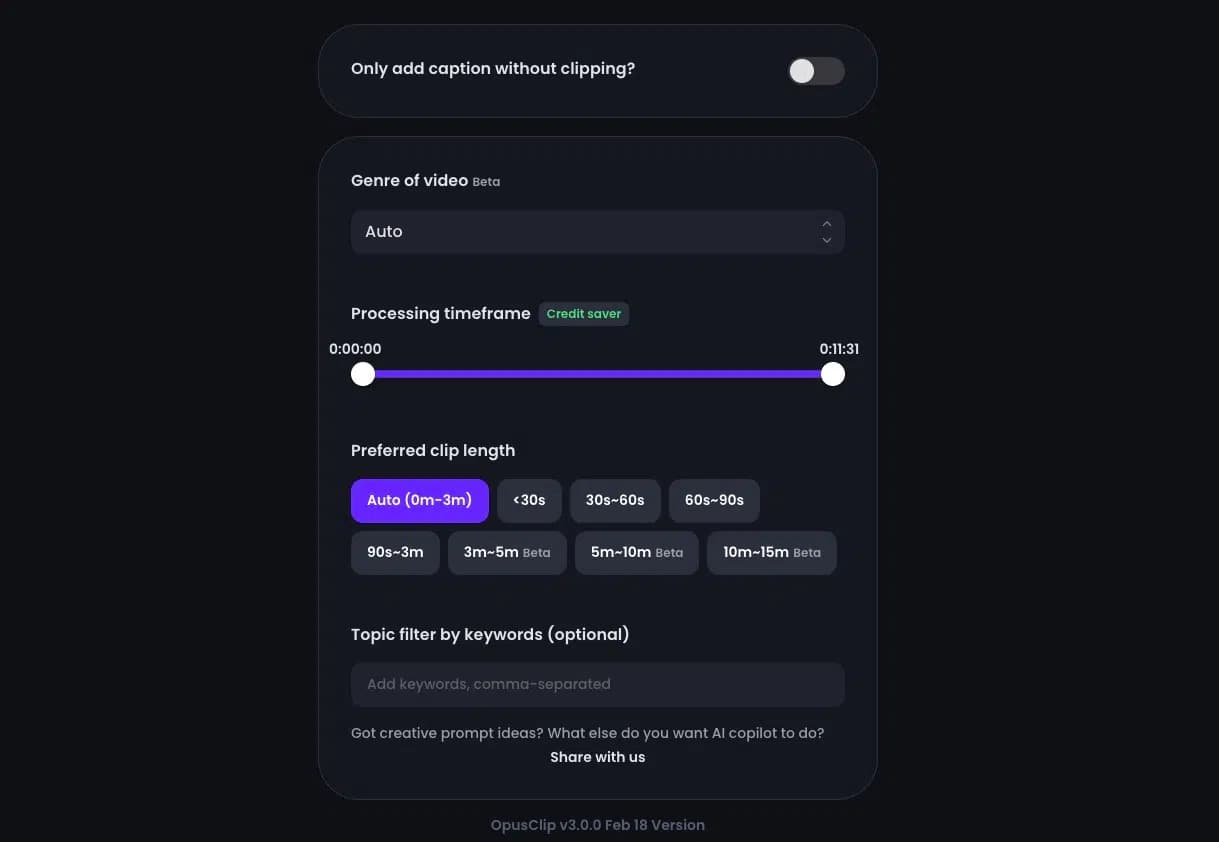
Since OpusClip 3.0 (February 2024), it's also possible to just add captions to your videos without cutting them, meaning if you've already gone through the trouble of setting your cuts manually in another tool, OpusClip simply supports you with captions. Why not?!
In the last section of settings, things really get down to business. Here you can not only save credits but also specify the video genre and, more importantly, specify your preferred video length.
Some of these features, such as "Genre of video," are no longer in beta. OpusClip says about this:
Every video genre has its own versions of 'viral moments', which is why we've revamped our selection strategy and introduced the genre-specific selection model.
With the new selection model, you can specify your video genre (Q&A, Vlog, Listicle videos, Webinars, etc.), and we'll adjust our approach accordingly to achieve better results.
We will continue to improve our existing selection models and expand them to more video genres.
So your video will probably be cut differently if you upload a webinar than if you use a product review as a template, but it's work in progress.
The next two options are, in my eyes, the most important besides the caption templates:
The "Processing Timeframe" and the "Preferred Clip length."
In plain terms, you can limit the video material to save credits here. For example, exclude the greeting in the first minute and the farewell in the last minute to save credits for 2 minutes of video processing.
Additionally, you can define the desired output length. The range goes from short-form content (less than 30 seconds to 3 minutes) to mid-form clips with a length of up to 15 minutes, although for mid-form content some features like AI B-Roll are not yet available. YouTube Shorts and Instagram Reels can be a maximum of 60 seconds long, and according to their own statements, longer videos on TikTok (up to 3 minutes) are currently being shown more frequently.
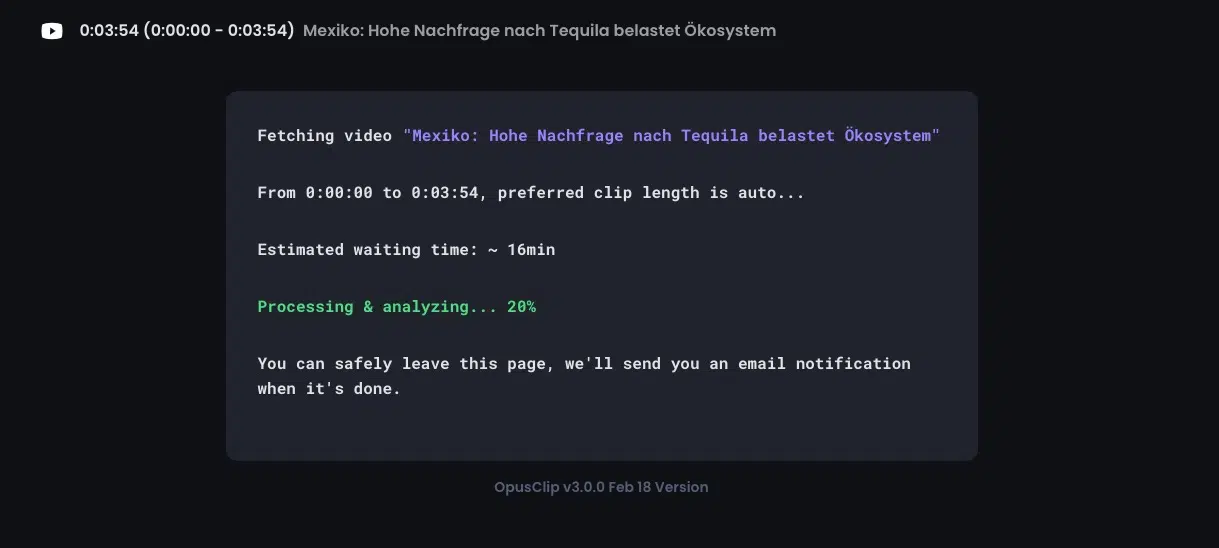
When you're happy with all the settings, click the "Get clips in 1 click" button and proceed as described in our introduction. Treat yourself to a quick ☕️ break or take care of other work.
Opus Clip works in the background and creates magic. And when it's done, the email notification arrives.
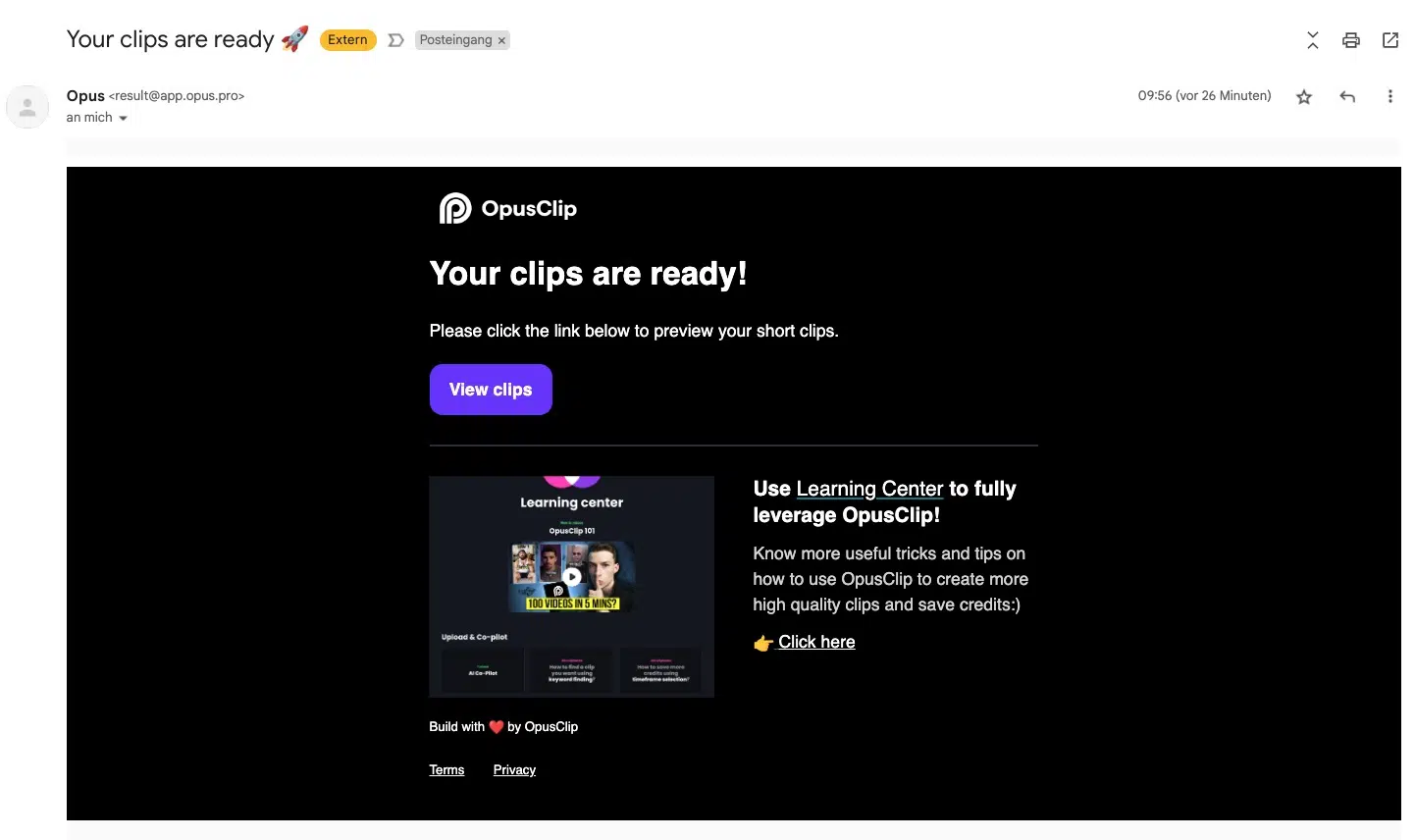
If you're interested in what happens in detail, here's a brief overview of the steps Opus Clip performs:
The Process: A Step-by-Step Overview
- Analysis: Opus Clip watches your video and figures out which parts are likely to grab attention, based on what typically works on social media.
- Curation: It pulls out the most interesting segments and arranges them into standalone short clips.
- Polishing: The clips get animated emojis, keyword highlights in subtitles, and automatic speaker centering. The result looks surprisingly close to hand-edited viral clips.
- Export: You get finished clips ready to post on TikTok, YouTube Shorts, or Instagram Reels. The tool works best with videos longer than 10 minutes that contain spoken words, since the AI needs text content to work with.
4. The Results Menu
After clicking the link in the email, or if you haven't closed the page, you'll arrive at the results list. In our case, a 3:54 minute YouTube video was turned into six short-form videos with lengths between 17 and 54 seconds.
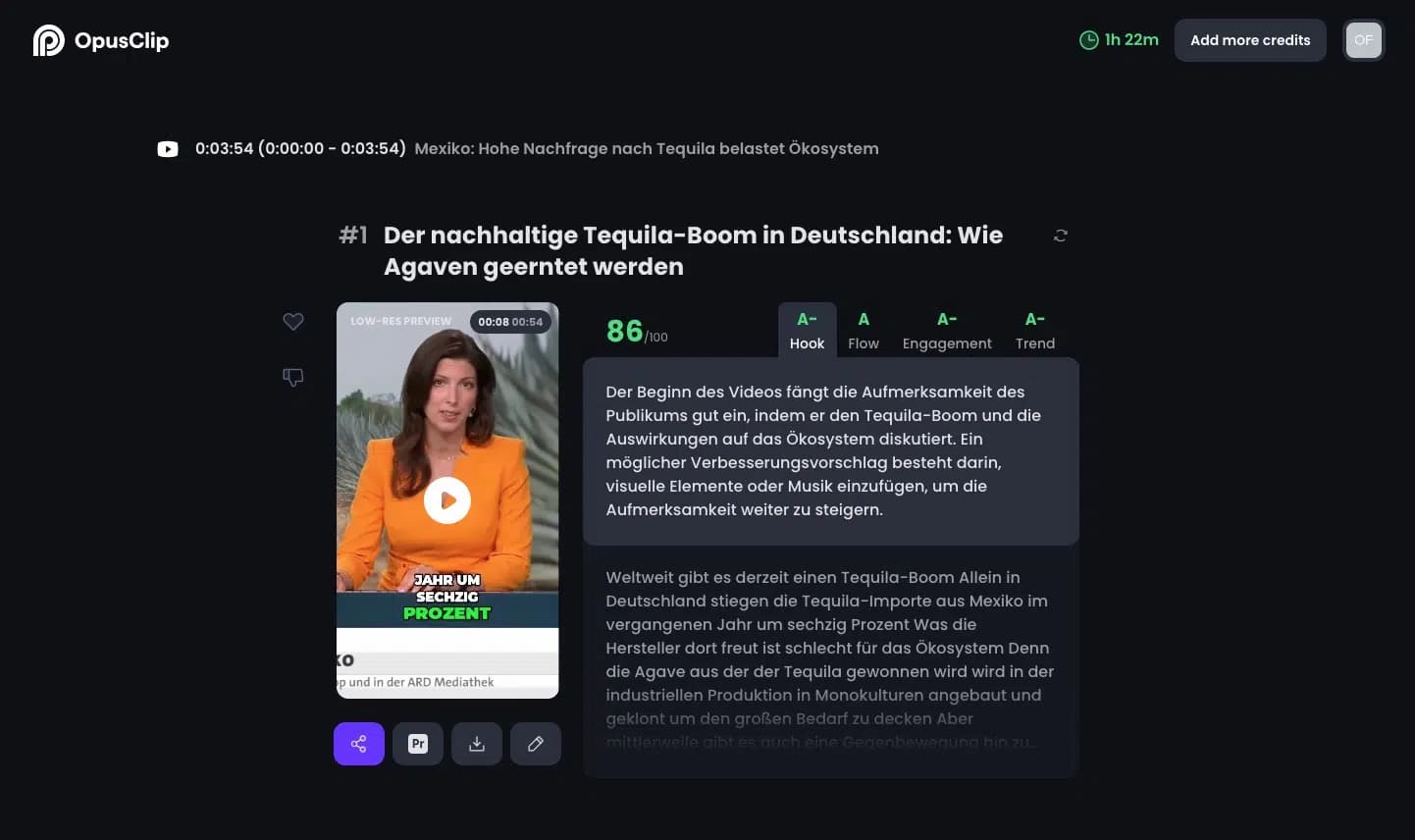
The results list is sorted by virality score, a metric the developers created to estimate how likely a clip is to take off online. The engine is powered by OpenAI's GPT models, which are really good at understanding video content: The titles aren't simple variations of the topic, and sometimes really interesting perspectives and side topics come out that I wouldn't have expected.
This understanding is also reflected in a snappy summary of each video that hits the mark and suggests how it might affect the viewer.
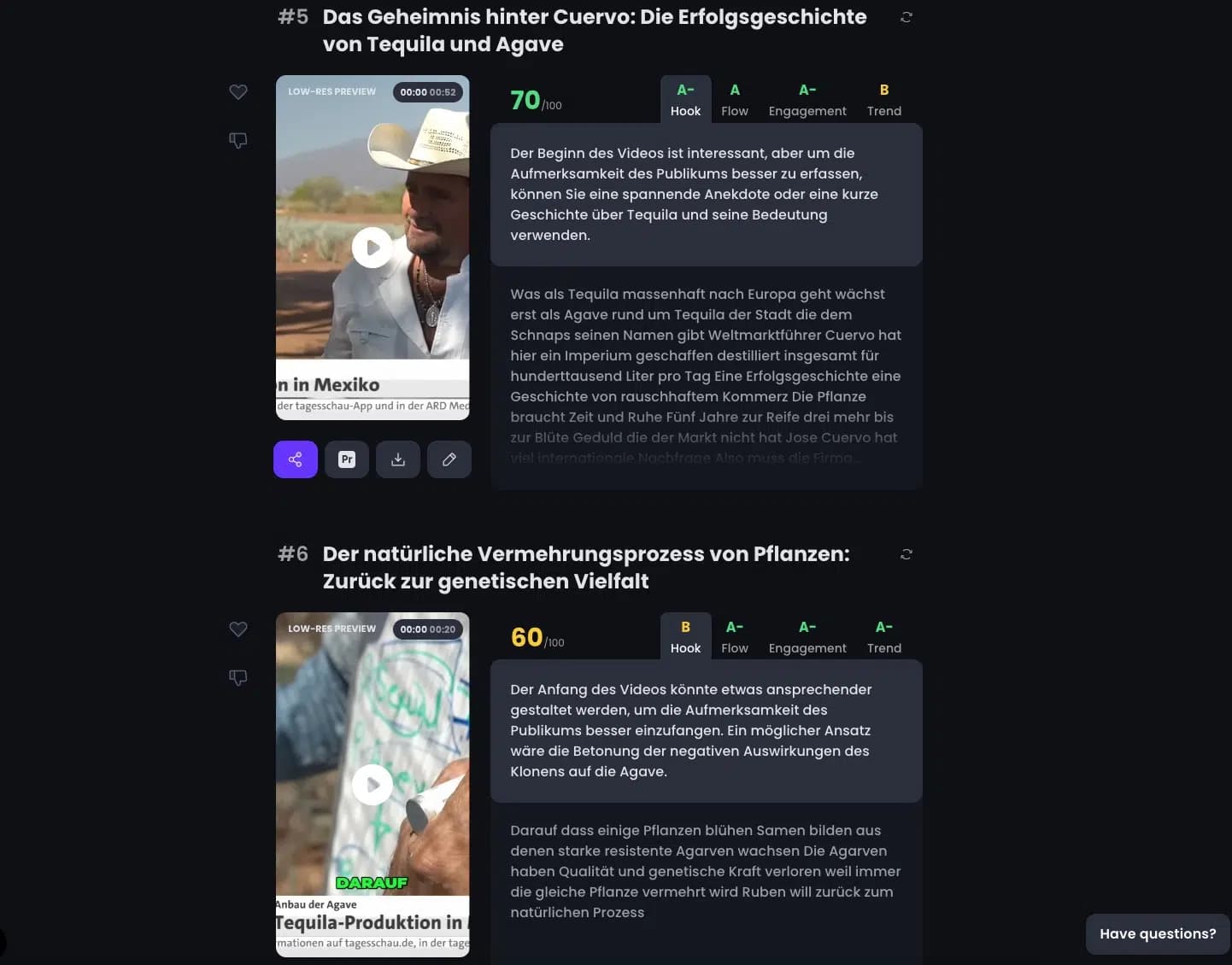
The virality score breaks down into four sub-categories: Hook, Flow, Engagement, and Trend. Of course, it's just an estimate. What actually happens on TikTok, Instagram, or YouTube Shorts depends on plenty of other factors too.
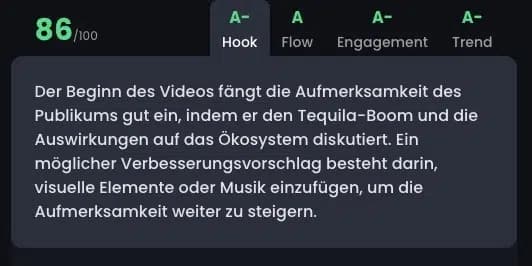
For the first point "Hook," what matters is whether and how the short video captivates the viewer. Whether the opening captures the audience's attention or just kind of drifts along and needs improvement.
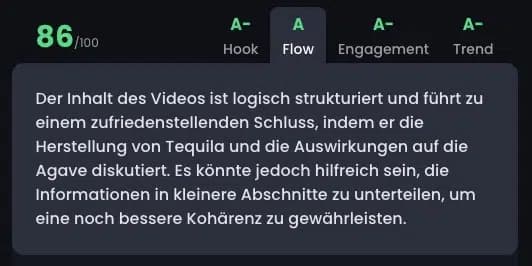
The "Flow" factor is about the structure of the video, whether it's logically organized and contains a satisfying conclusion for viewers. Maybe you also know those Reels that you just watch 3-4 times because the ending fits the beginning so well and vice versa.
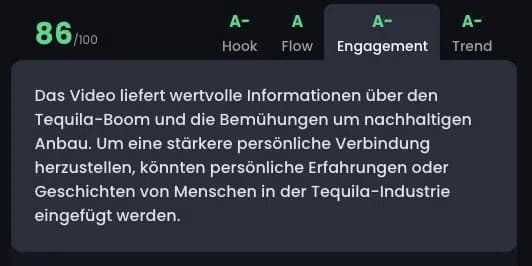
"Engagement" evaluates whether viewers are directly addressed and whether there's a call-to-action that motivates viewers to interact with the video through comments, likes, or shares. Because ultimately, each social media platform wants exactly that: engagement with your content so users stay on their site or app as long as possible.
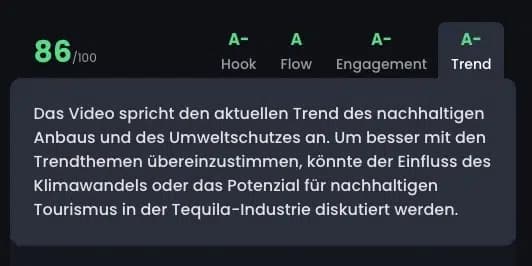
Finally, OpusClip evaluates the timeliness of the video in the "Trend" section. It's naturally easier to go viral when you're talking about the latest news or your topic is currently trending.
However, evergreen content that isn't currently trending but is relevant to your target audience shouldn't be completely ignored, so this metric should be taken with a grain of salt.
5. The Editor
You can play all clips on the results page to see how they work. Not satisfied? One click is all it takes to trim the selection in the editor or adjust the subtitle settings:
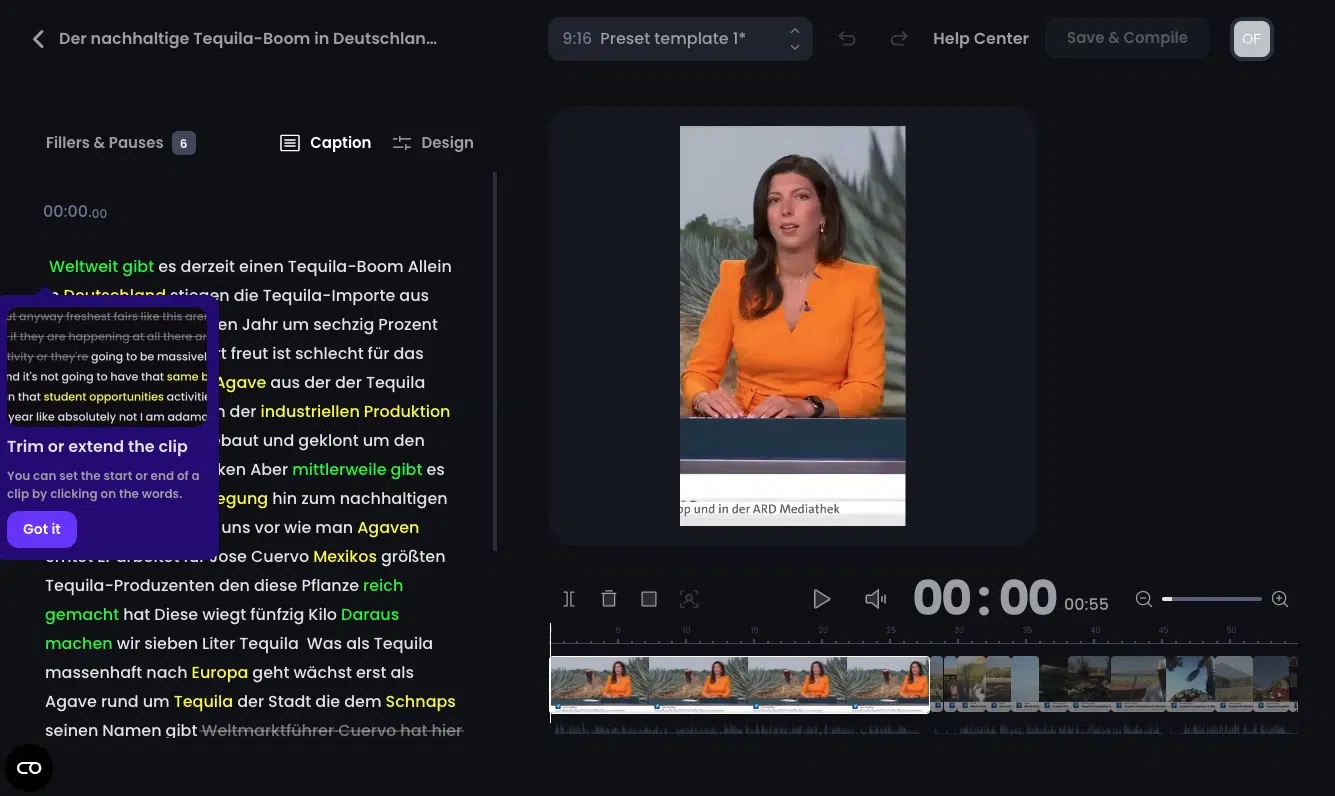
You can directly shorten or extend the clip selection using the text on the left side, depending on where the beginning and end seem most sensible to you.
Colors and emojis in the text are also displayed as subtitles, meaning you can really get creative here and edit the selected short video however you like. Here applies: "What You See Is What You Get!"
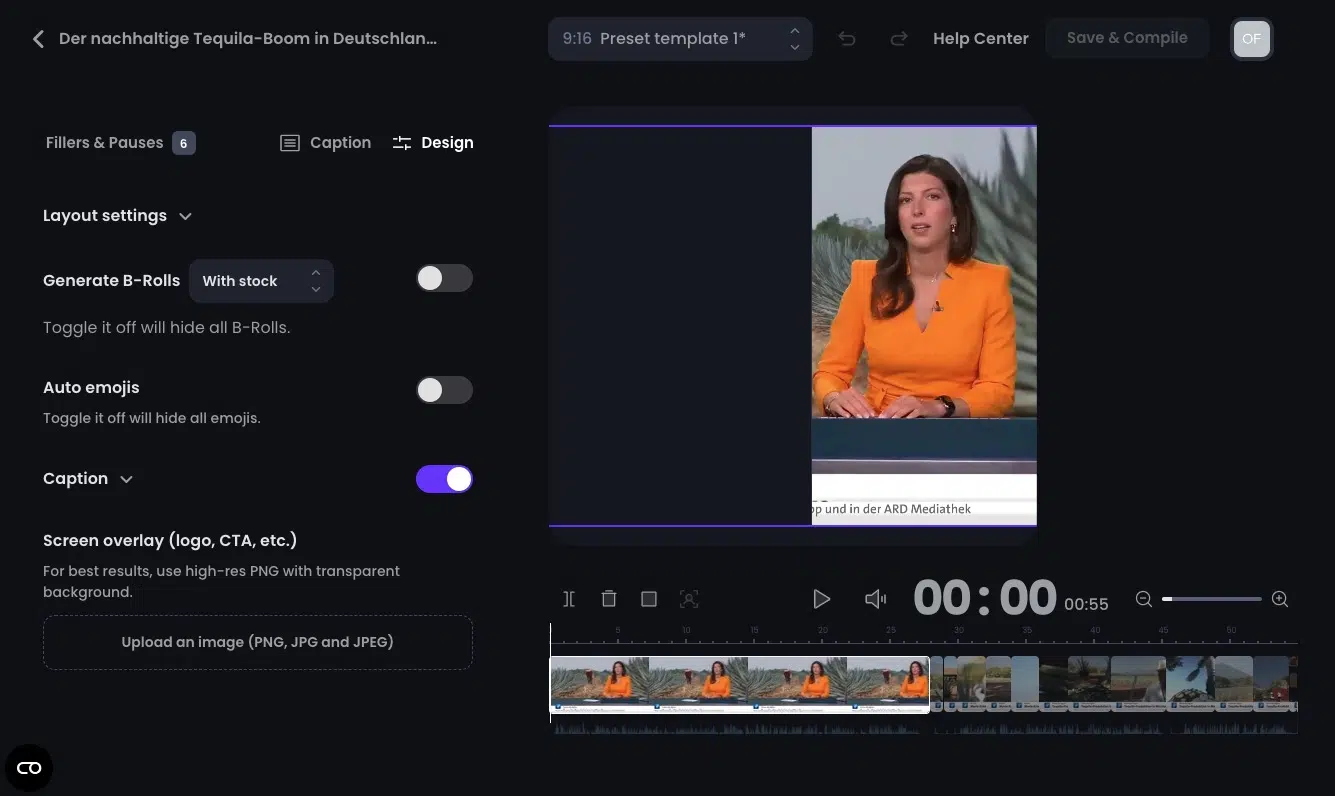
In the "Design" menu item, you can turn B-Roll, emojis, and captions in your videos on or off, as well as set a watermark for your created videos.
Using the advanced "Layout settings," you can also change very basic settings for your short video, such as the aspect ratio or layout. You can easily adjust the selected section of the original video visible in the short video (here the news presenter in orange) using your mouse.
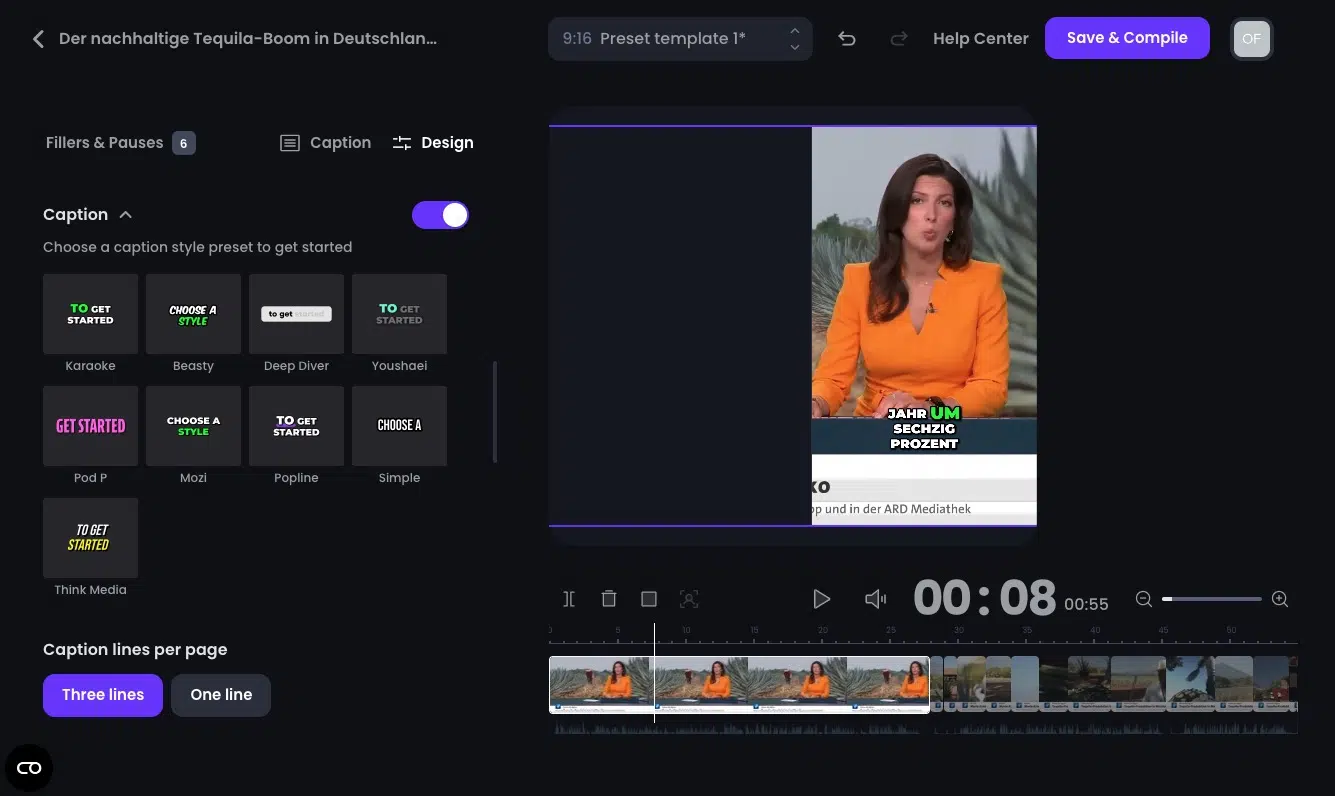
If you're no longer satisfied with the captions you selected before processing your video, there's another chance to choose between different templates and decide on a different style.
Theoretically, you can even adjust colors, fonts, transitions, and capitalization at this point, but you shouldn't get too caught up here.
Perfection has rarely gotten anyone to their goal, and the font color or type is probably not what determines whether the video goes viral or not.
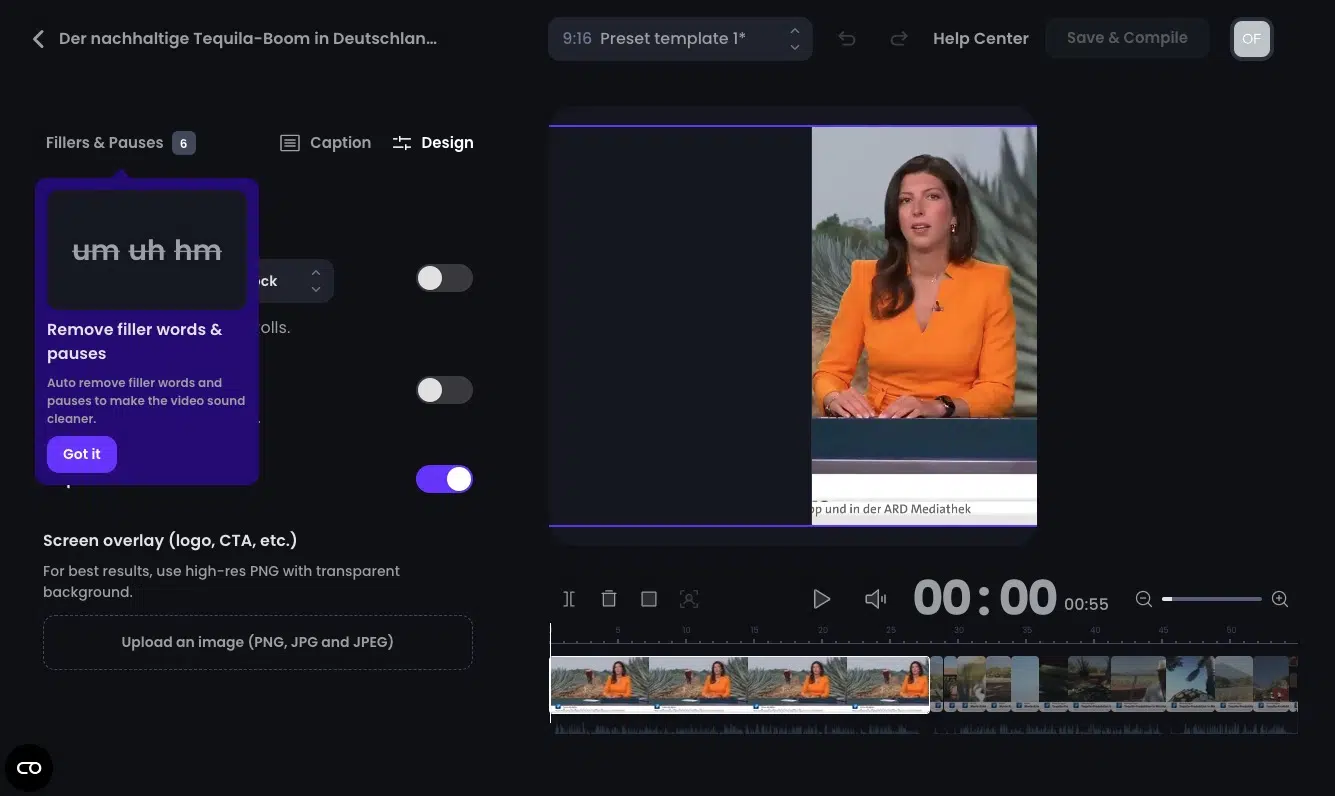
Finally, through the "Fillers & Pauses" selection, you can automatically have annoying filler words like "um," "uh," or long pauses deleted.
All changes in the editor are processed and implemented once you click "Save & Compile," and then you'll be redirected back to the results page.
6. Publishing & Download
Happy with your short video? Then you can simply click the purple Publish button and upload the video directly from Opus Clip to YouTube, TikTok, Instagram, LinkedIn, or Facebook (login to the respective site required) and hopefully go viral.
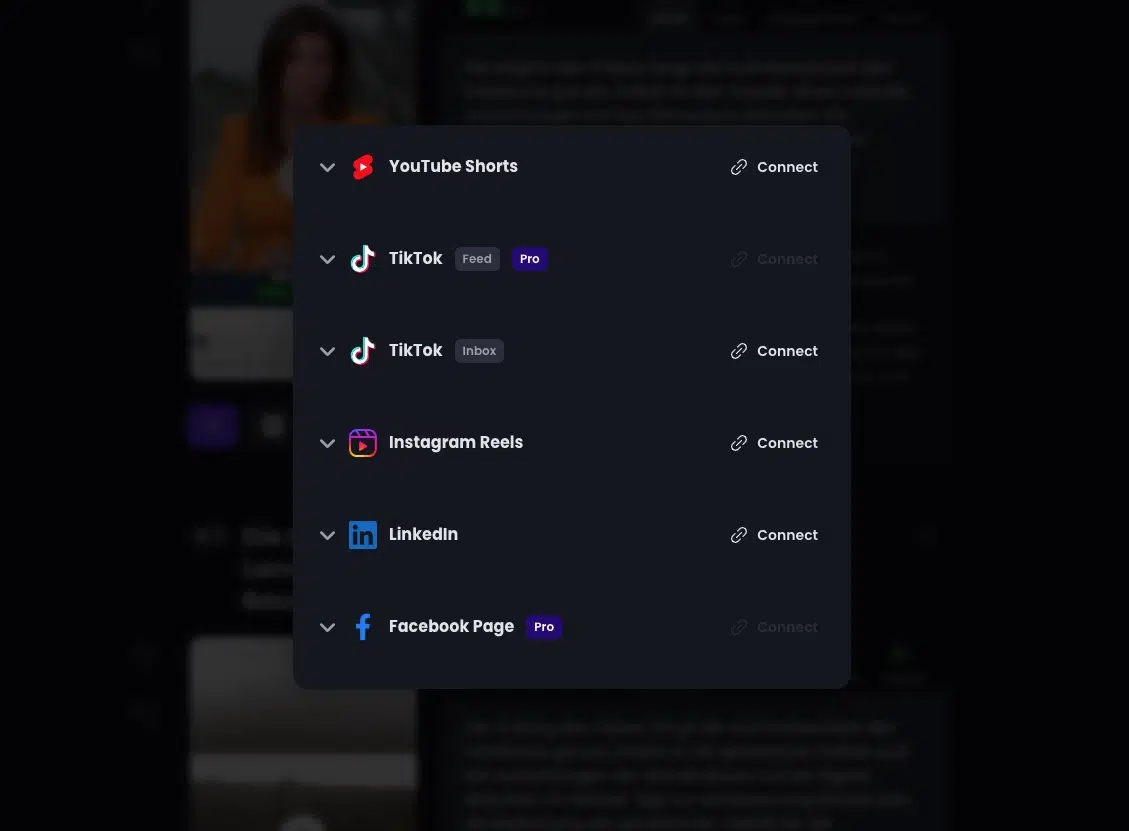
Alternatively, download your video locally and continue editing it or publish it elsewhere.
7. Alternatives to OpusClip
Of course, you don't necessarily have to use Opus Clip to create viral short videos from longer videos that easily expand your reach and ideally even make you money.
It's simply the tool that has specialized extremely strongly in this one use case and therefore offers exactly that.
If you're working with other tools like Adobe Premiere Pro anyway, or already have good videos in short-content format and just need B-Roll or "fancy" subtitles, then other tools like Vidyo.ai, submagic, or simplified might be perfectly sufficient or more suitable for you. You can find a detailed overview of these tools and other alternatives to OpusClip in this blog article.