As an online entrepreneur or blogger, you're facing a new challenge:
Web crawlers from OpenAI, Anthropic, or Google are searching the web and collecting training data for LLMs and other AI models.
Your valuable blog posts that you created with great effort could be used without your knowledge or consent to generate AI-generated texts in ChatGPT & Co.
This can not only violate your copyrights but also jeopardize your competitive position. Somewhat unsettling, isn't it?
Perhaps you're already asking yourself: How can I protect my work? How do I prevent my content from being used for AI training without my consent?
No problem!
In this article, I'll show you simply and step by step how to configure your robots.txt to protect your content.
- Create or edit your robots.txt to block specific AI crawlers like GPTBot, ClaudeBot, and Google-Extended
- Use selective blocking to protect only certain areas while keeping others accessible
- Test your configuration with Google Search Console and combine robots.txt with additional protection measures for maximum security
1. Preparation
Before we get started protecting your website from curious AI crawlers, you need to make a few preparations. Don't worry, it's easier than you might think!
Access to the web server
First, you need access to your web server. This sounds technical but is often just a login to your hosting account.
If you're using WordPress, you can access your files directly via FTP or the File Manager Plugin.
Backup of existing robots.txt
Safety first! If you already have a robots.txt file, make sure to create a copy. This way you can always revert to the old version in case of emergency:
- Find the robots.txt file in your website's root directory
- Download it to your computer or copy the content into a text document
- Store this backup in a safe place
2. Creating/Editing robots.txt
You don't need to be a programming genius to create or edit your robots.txt file.
Only a few steps are required:
2.1 Opening or Creating the File
First, you need to check if a robots.txt already exists on your website. There's a simple trick for this:
- Open your browser
- Enter your domain followed by "/robots.txt" (e.g., www.yourwebsite.com/robots.txt)
- Do you see text? Great, the file already exists. If not, we'll create a new one.
If you need to create a new file:
- Open a simple text editor (Notepad, TextEdit, etc.)
- Create a new, empty document
- Save it as "robots.txt" (Note: don't add a file extension like .txt!)
2.2 Setting Up the Basic Structure
The robots.txt follows a specific syntax (structure). Here are the basics:
User-agent: [Name of the crawler]
Disallow: [Path to be blocked]
For starters, you could write something like this:
User-agent: *
Disallow:
This means: All crawlers (*) may crawl everything (empty "Disallow"). This is our starting point from which we'll further customize the file.
3. Blocking Specific AI Crawlers
To block common AI crawlers, you need to add the following blocks to your robots.txt:
OpenAI (ChatGPT)
OpenAI has a total of three different crawlers that serve different functions. To prevent content theft as effectively as possible, you should exclude all of them:
User-agent: OAI-SearchBot
Disallow: /

User-agent: ChatGPT-User
Disallow: /

User-agent: GPTBot
Disallow: /
Anthropic (Claude)
User-agent: ClaudeBot
Disallow: /

User-agent: anthropic-ai
Disallow: /
Google (Bard/Gemini)
User-agent: Google-Extended
Disallow: /
Common Crawl
User-agent: CCBot
Disallow: /
Perplexity
User-agent: PerplexityBot
Disallow: /
Meta AI / Facebook
User-agent: FacebookBot
Disallow: /

User-agent: Meta-ExternalAgent
Disallow: /

User-agent: Meta-ExternalFetcher
Disallow: /
Webz.io
User-agent: OmgiliBot
Disallow: /
Cohere
User-agent: cohere-ai
Disallow: /5. Selective Blocking
Sometimes you don't want to completely lock out AI crawlers, but only protect certain areas of your website.
No problem!
Blocking specific directories/pages for AI crawlers
If you have an area with exclusive content, you can exclude this from crawlers with the following code:
User-agent: GPTBot
Disallow: /exclusive/

User-agent: anthropic-ai
Disallow: /premium-content/
In this example, you're blocking GPTBot from your "/exclusive/" directory and Anthropic's crawler from "/premium-content/".
Defining exceptions
Sometimes you might want to block most of your site but make certain areas accessible to AI crawlers. Here's an example:
User-agent: GPTBot
Disallow: /
Allow: /blog/

User-agent: anthropic-ai
Disallow: /
Allow: /public/
In this case, you first block everything with Disallow: /, then allow specific areas with Allow.
So GPTBot is allowed to crawl your blog, while Anthropic's crawler can only access the public area.
6. Verification and Testing
Everything set up? Great!
But before you sit back, you should make sure your robots.txt is actually doing what it's supposed to.
Google provides you with a great tool for this: The robots.txt Tester in Google Search Console.
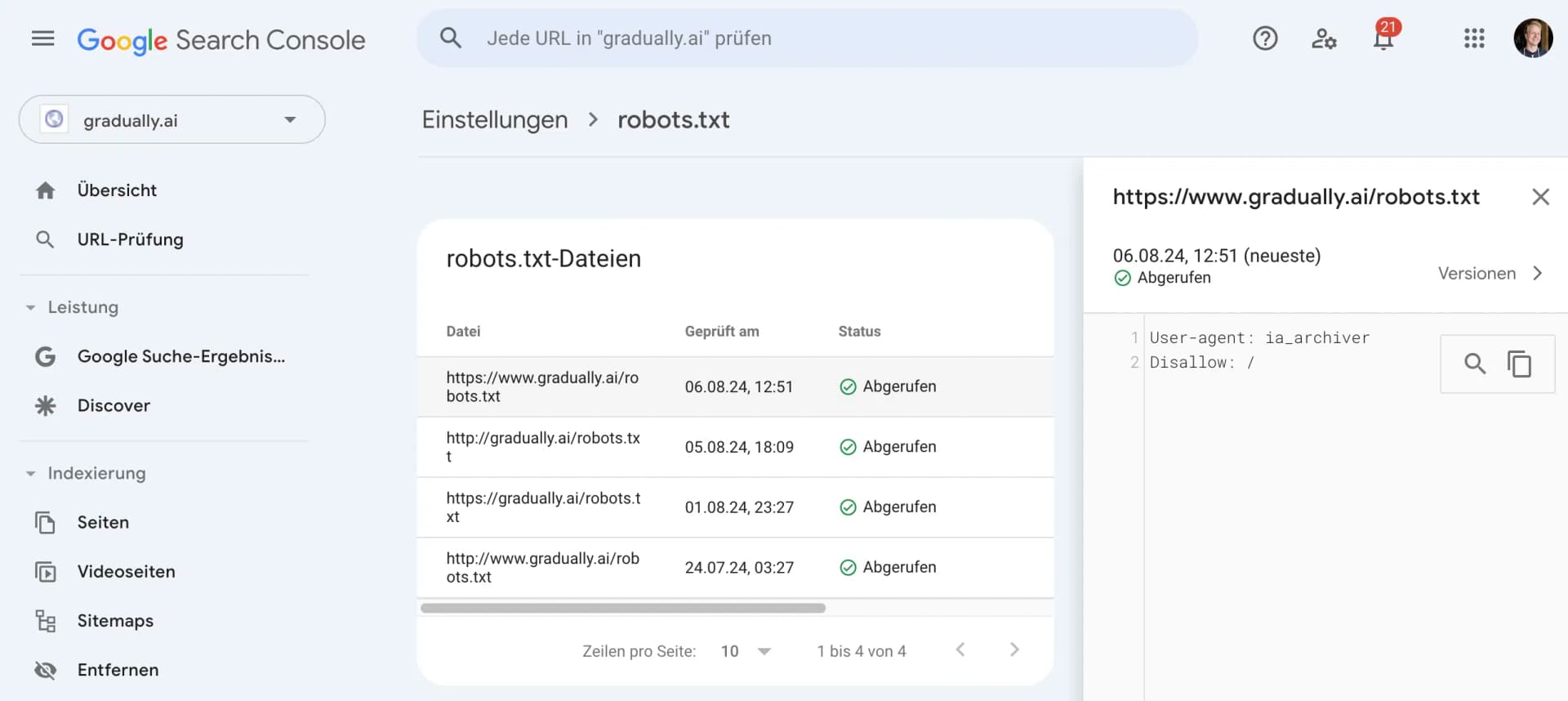
Here you can see if your robots.txt can be properly fetched by Google and if it contains any errors.