Your Midjourney prompts produce decent images, but they never look quite like what you had in mind?
Parameters are probably the missing piece. Unlike the words in your prompt (which Midjourney interprets loosely), parameters are commands it follows exactly. Aspect ratio, level of chaos, stylization, speed. You set it, Midjourney delivers it.
I've put together this reference with all important parameters and over 20 example images so you can see exactly what each one does.
- Midjourney parameters are marked with two hyphens (--) and precisely determine specific aspects of the generated images
- The most important parameters are --ar (aspect ratio), --chaos (variation), --stylize (aesthetics), and --quality (render time)
- Parameters provide precise control without room for interpretation - Midjourney is guaranteed to follow the specified values
--.Overview of All Midjourney Parameters
| Parameter | Description | Usage | Default |
|---|---|---|---|
| aspect ratio | Aspect ratio of the image | --ar | 1:1 |
| chaos | Determines how different the 4 generated images will be | --c <0-100> or --chaos <0-100> | 0 |
| fast | Fast mode | --fast | - |
| image weight | Weight of image vs. text | --iw <0-2> | 1 |
| no | Exclude elements | --no | - |
| quality | Rendering quality | --quality <.25, .5, or 1> or --q <.25, .5, or 1> | 1 |
| relax | Slow mode | --relax | - |
| repeat | Repeats the job as many times as specified | --repeat <1-40> or --r <1-40> | 1 |
| seed | Root that influences the random component in the image | --seed <integer between 0-4294967295> | random |
| stop | Ends a job before completion | --stop <integer between 10-100> | 100 |
| style | Use specific models or styles | --style <raw> for Midjourney 5.1 and 5.2 | - |
| stylize | Determines the aesthetics of an image | --stylize <0-1000> or --s <0-1000> | 100 |
| tile | Creates images that form a repeating pattern | --tile | - |
| turbo | Turbo mode | --turbo | - |
| weird | Determines how strange an image becomes | --weird <number 0-3000> | 0 |
1. Aspect Ratio --ar
The aspect ratio determines the image dimensions. By default, Midjourney outputs images in 1:1 format, but any conceivable format can be set using the --ar parameter.
The most common image formats are:
- 1:1
- 2:3
- 3:2
- 4:3
- 16:9
What you should always keep in mind when choosing a format is that the format also determines the image crop: In portrait format, more of a person's body is usually visible, while landscape format images focus on the head.
If you want to have a complete person in an image despite using landscape format, you need to include this in the prompt.
--ar 1:1
The default format in Midjourney is 1:1, so if you want a square image, you don't need to set this parameter.
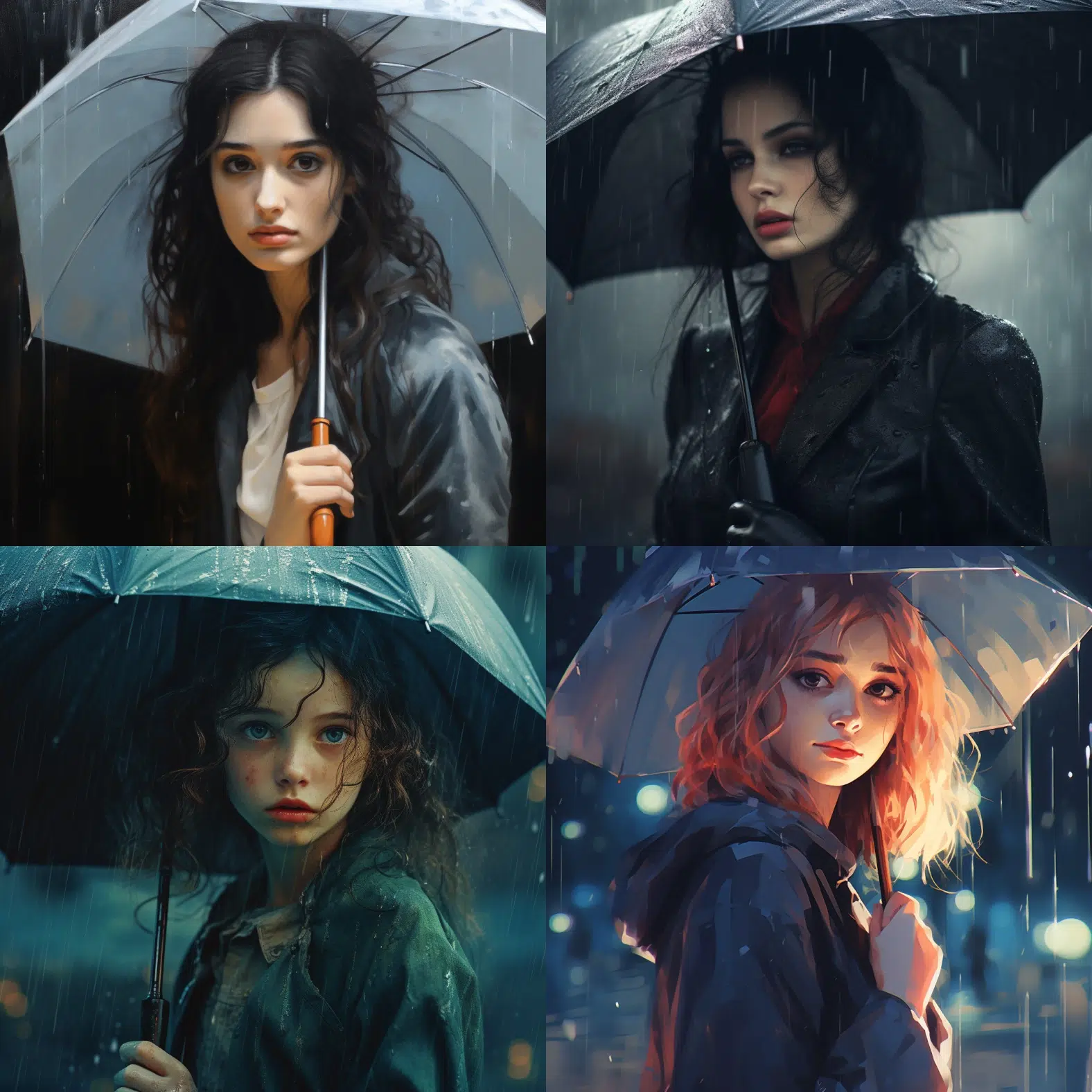
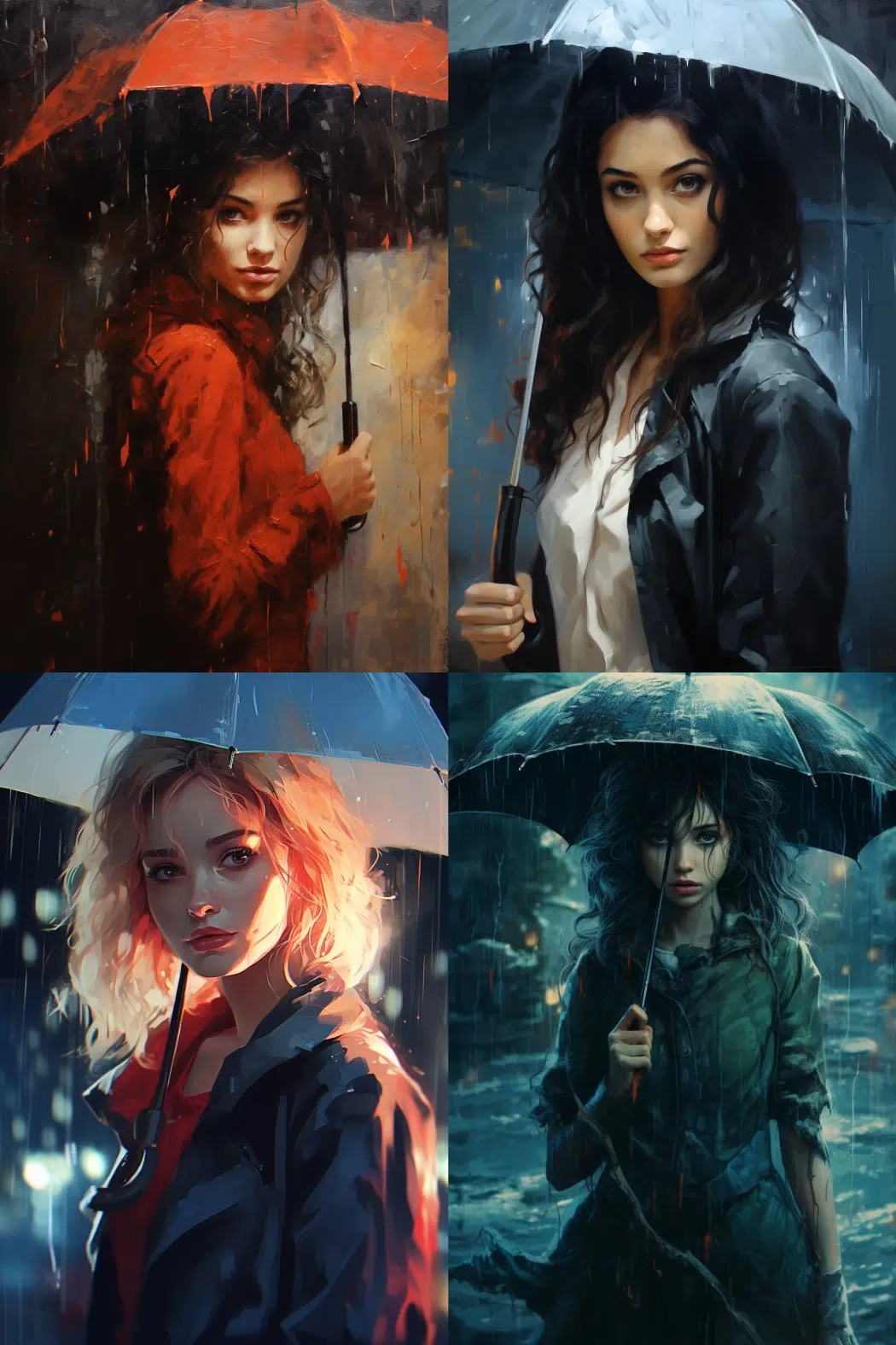
--ar 2:3
The 2:3 format is a classic format for portrait shots.
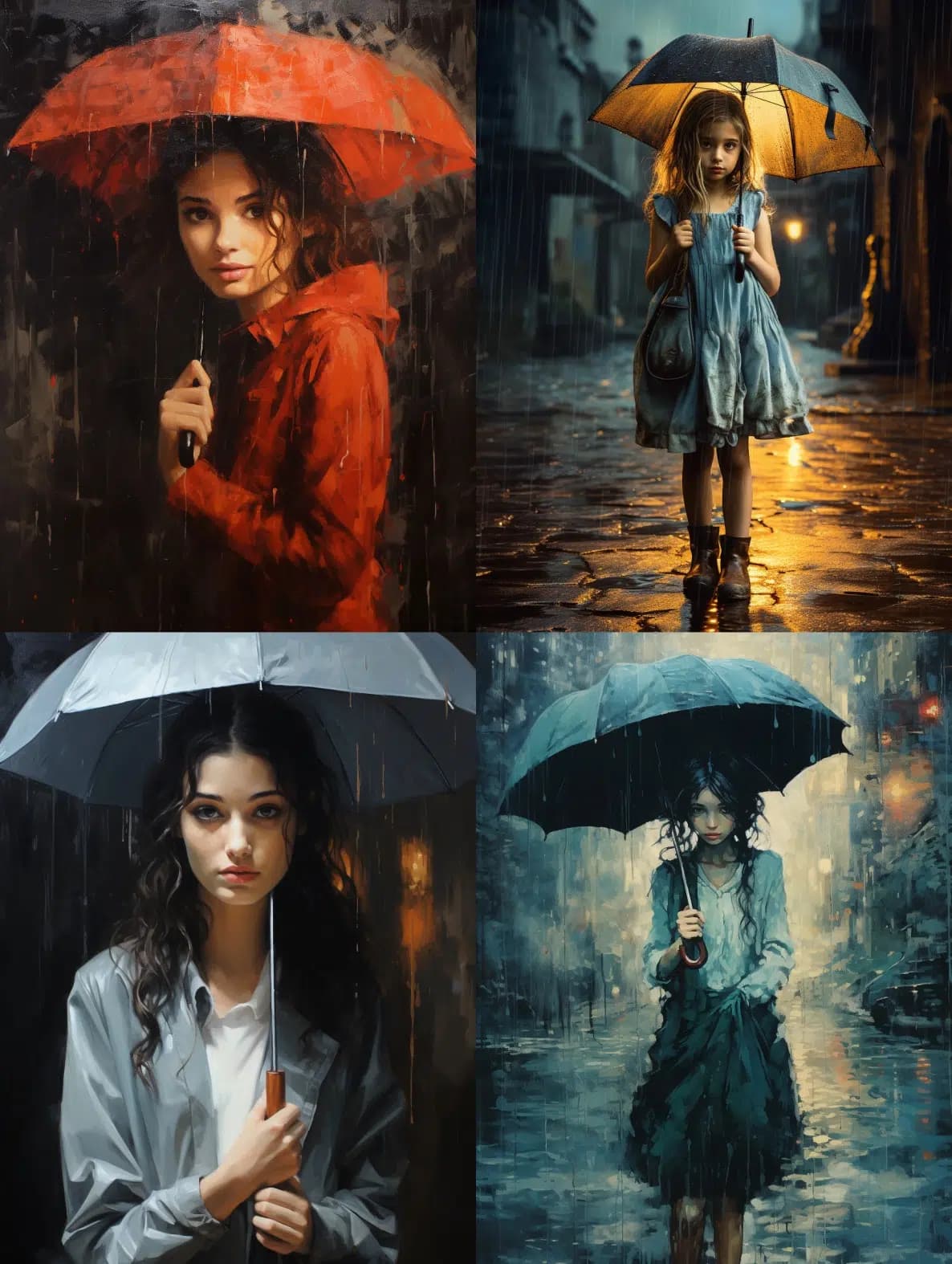
--ar 3:4
The 3:4 format is commonly used by smartphones.
2. Chaos --chaos
The chaos parameter is interesting when you don't know exactly which direction an image should go or when you're simply looking for inspiration.
The default value for chaos is zero, with a range between 0 and 100.
The higher the value, the more the four generated images differ in terms of image composition. Additionally, the relevance to the prompt decreases as the value increases.
If you want to use the chaos parameter but want images that closely follow the prompt, you should choose values below 50.
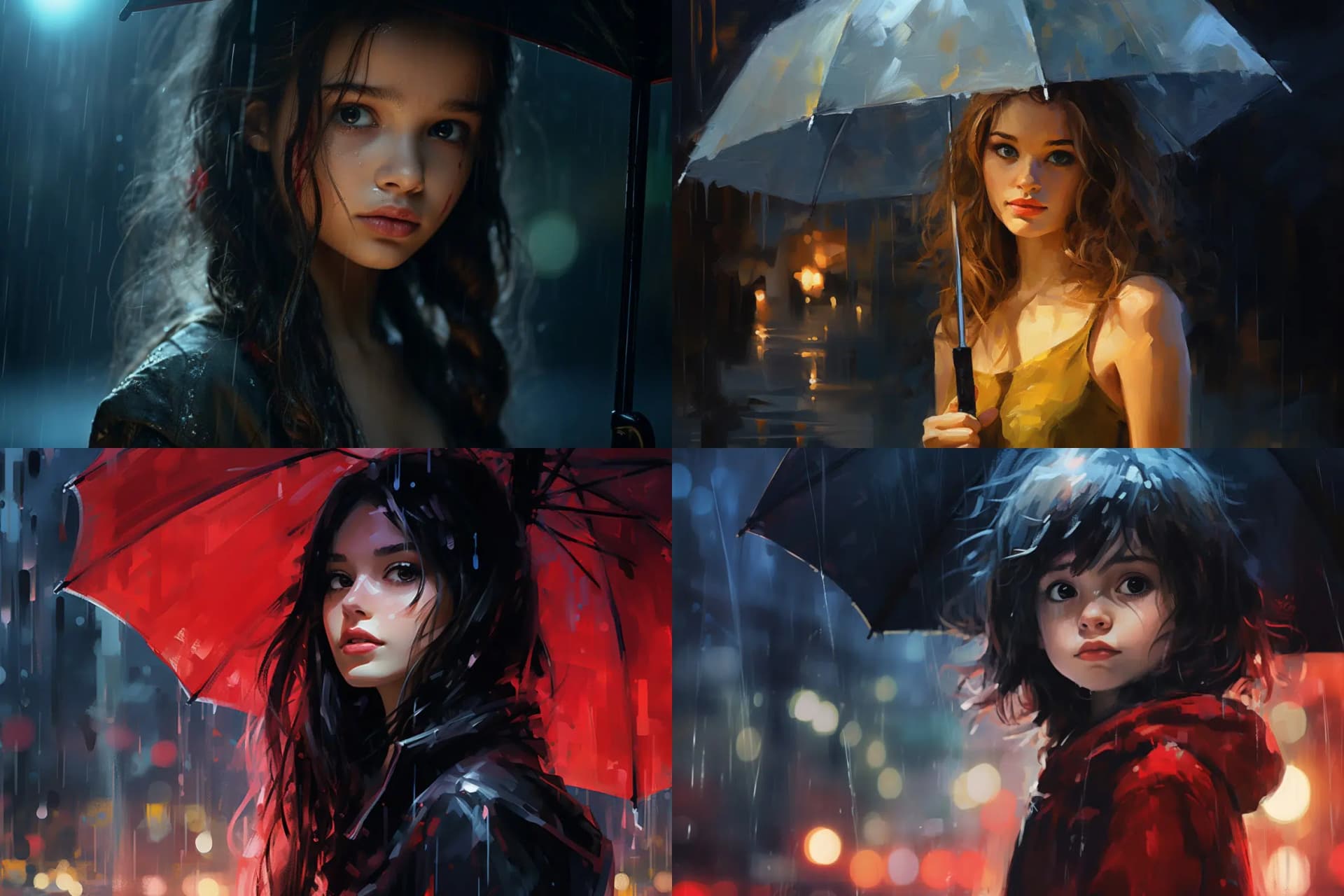
--chaos 0
At chaos 0, the four generated images are very similar in their composition and Midjourney follows the prompt as closely as possible.
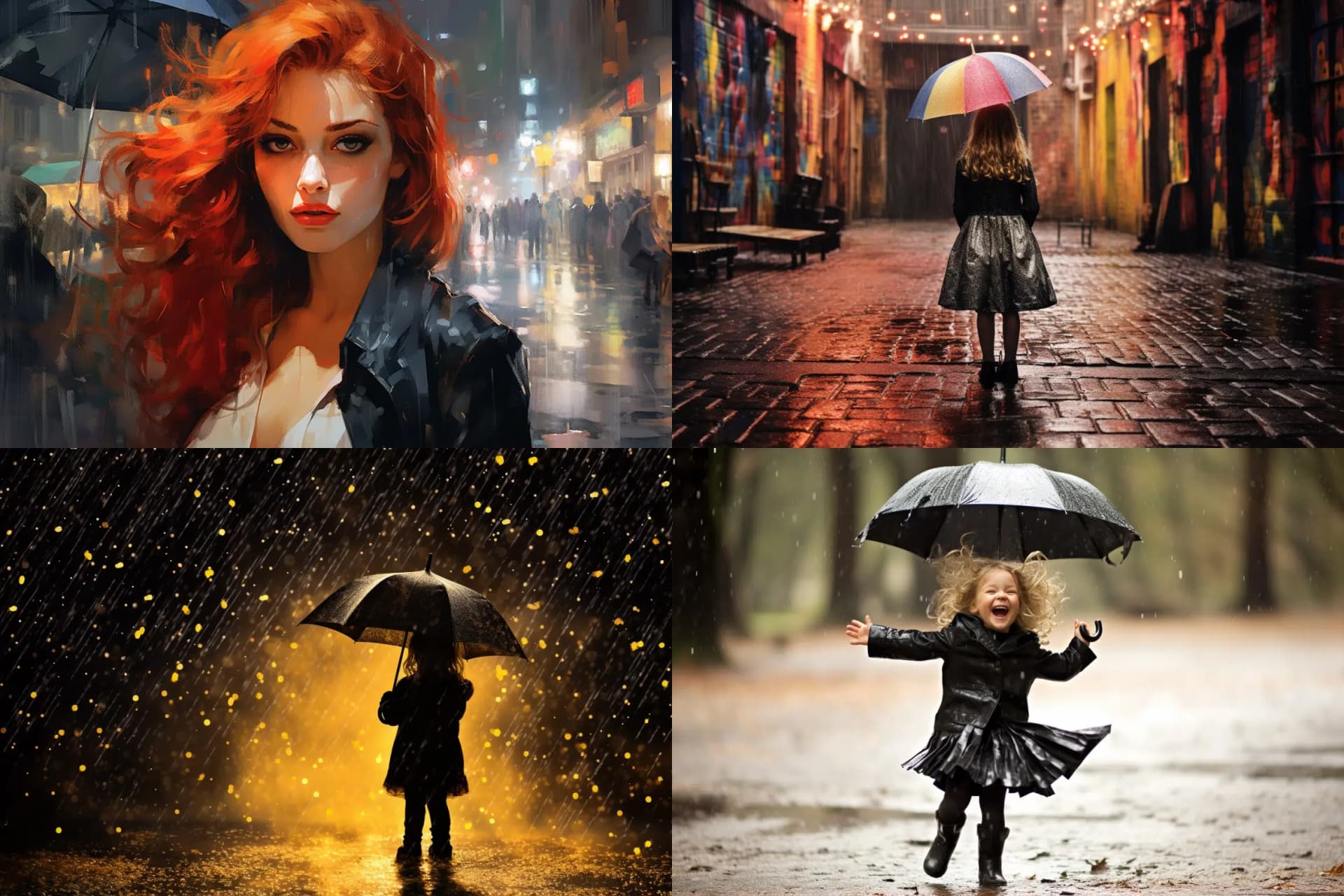
--chaos 25
At chaos 25, there's already a bit more variation in the four images, but all results are still very close to the prompt.
--chaos 50
At chaos 50, the images already differ more significantly and Midjourney no longer adheres as closely to the entered prompt in favor of artistic freedom.
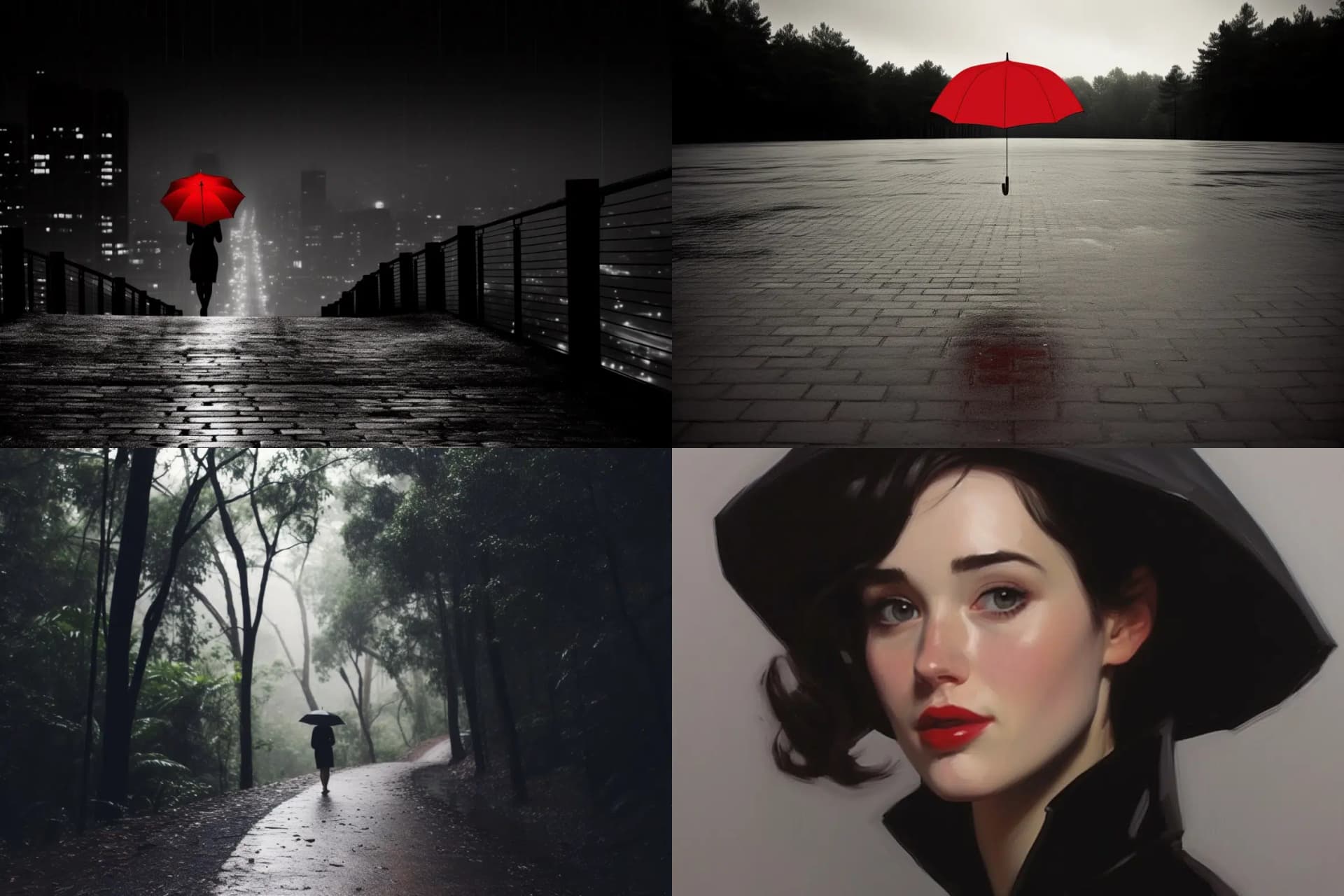
--chaos 75
At chaos 75, you can no longer deduce the prompt from the four images: that's how different they are. Midjourney also ignores larger parts of the prompt at this point.
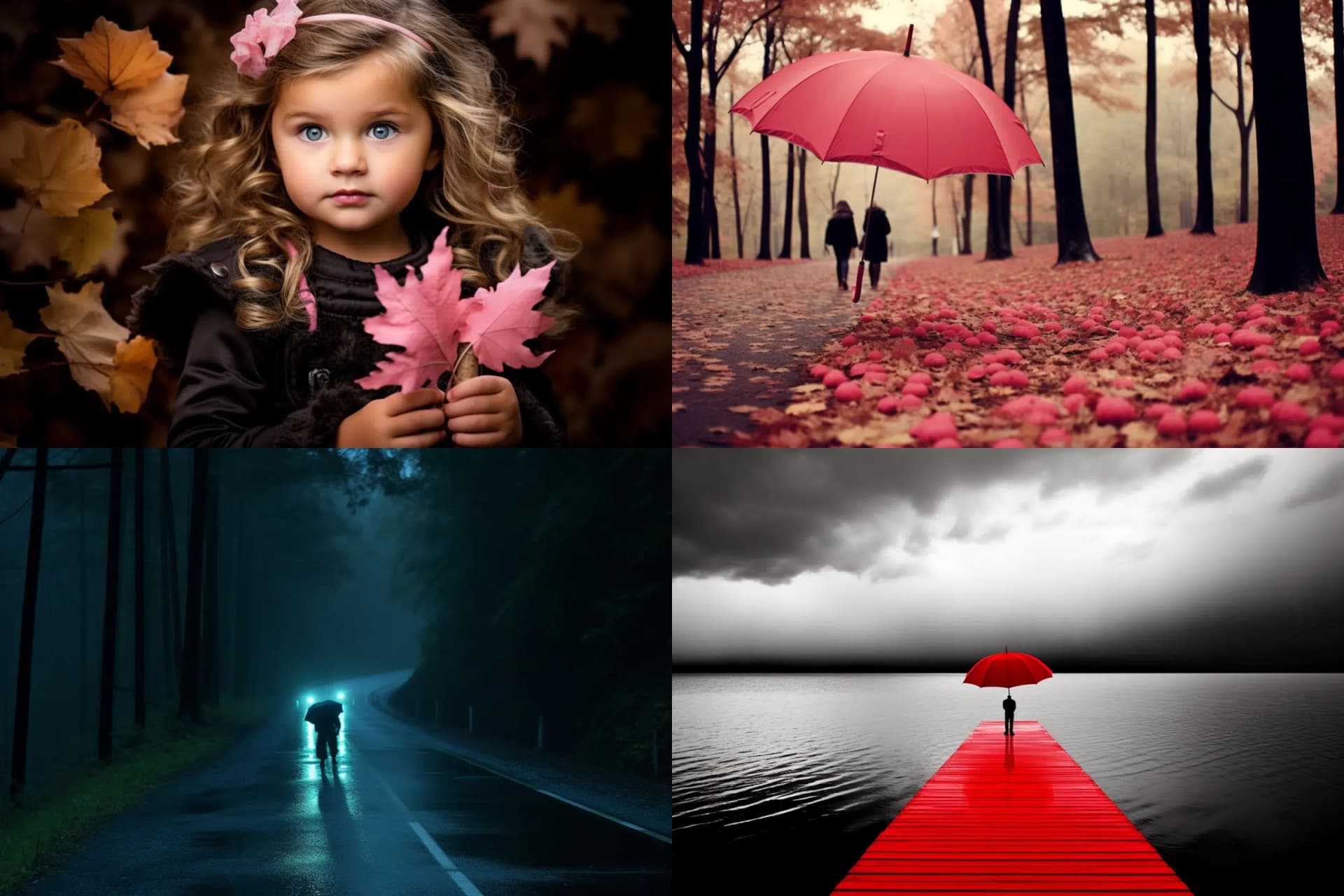
--chaos 100
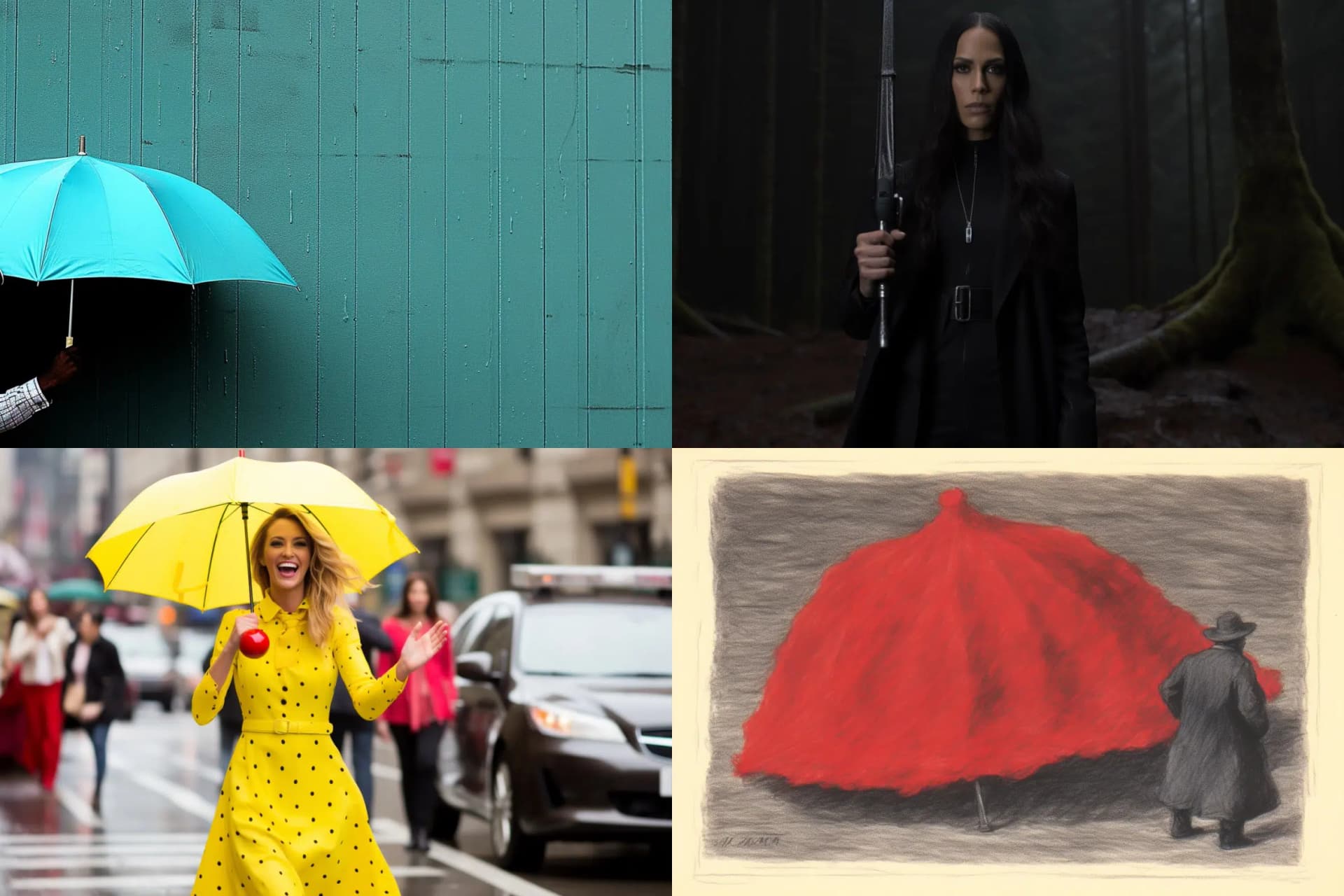
At chaos 100, four images are created that often only share individual elements. The result is hardly predictable and Midjourney only uses the prompt as a rough directional indicator. This is even more the case the more complex the prompt is.
3. Image Weight --iw
With the image weight parameter, you determine how much weight an image gets in an image-text prompt.
By default, Midjourney weights the image and text equally (--iw 1). With lower values, the text gets more weight (--iw <1) and with higher values, the image gets more weight (--iw >1).
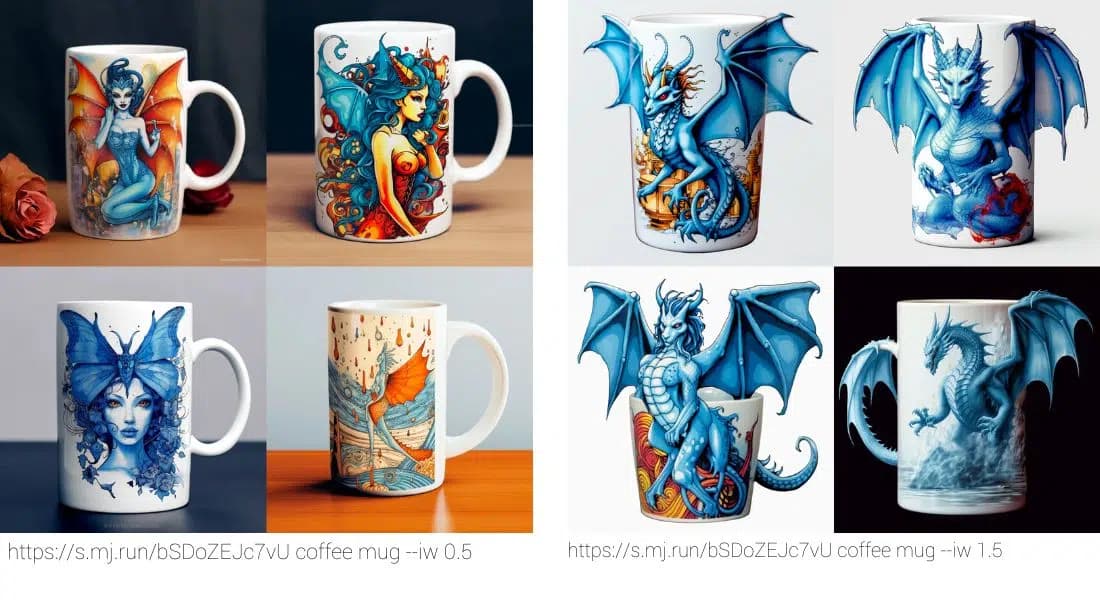
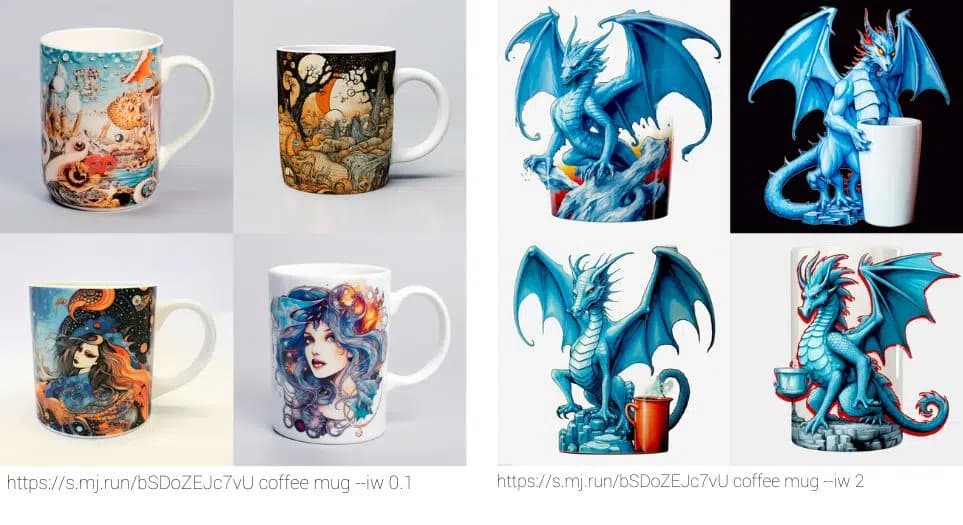
With the default value of 1, the text part and image of the prompt receive equal weight. In this example, I combined the dragon image with the prompt "coffee mug":
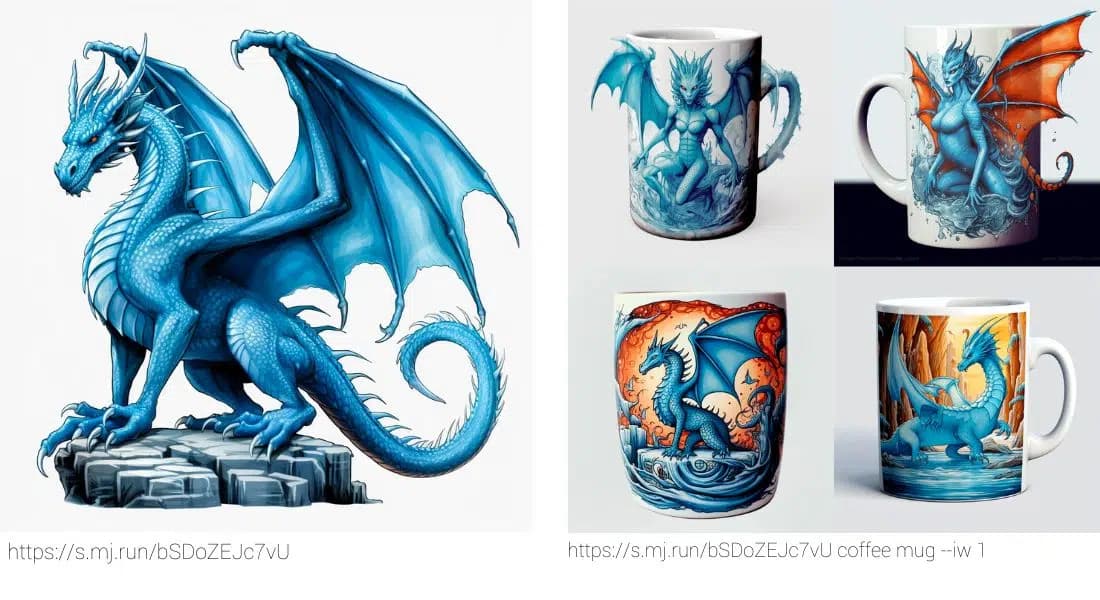
At --iw 0.5, you see significantly less of the dragon in the image, while at --iw 1.5, the dragon becomes much more prominent and is no longer just a picture on the mug:
The dragon disappears completely at --iw 0.1, leaving only color similarities or a few details reminiscent of the dragon. At --iw 2, the mug plays only a subordinate role.
4. No Parameter --no
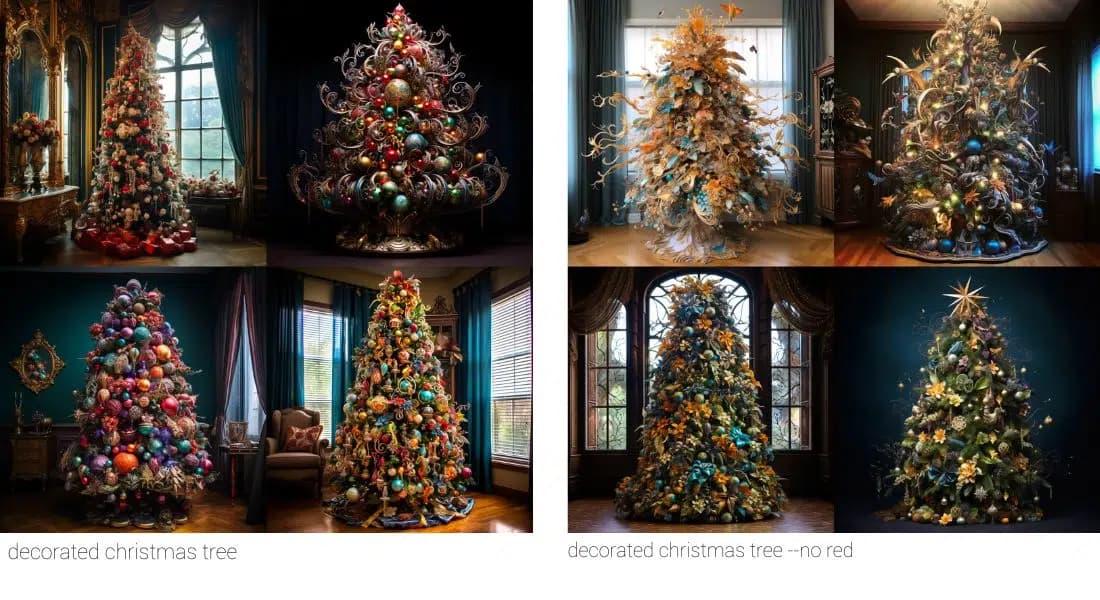
With the no parameter, you can ensure that certain things don't appear in your image:
When you have Midjourney generate a decorated Christmas tree, red is often a dominant color. You can avoid this with the no parameter by specifying --no red at the end of the prompt.
5. Quality --q
The quality parameter affects how much time Midjourney uses for generating an image and thus also the details. The lower the quality parameter, the fewer details and the less time is needed.
This also means that images you generate with low quality values cost you less GPU time:
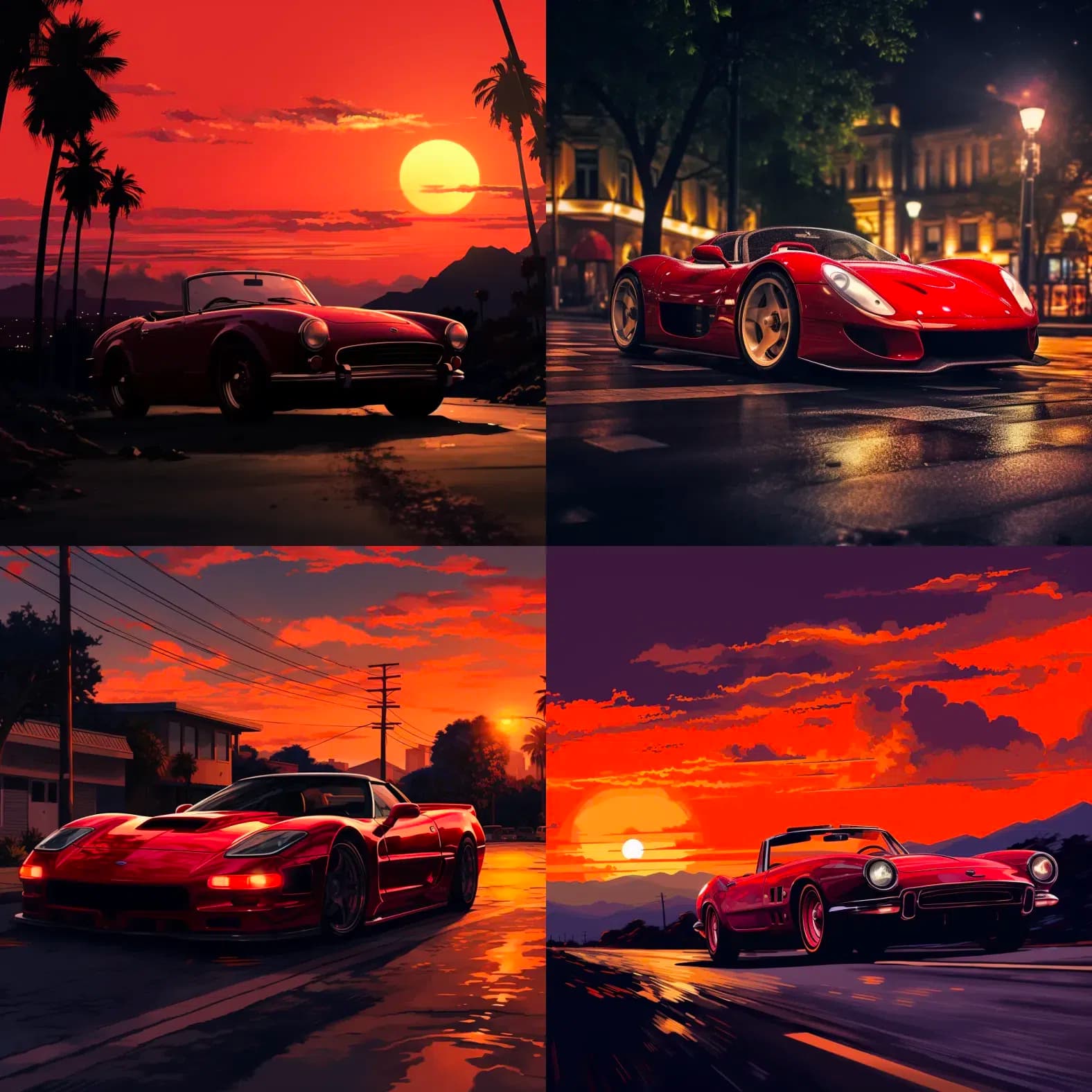
red sportscar in twilight --seed 658475843 --q 1
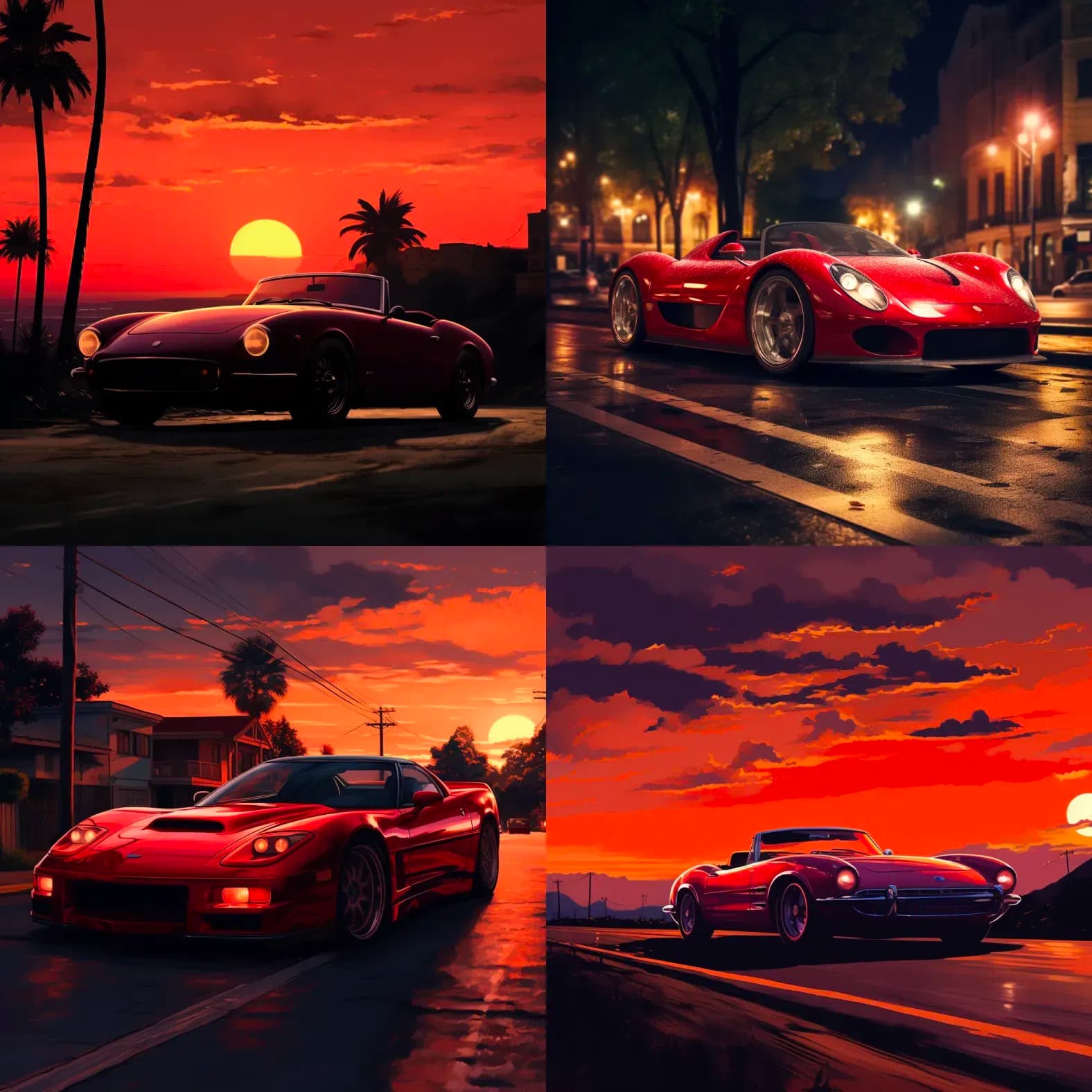
red sportscar in twilight --seed 658475843 --q .5
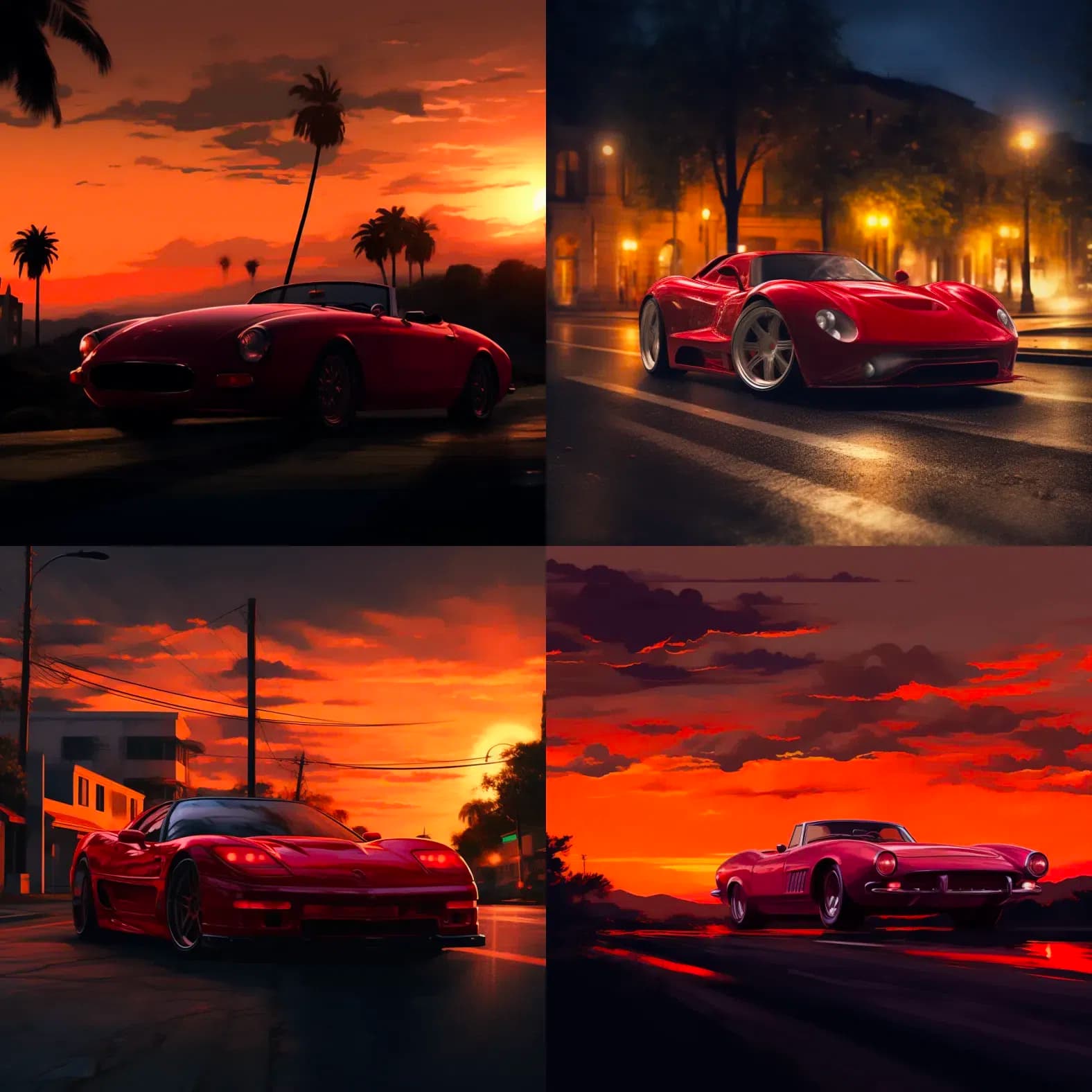
red sportscar in twilight --seed 658475843 --q .25
6. Repeat --r
With the repeat parameter, you can instruct Midjourney to execute a prompt multiple times in succession. Since Midjourney images always contain many random elements, it often makes sense to run a prompt multiple times to see if suitable results emerge.
Note that each generated image costs the corresponding GPU time. Additionally, depending on your subscription, you can only generate a limited number of images in succession.
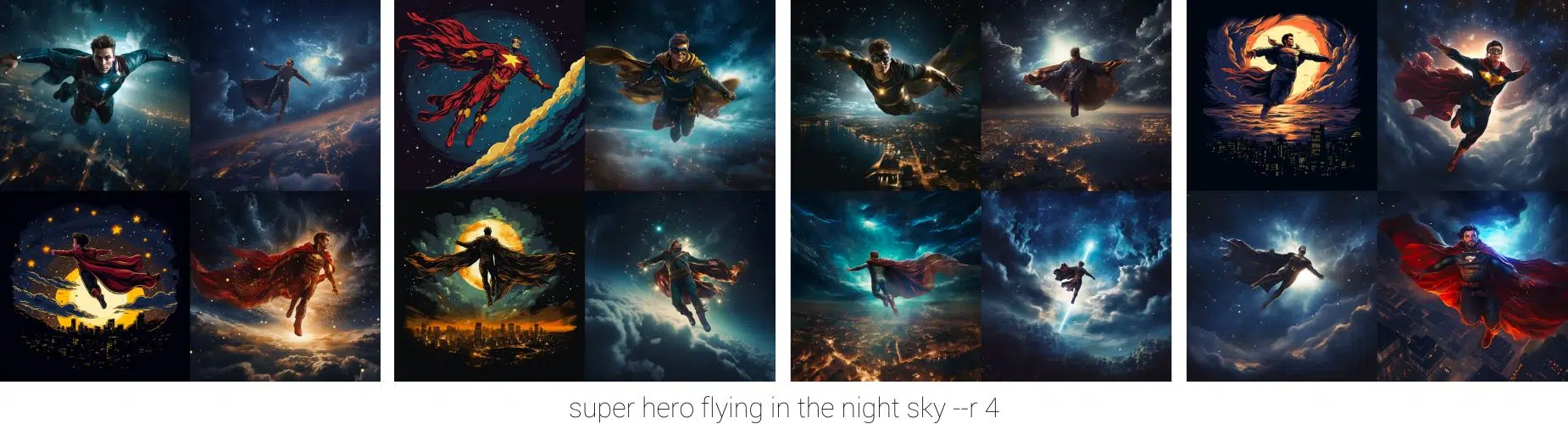
super hero flying in the night sky --r 4
7. Seed --seed
When you write prompts in Midjourney, you'll quickly notice that a prompt can never capture all aspects of an image. Thus, a large part of the design is left to chance. A seed is used for these random elements. It's assigned randomly or you assign it manually using the seed parameter.
When you assign the seed parameter, the random elements remain the same with the same prompt and same seed = a very similar, almost identical image is generated.
But be careful: Seeds aren't very reliable, only stay stable within a session, and aren't transferable. You can only use them in a very limited way and should always treat the results with caution.
Without a seed, you'll always get different results when entering the same prompt multiple times:
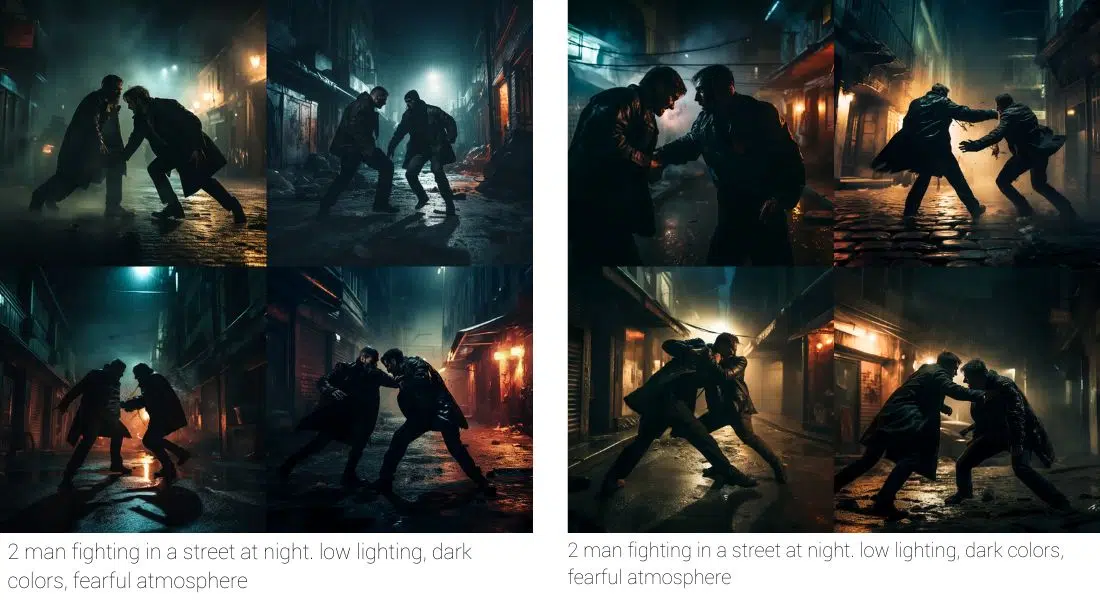
With a seed, you get two (almost) identical images:
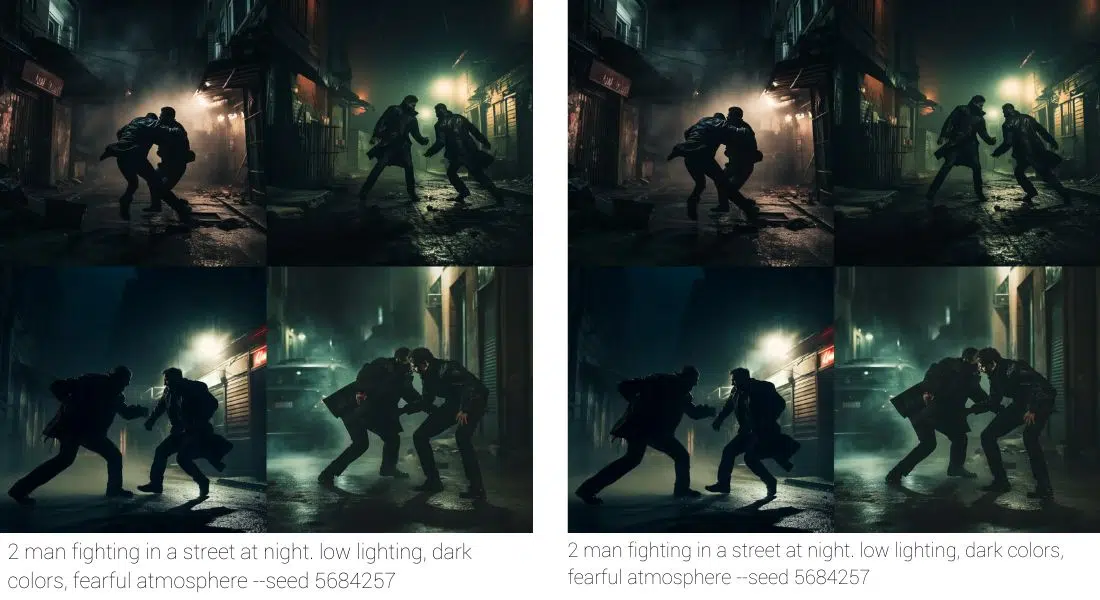
Since seeds aren't transferable from one prompt to another, their usefulness is limited: You should set a seed when you want to test different words in a prompt (this increases the chance that the images are comparable), but you can't rely on the seed remaining stable.
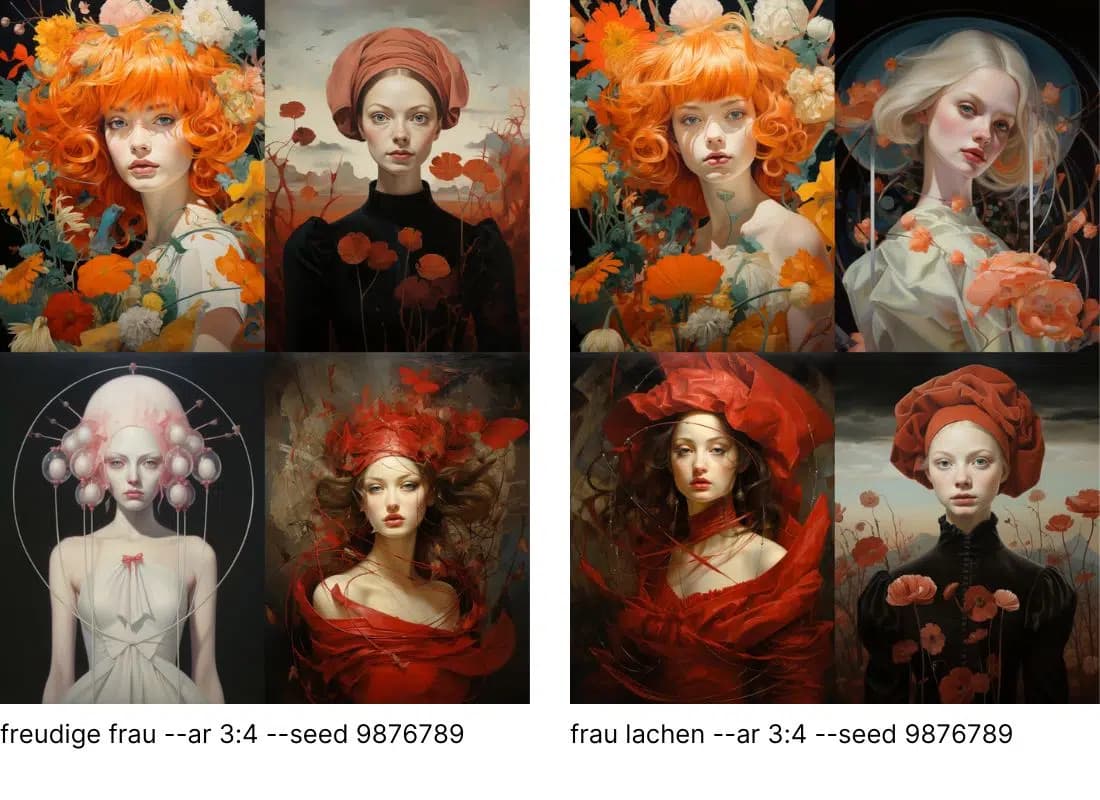
In these images from our blog article Does Midjourney Understand German? you can see that the seed partially works, but only partially. The first image in both sets is almost identical and two other images are very similar (Image 2 from Set 1 with Image 4 from Set 2 and Image 4 from Set 1 with Image 3 from Set 2), while the last image only resembles in colors.
Seeds are therefore quite tricky. We should still use them because there's a chance they can help us control the random elements. But this isn't guaranteed and should always be verified.
If you want to transfer styles between prompts, seeds are the wrong choice. For this purpose, Midjourney has had its own tool called the Style Tuner since November 2023.
8. Stop --stop
With the stop parameter, you force Midjourney to stop generating an image at a point you specify. You can choose a number between 10 and 100. At 10, Midjourney stops after 10% of the time that would normally be used. At 100 is the default value where Midjourney generates the image completely.
Generally, images under 50 are rarely useful, but images above this value can have their appeal and, for example, be used as backgrounds.
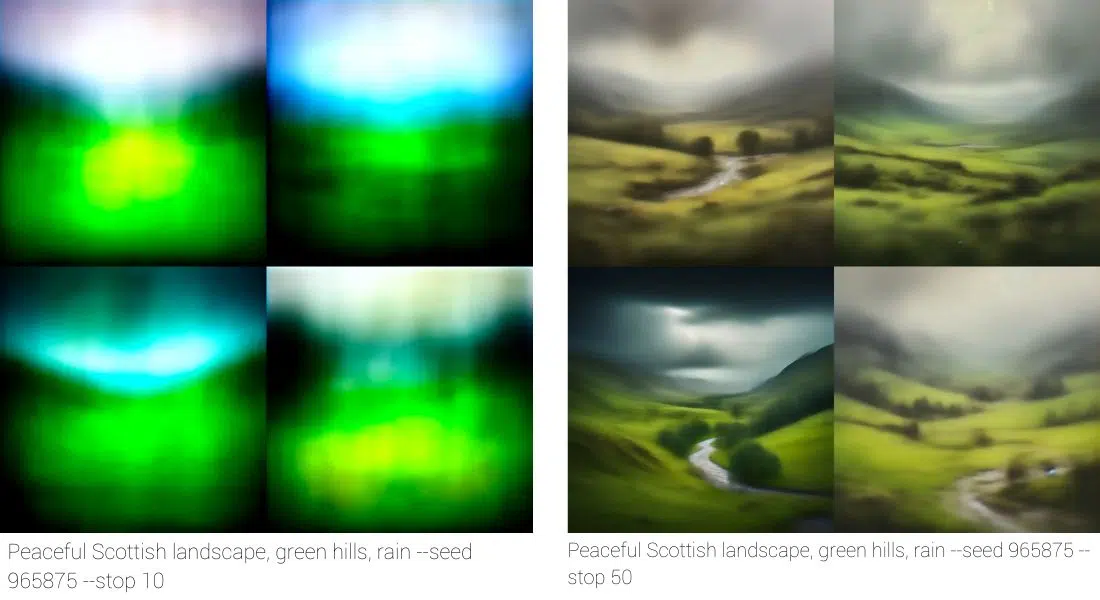
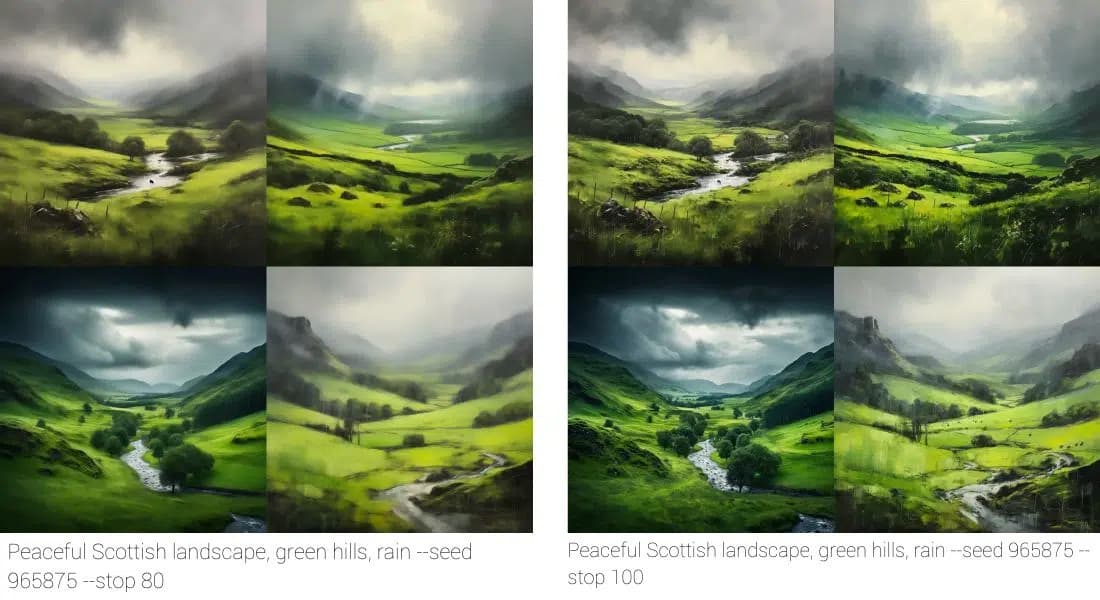
If you want to use the stop parameter to get the identical image in different stages, don't forget to set the seed!
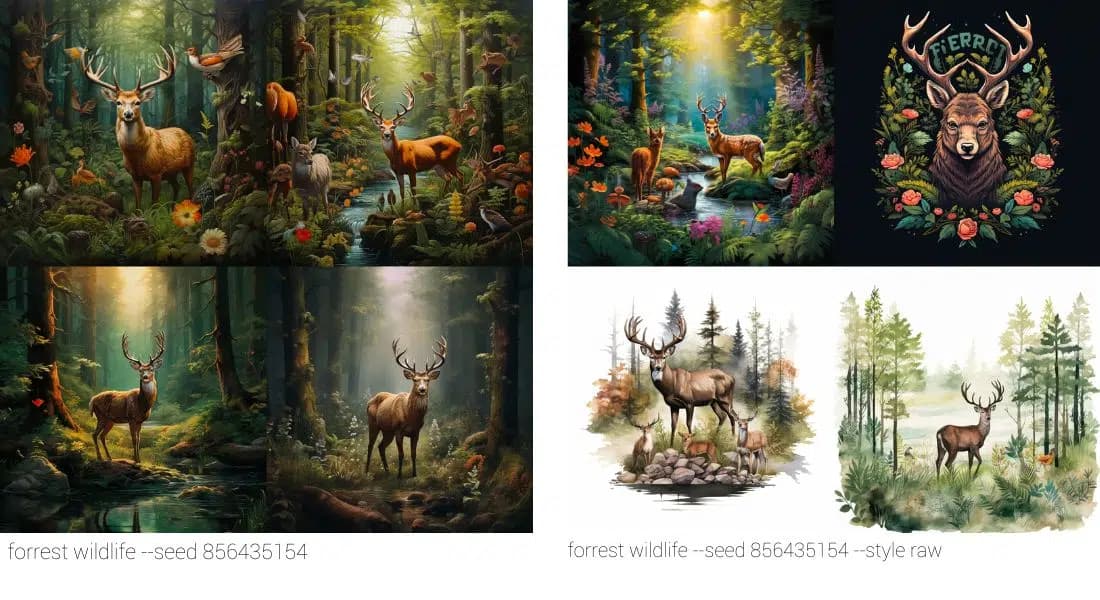
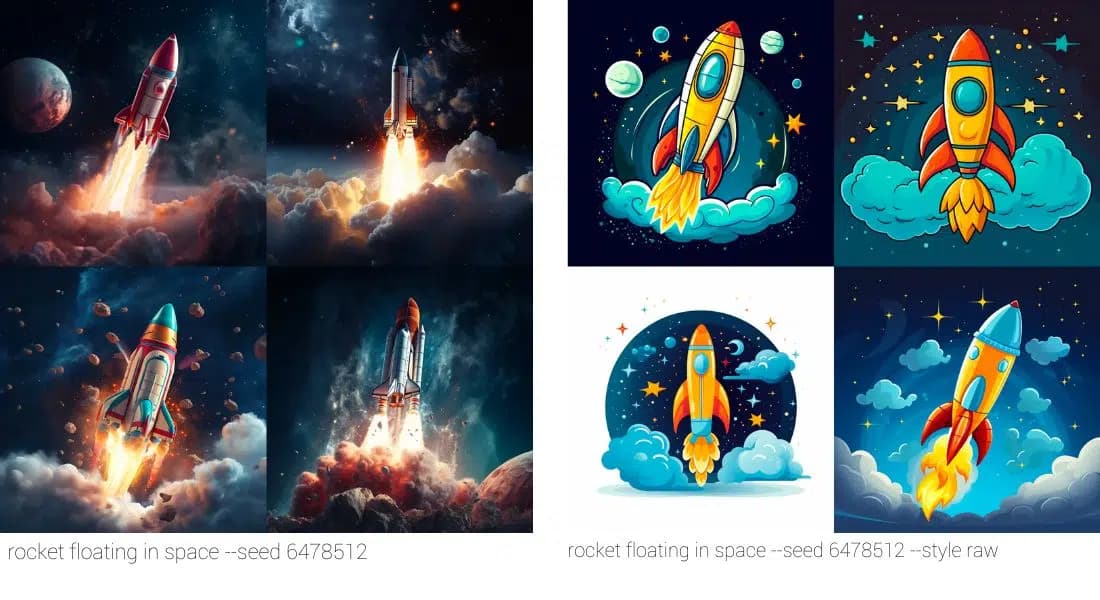
9. Style --style raw
With the style raw parameter, you specify that a different Midjourney model is used for generating your image. This model applies less of the automatic aesthetics that you're used to from Midjourney. This gives you more control over which direction an image should develop based solely on the prompt.
10. Stylize --stylize
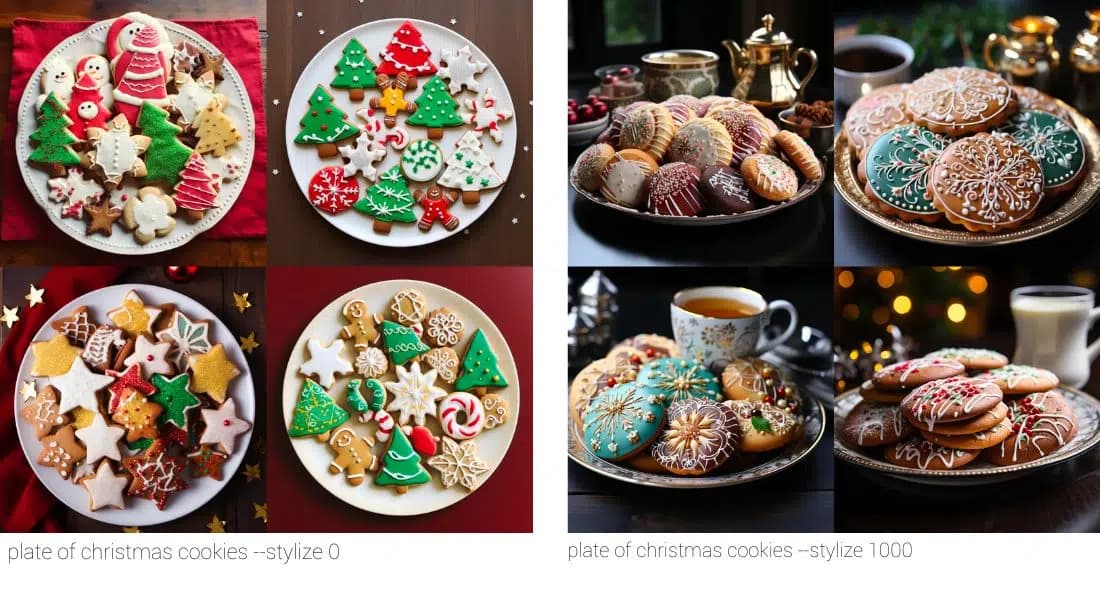
With the stylize parameter, you influence how strongly Midjourney focuses on aesthetics when generating the image. The higher the stylize value, the more aesthetic the image becomes, but it also looks increasingly artificial and less realistic.
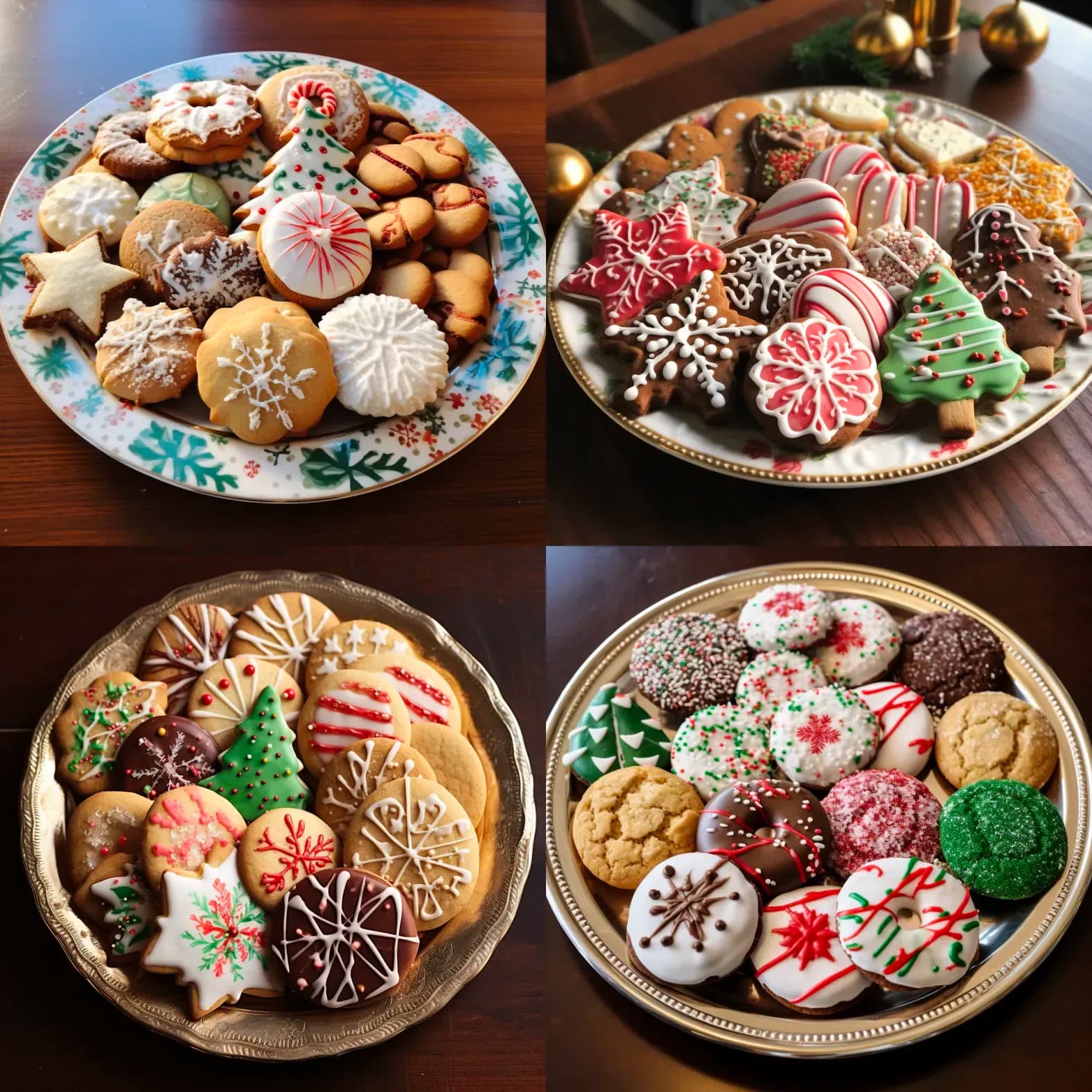
plate of christmas cookies --stylize 100
11. Tile --tile
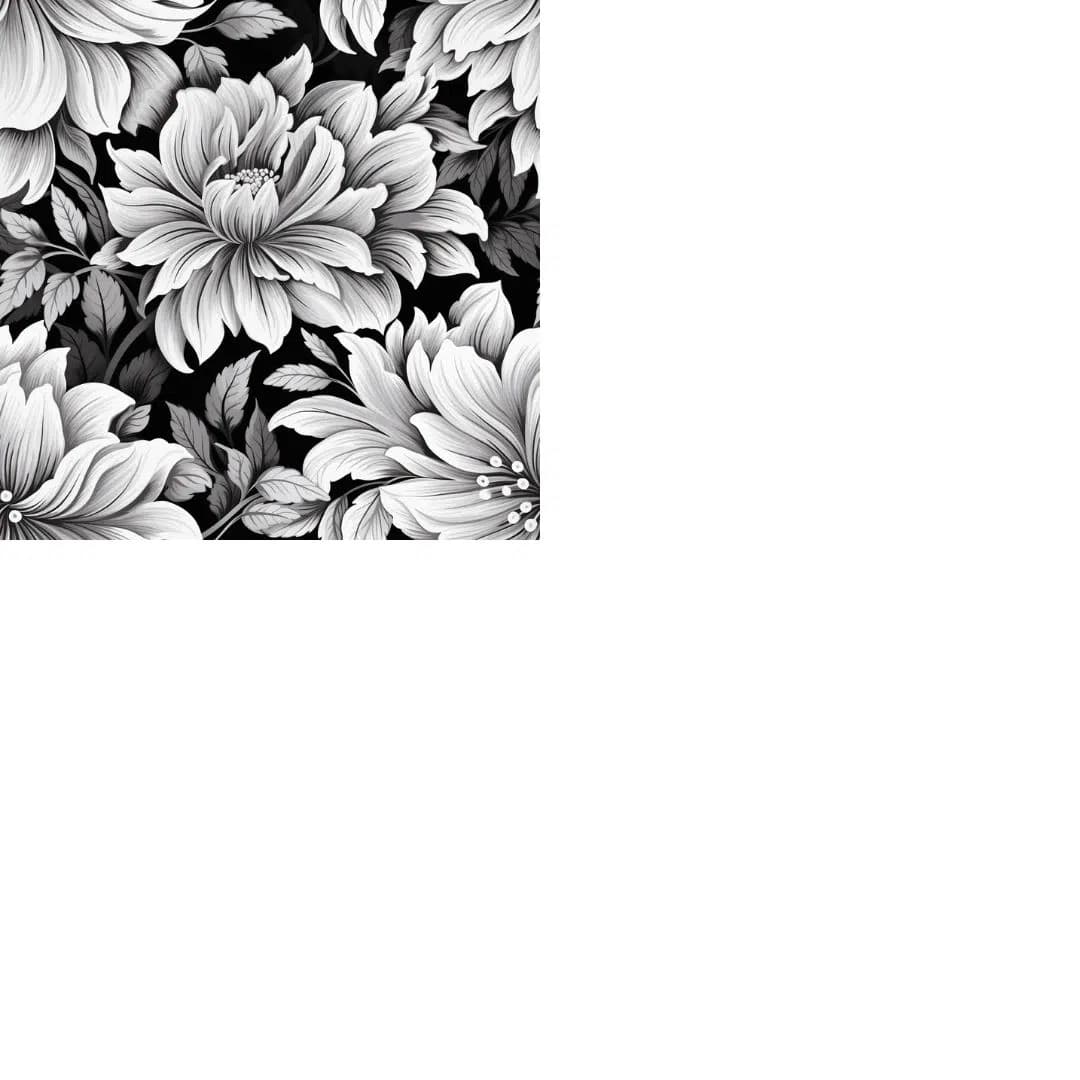
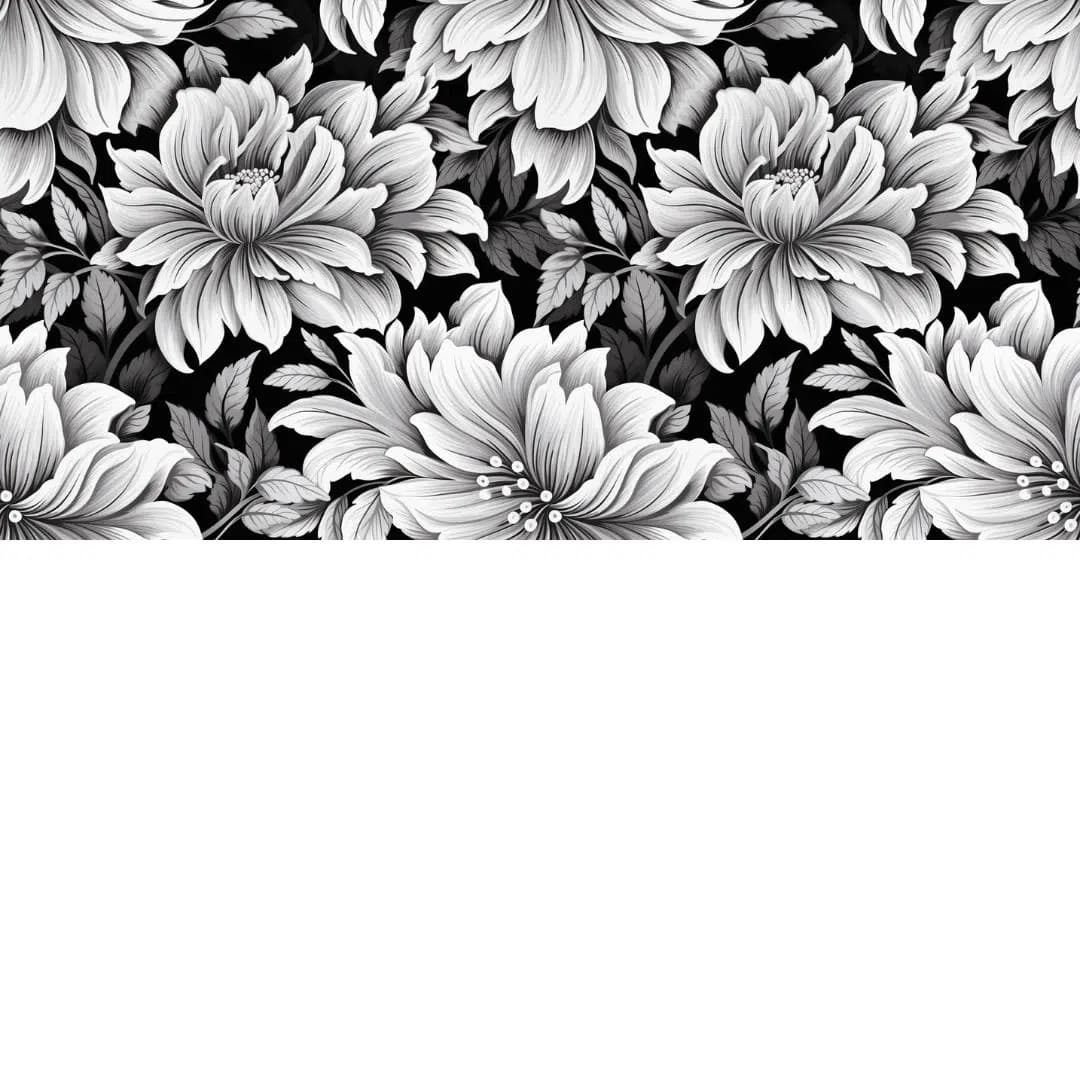
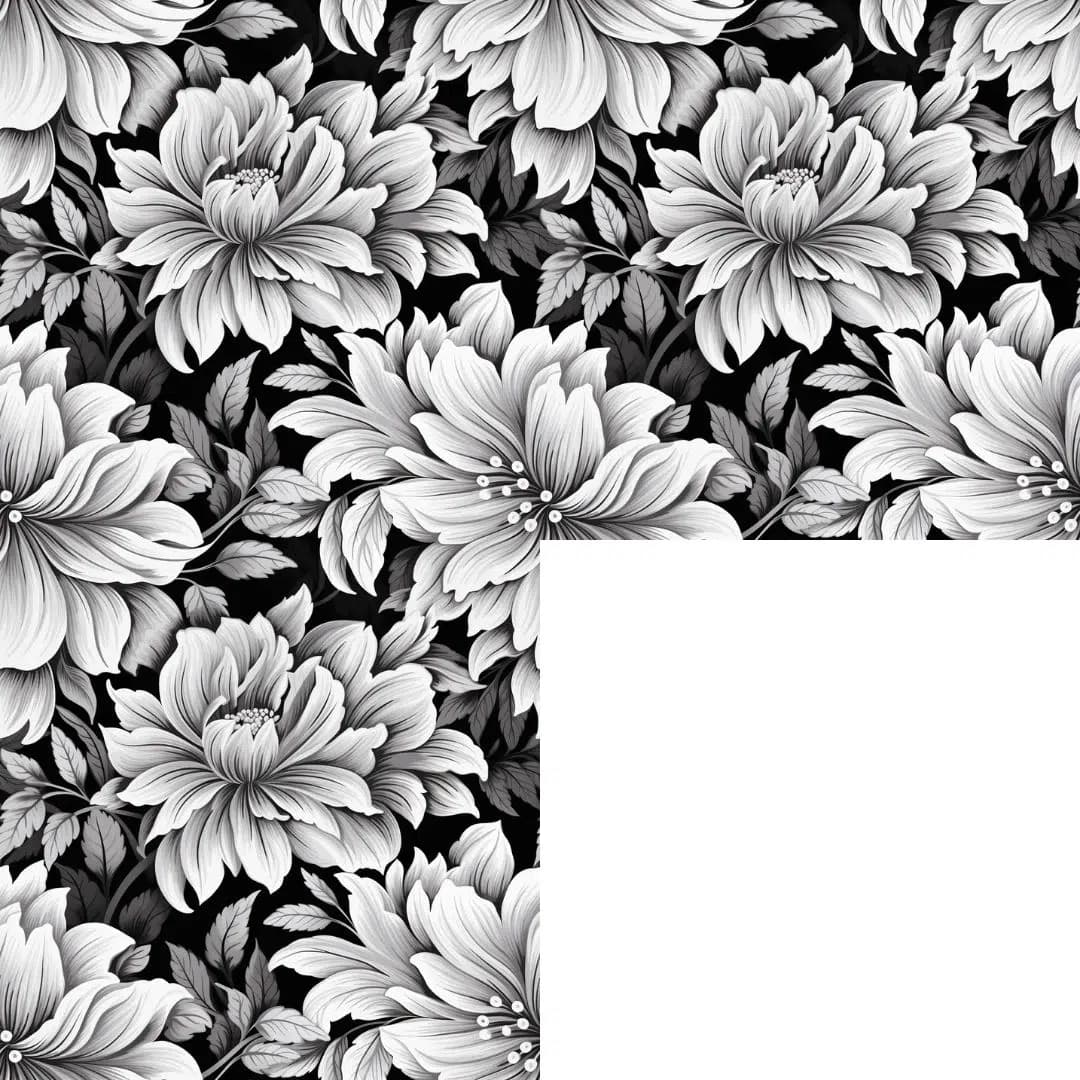
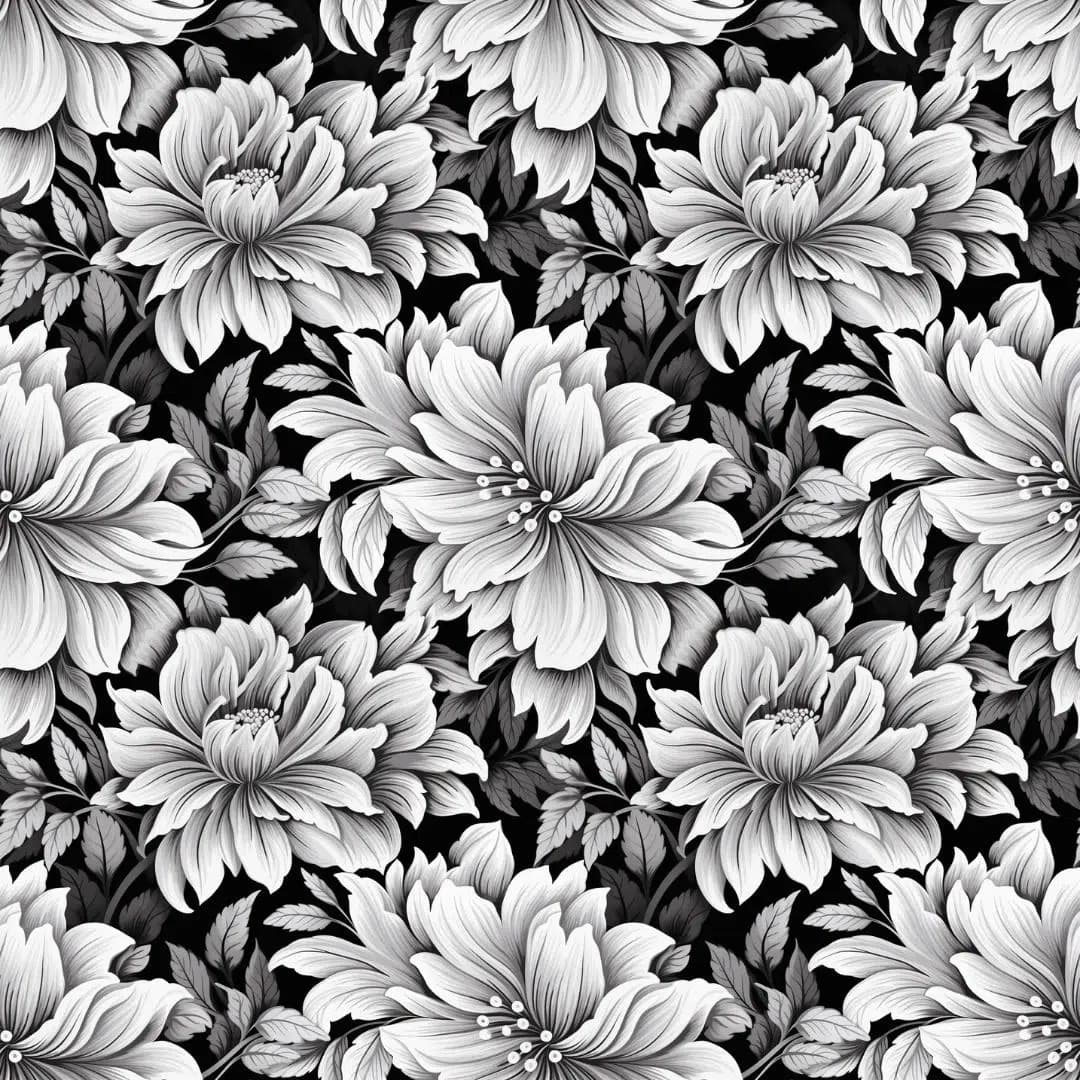
With the tile parameter, you can instruct Midjourney to create repeating patterns. When you copy these images multiple times and join them at the edges, the pattern repeats:
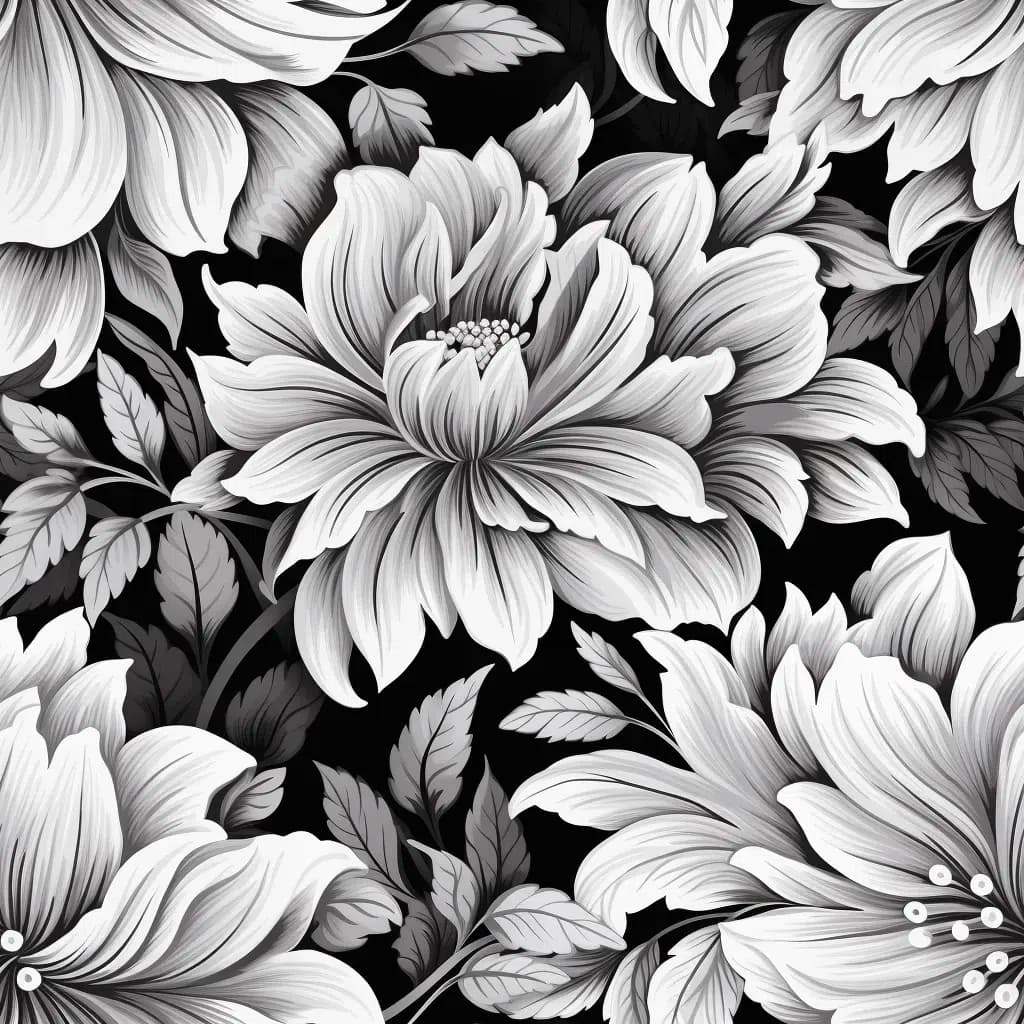
Charcoal flower design --tile
12. Weird --weird
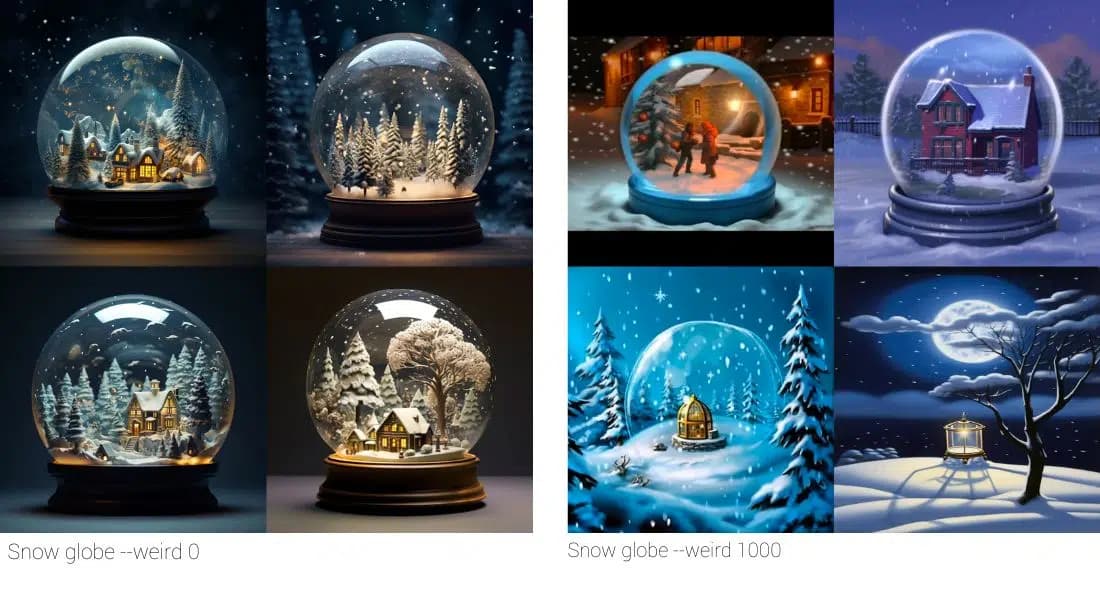
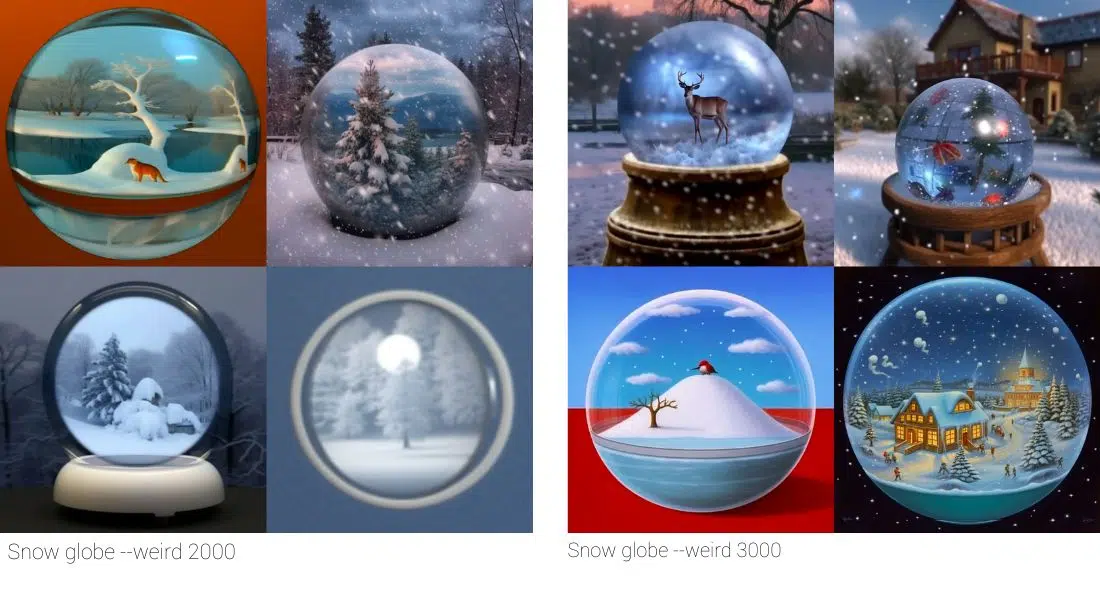
The weird parameter is an experimental parameter with which you can instruct Midjourney to generate images in an unpredictable direction. Images generated with the weird parameter are exactly that: a bit strange.
13. Want More Parameter Knowledge?
Parameters are a powerful tool that let you control Midjourney more precisely and significantly increase the probability of getting the images out of the AI that you actually want. They're one of the reasons why Midjourney is the currently best AI image generator.