You type a few words into a text box. Thirty seconds later, you're looking at an image that would have taken a skilled artist hours to create.
That's Midjourney. And yes, it really is that simple in principle.
The problem? Getting started is surprisingly confusing. Discord servers, slash commands, obscure parameters, no free trial. I spent way too long figuring it all out when I first tried it.
So I wrote this guide to save you that headache. Everything you need to know about Midjourney, from your first image to advanced tricks, in one place.
- Midjourney works primarily via Discord: Create a free account, join the Midjourney server, use the /imagine command
- No free trial images currently available. Subscription from $10/month required to use.
- Use English prompts for best results, avoid explicit content (leads to server ban)
1. What Makes Midjourney Special?
Midjourney isn't the only AI that can generate images from text. There are many other programs like ArtSmart.ai or DALL-E 2 that have similar capabilities.
I've put together a detailed overview with pros and cons of various AI image generators here: The 20 Best AI Image Generators in 2026 (15 Free)
But what exactly makes Midjourney so special? In essence: the quality of the output combined with a large community of AI enthusiasts.
The community is huge and continues to grow. I've found it to be one of the most active user groups around AI image generation.
1.1 Outstanding Image Quality
Images generated with Midjourney are sometimes so good that you can't distinguish them from images made by humans. And we're still at the beginning of development. The learning curve is rising rapidly.
You can clearly see how rapid this development has been by looking at how quality has improved over the past 1.5 years. The first version of Midjourney came out in February 2022, with Version 2 following in April:
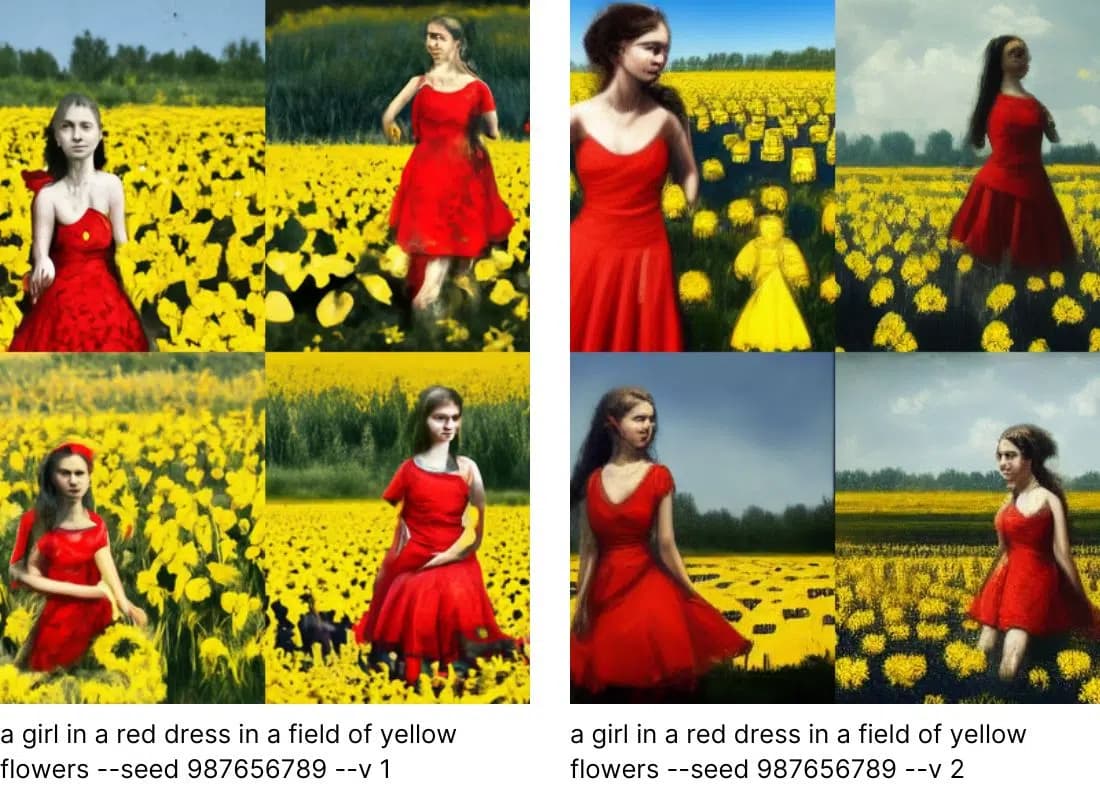
The images were still rather unappealing and essentially barely usable. Even with Version 3, which came in July 2022, the output wasn't overwhelming, but with Version 4 in November, the quality improved dramatically:
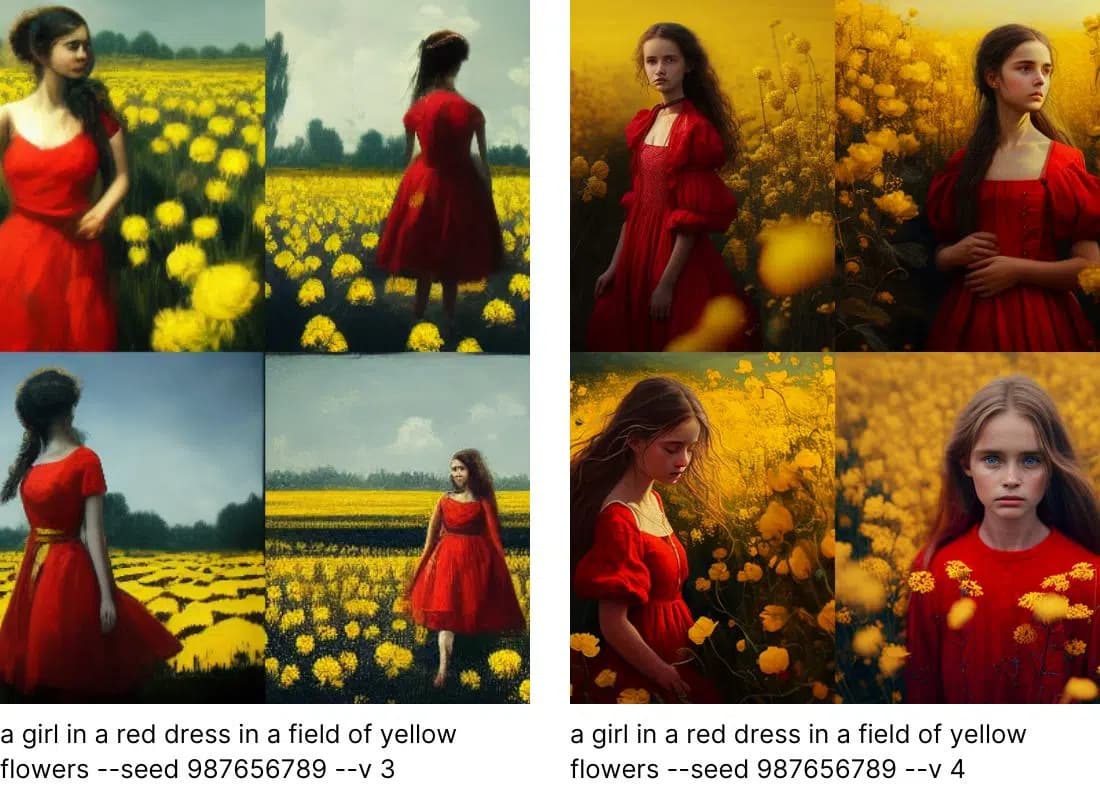
Version 5 came in March 2023 and was then succeeded by Version 5.2 in June:
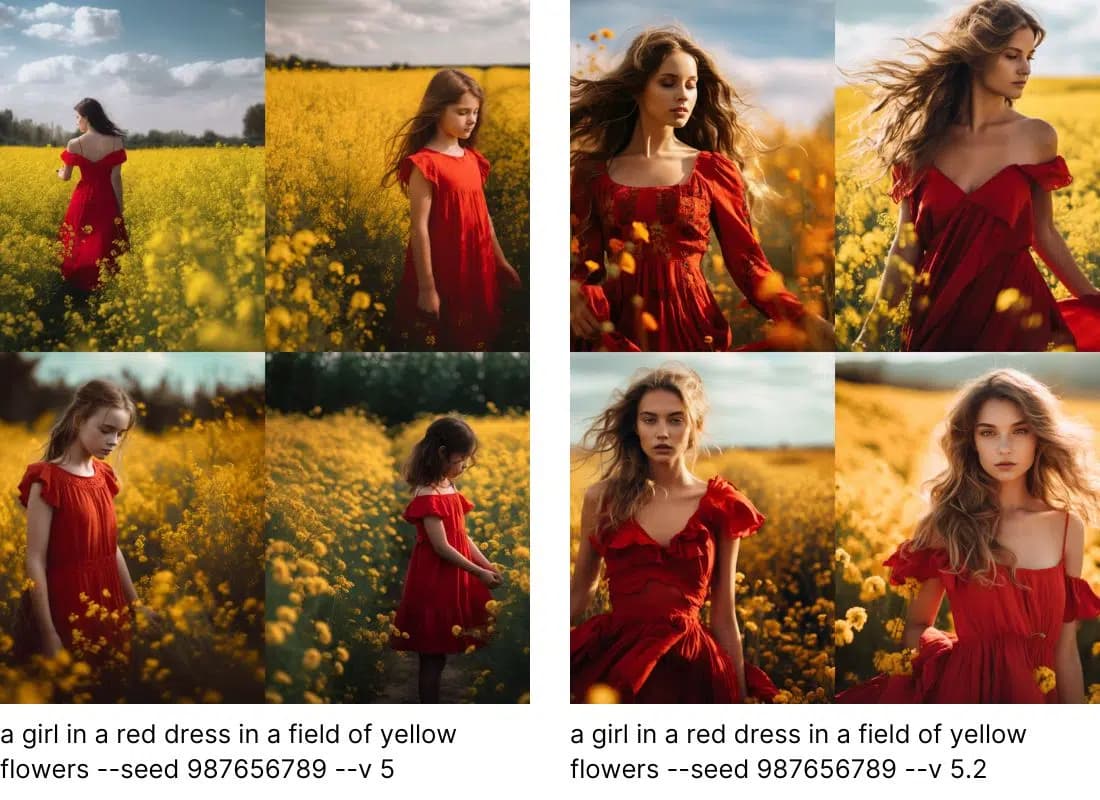
You can see here how incredibly fast development has progressed over the past few months, which suggests we'll see even more amazing advances in the near future.
Currently, how well you write your prompts and which parameters you specify still plays a big role, but very likely in the near future, almost anyone will be able to achieve excellent results with AI image generators without much prior experience with prompts. Until then, we're here to help you.
1.2 Community
Midjourney uses Discord for its service. And according to them, this is because they value the community and want people to learn from each other and discover and expand their creativity together.
According to Similarweb, Midjourney's user distribution is fairly balanced at 59.92% male and 40.08% female, which underscores the diversity of the creative community.
What is Discord?
Discord is a platform for voice and text communication, used primarily by gamers but also by many other people. With Discord, you can connect with your friends, family, or community, whether you're on PC, smartphone, or tablet.
You can join various servers or create your own. A server is like a virtual room where you can set up different channels. Channels are like subforums where you can communicate via text, voice, or video.
2. Signing Up for Discord and Midjourney
To use Midjourney, you first need to create an account on Discord. Discord itself is free, so you don't need to worry about suddenly having to pay for anything at this point.
2.1 Signing Up for Discord
Go to Discord.com/login and click on the "Register" link at the bottom.
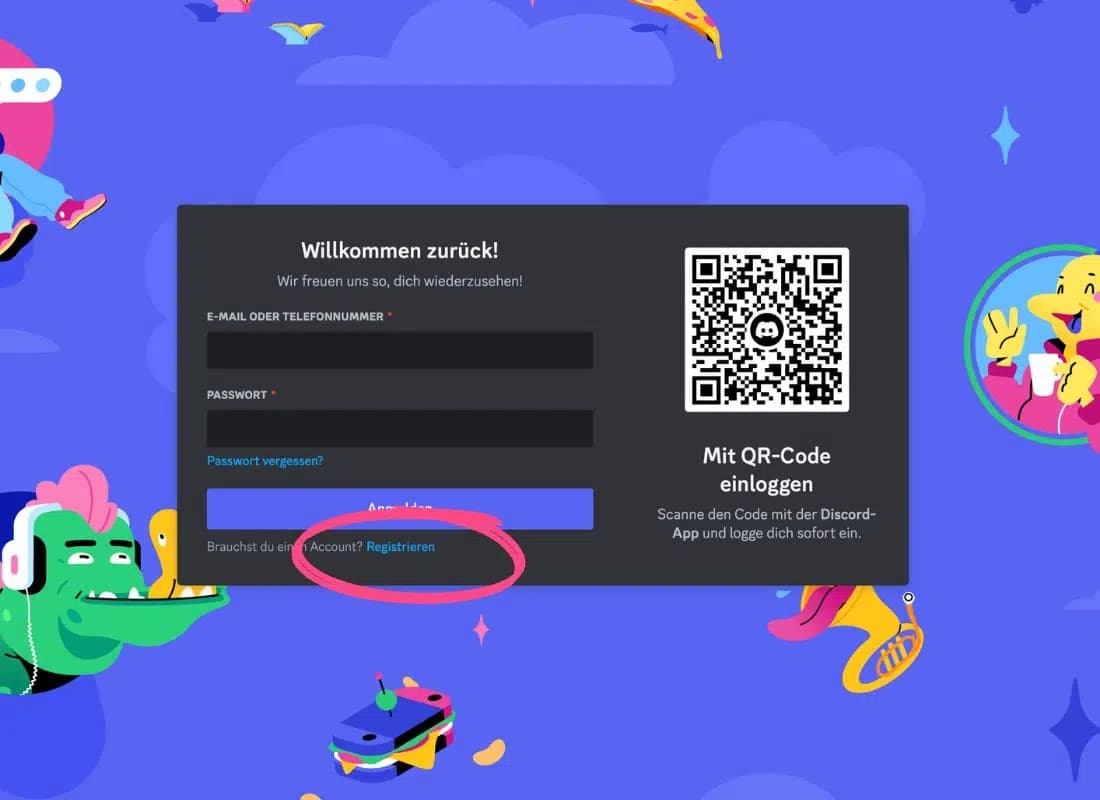
A window will now open where you can enter all the required information. Fill in all the fields and accept the terms of use, and you've created a Discord account.
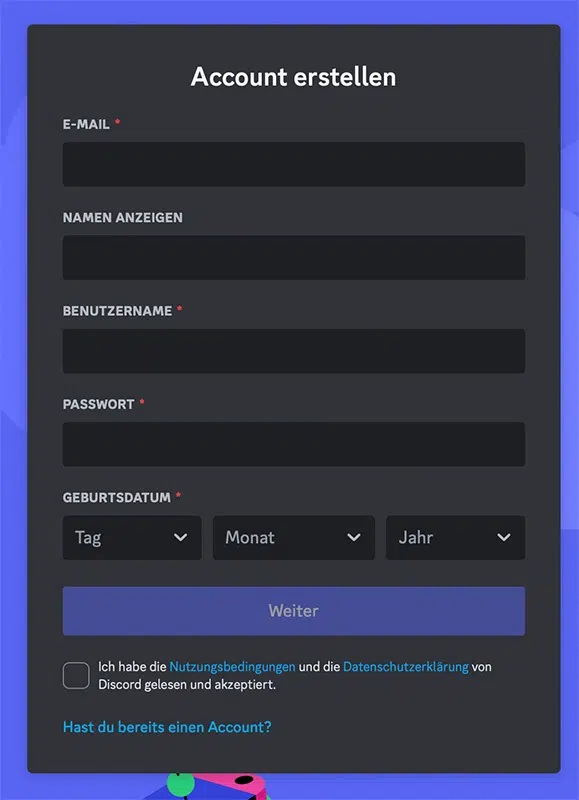
Afterward, you'll need to verify your email address, and then you've successfully created your account.
2.2 Joining the Midjourney Server
Once you have a Discord account, you can join the Midjourney server via this link: Midjourney on Discord.
3. First Steps with Midjourney
Once you've joined the Midjourney server, your screen will look something like this:
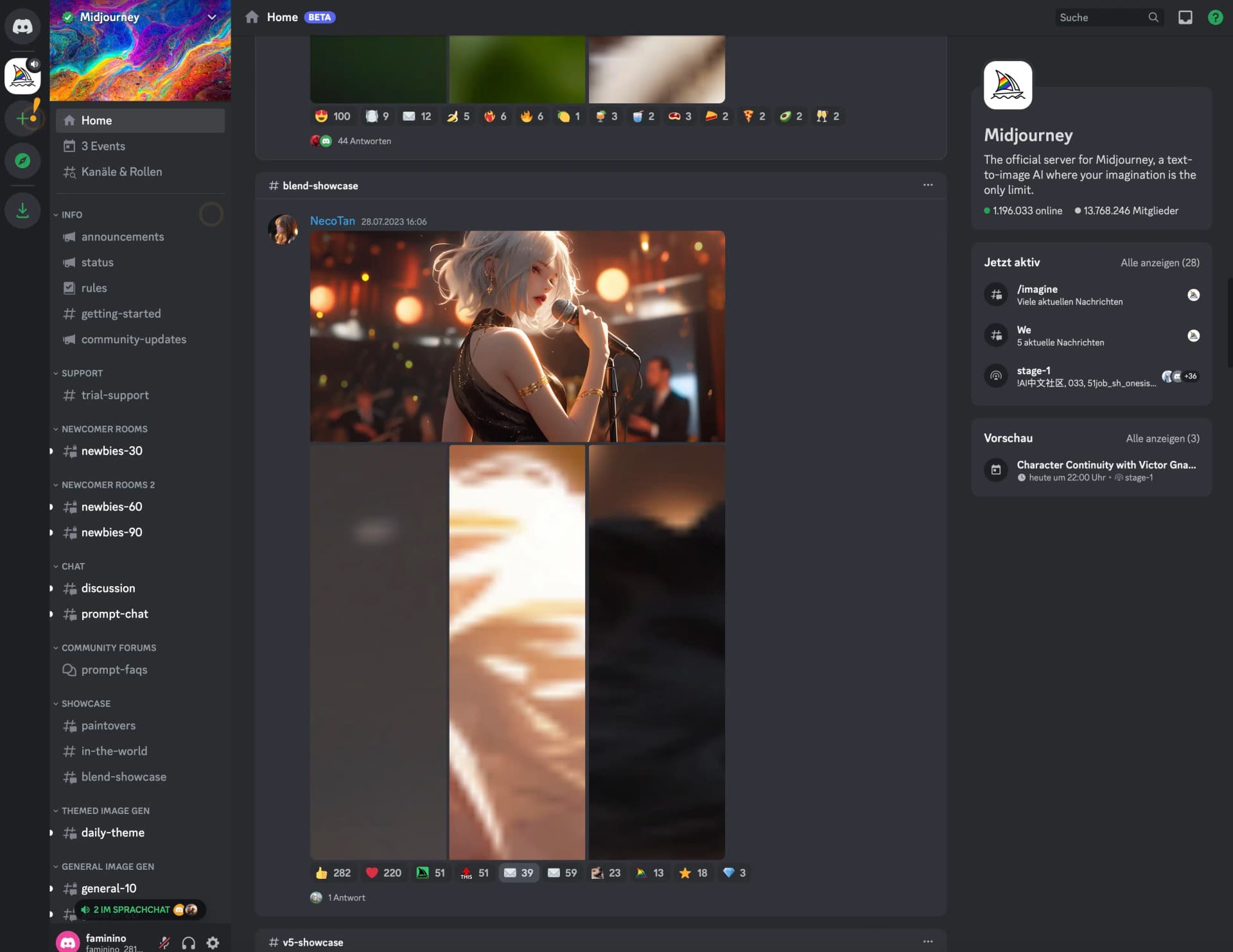
At first glance, this looks quite confusing, but it's actually not that complicated.
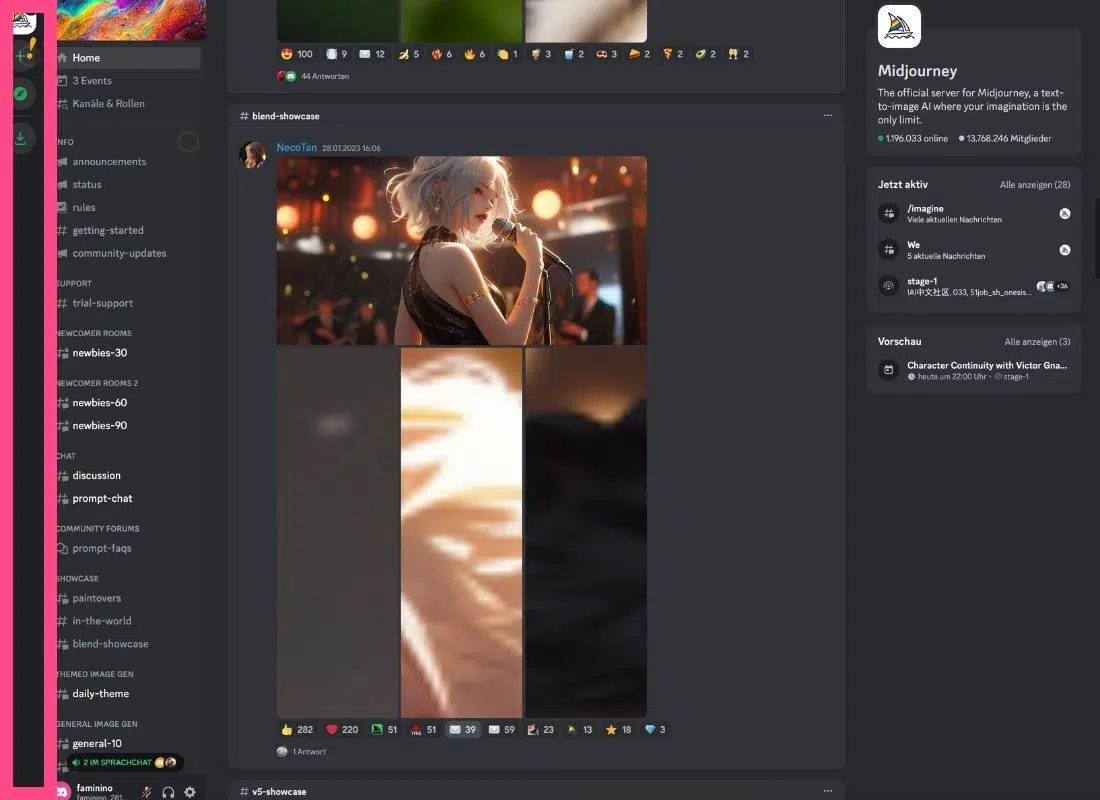
The first column shows you the servers you've already joined. You can also create your own server here by clicking the plus sign. The currently selected server is the one we joined using the invitation link (the Midjourney server).
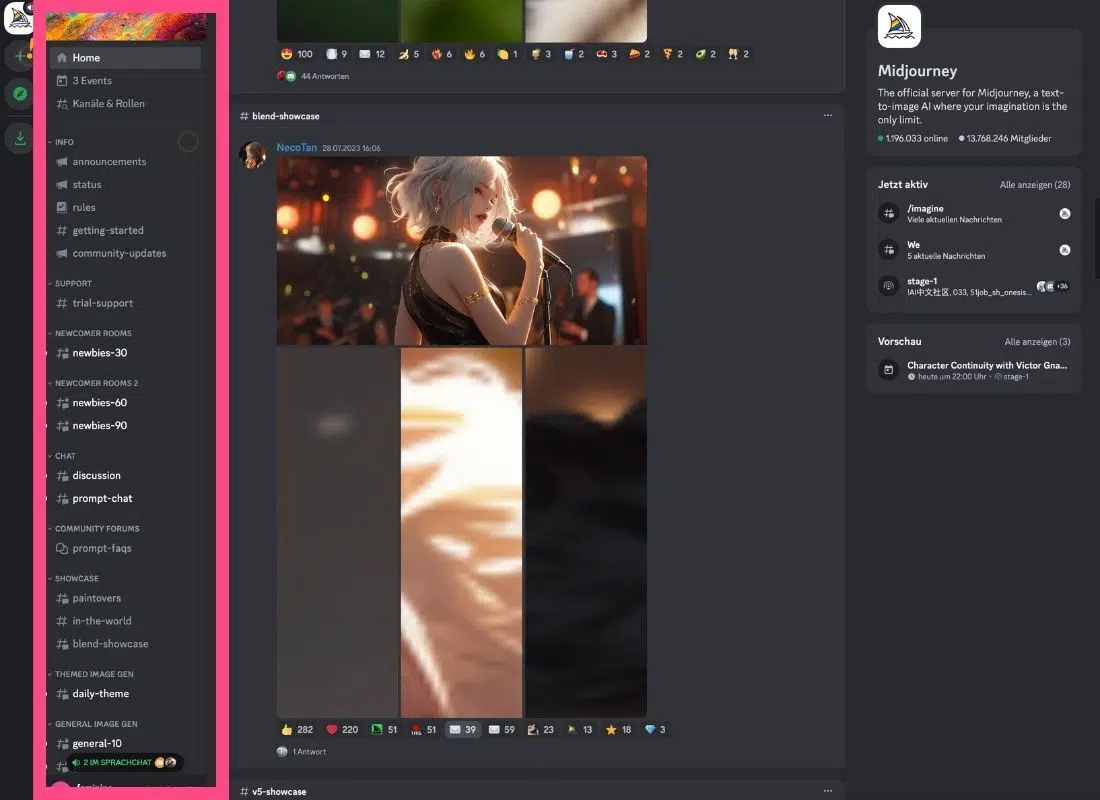
The second column shows you all the channels of the selected server (in our case, all channels of the Midjourney server). Channels are chat rooms where you can communicate with others.
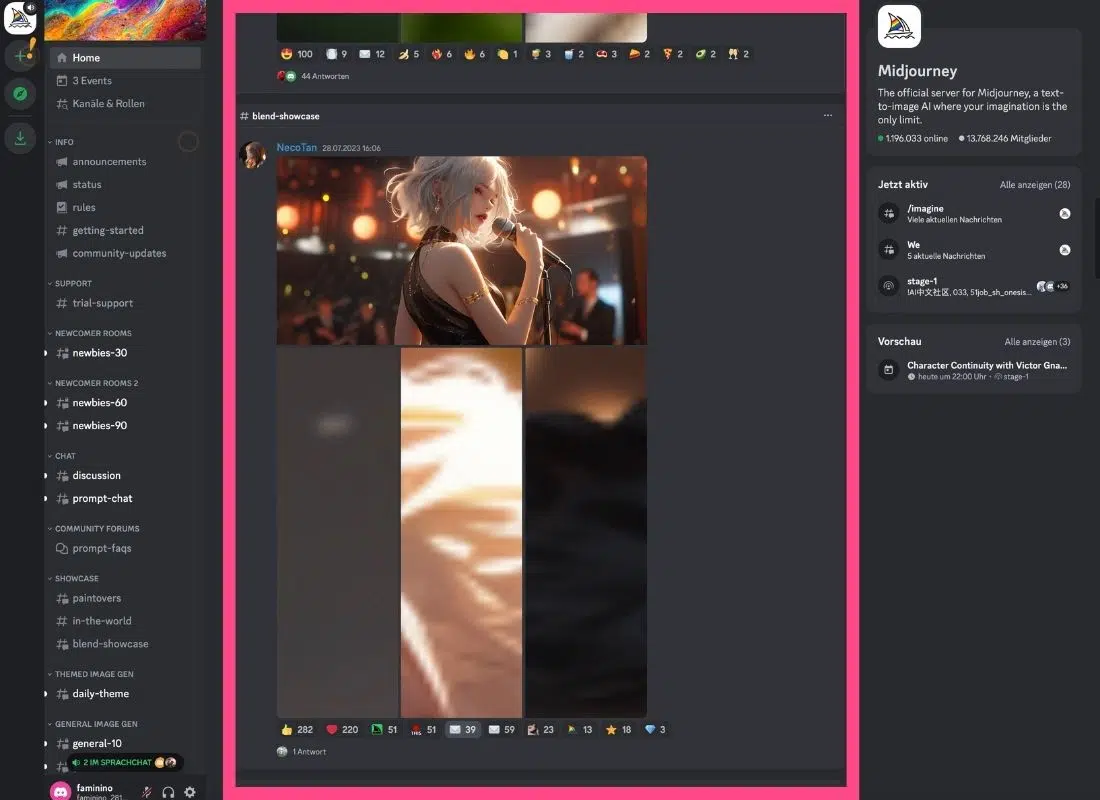
The largest column, the middle one, is the area that shows you the current conversation. At the bottom, there's an input field where you can participate in the conversation.
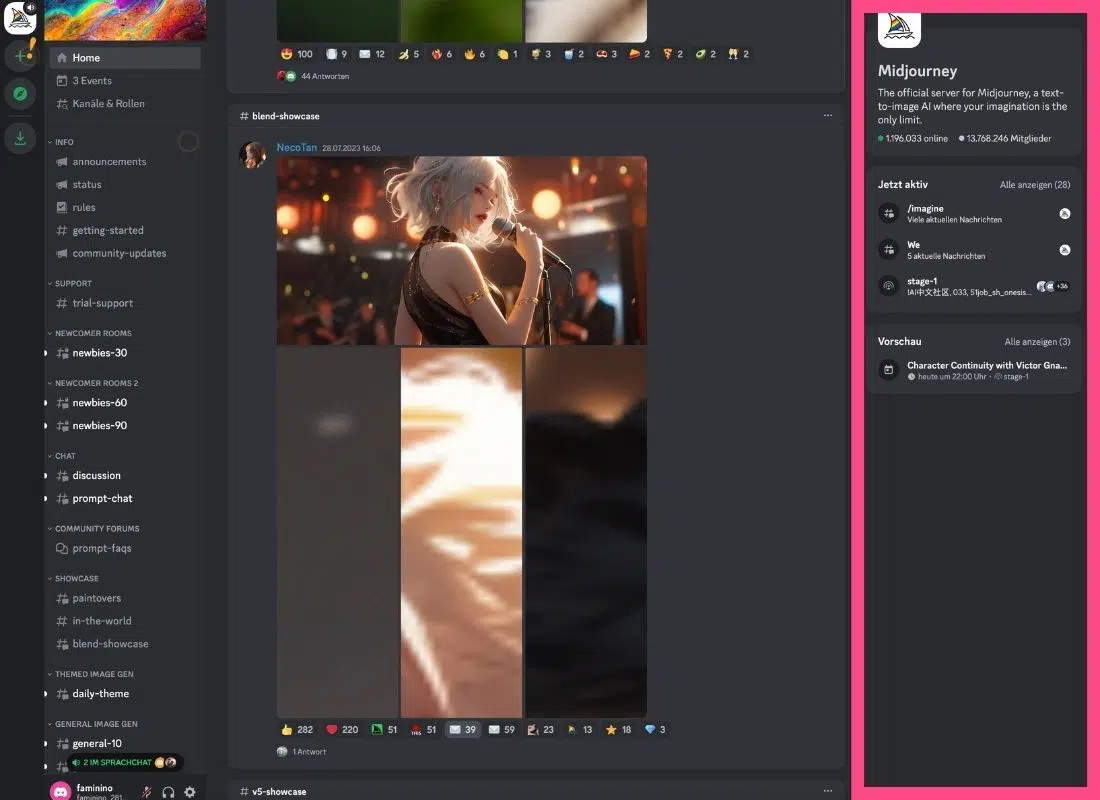
The last column shows you information about the server and things that are currently active or being used. This column disappears when you enter one of the chat rooms.
3.1 Where to Start?
To try out Midjourney, choose one of the Newbie chat rooms (it doesn't matter which one) and then you can get started:
To generate an image, you always start with /imagine
A small field will automatically open in the text box (if this doesn't happen, your prompt won't be processed. In this case, check your spelling and the correct use of the /).

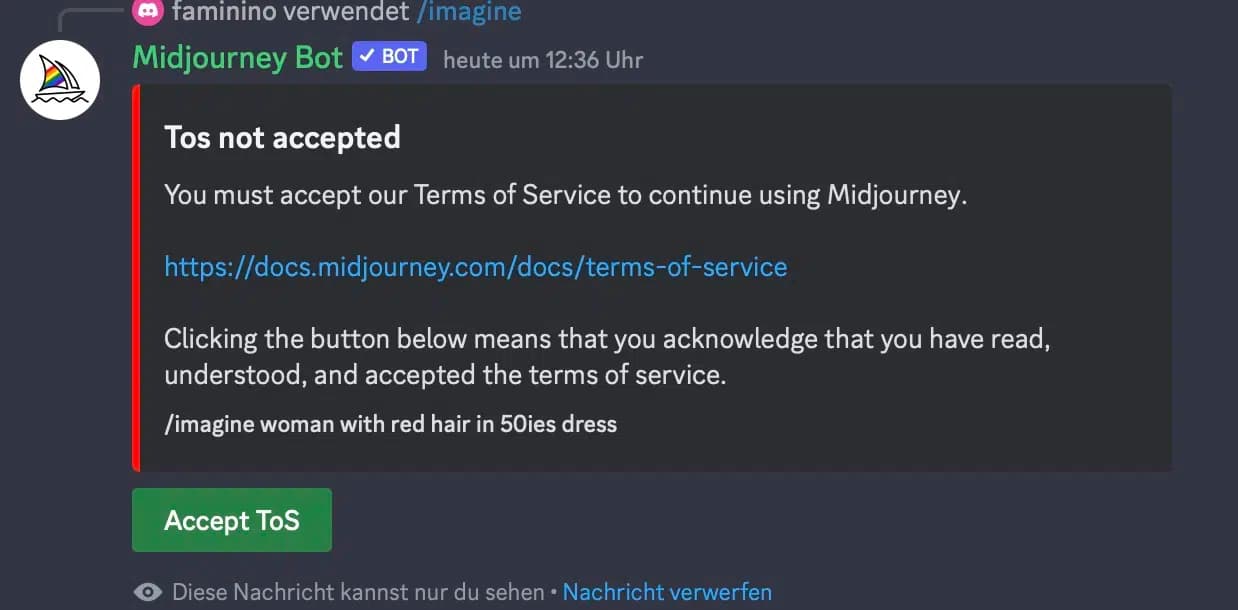
If you haven't accepted the Terms of Service yet, a dialog box will first open asking you to do so:
After that, newcomers are usually sent a welcome message:
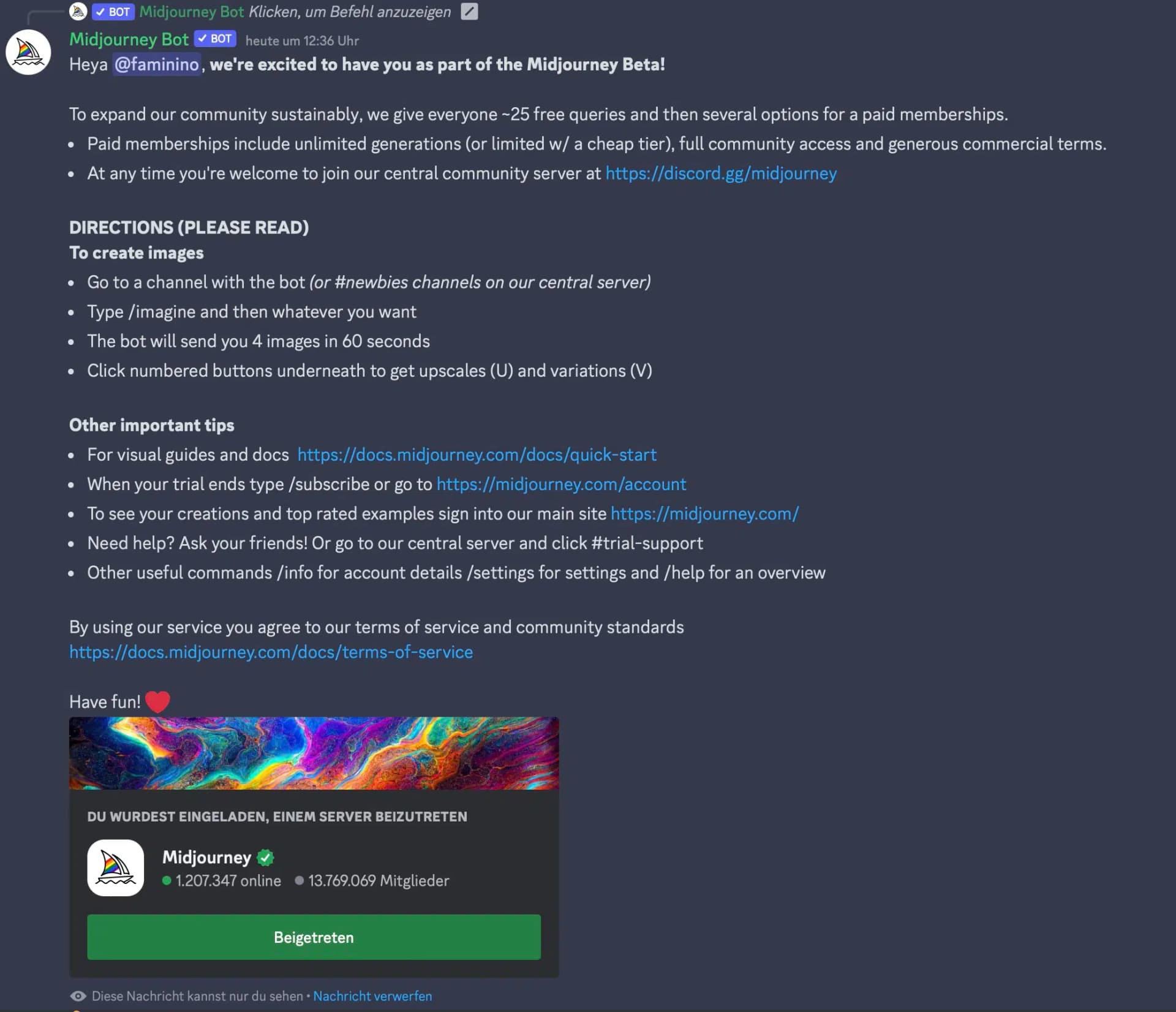
Normally, you could generate 25 images for free to test Midjourney first. Currently, this has been restricted, and it's likely that you'll be shown that you need to subscribe directly to use Midjourney.
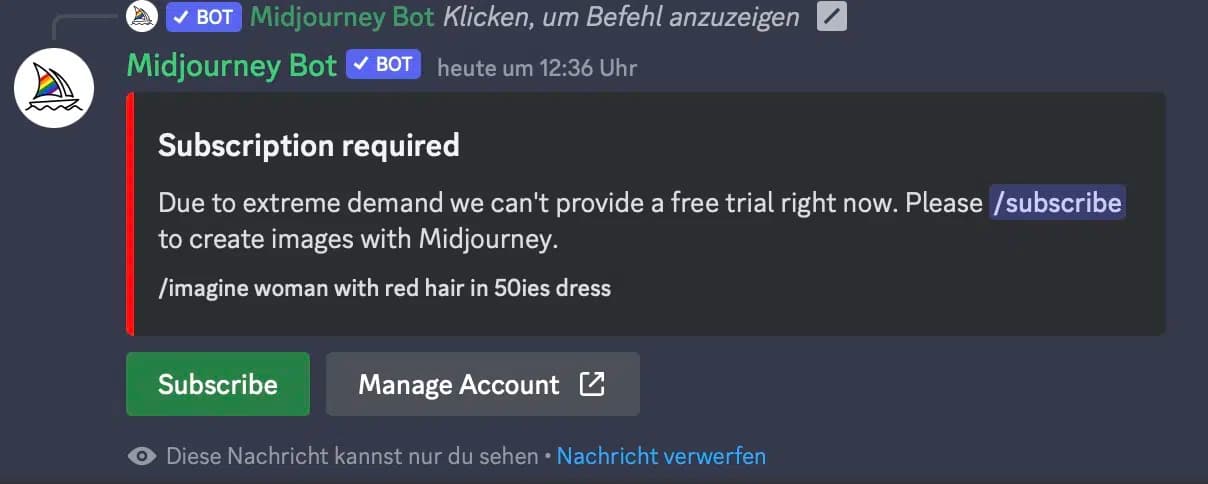
3.2 How to Subscribe to Midjourney?
To subscribe, you have two options:
- Enter the command
/subscribein one of the chat rooms. You'll then receive a link where you can subscribe. This message won't be shown to other users in the chat room. - Go directly to https://www.midjourney.com/account/
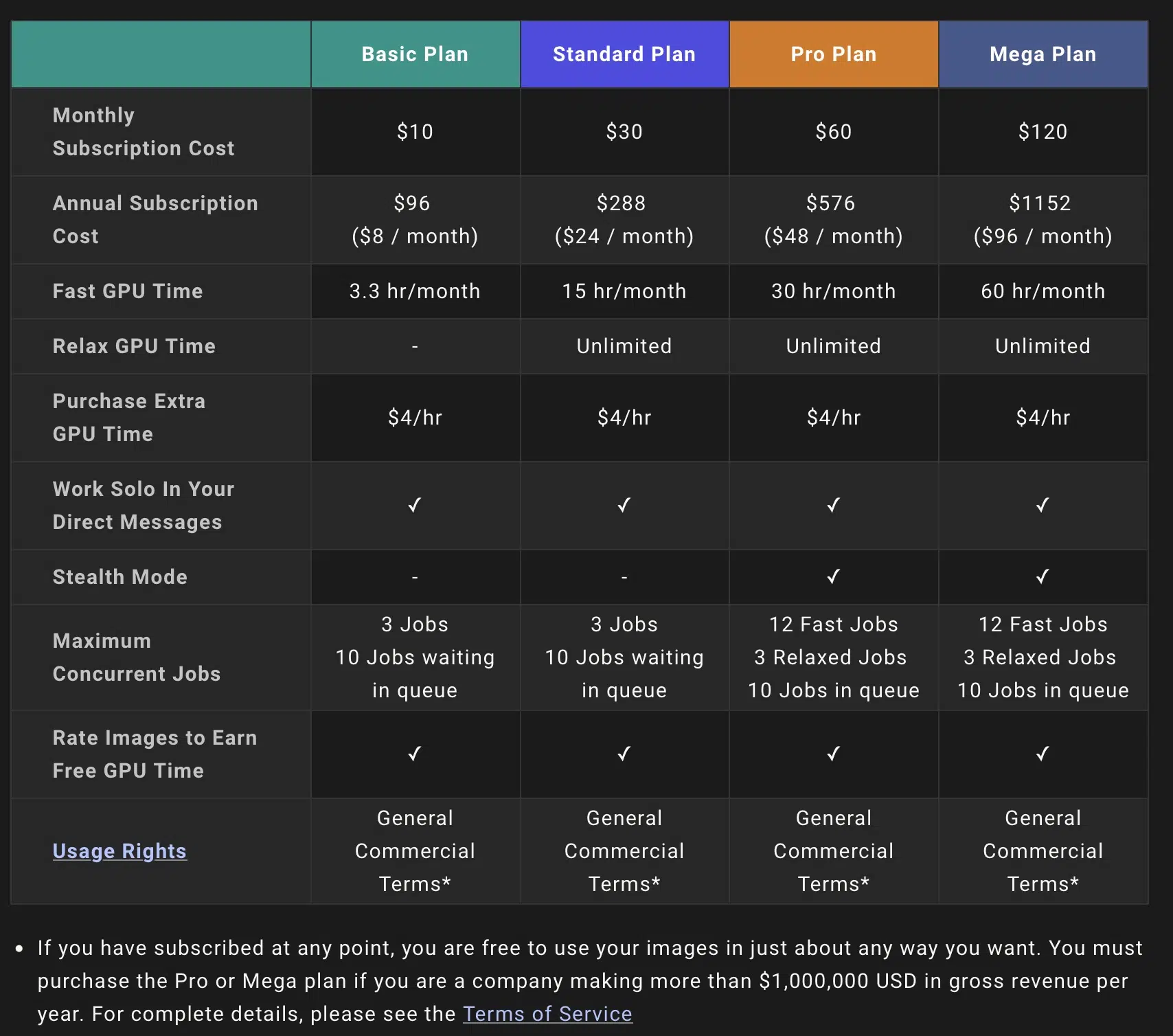
The cost for a Midjourney subscription ranges from $10 to $120 per month.
4. What's Next?
You've now successfully created a Discord account and joined the Midjourney server. You may have also subscribed.
Now comes the fun part!
Now it's time to experiment, explore, and discover.
Essentially, you can't do anything wrong with Midjourney. Just start with the /imagine command, enter what you're imagining, and be excited about the result. If something doesn't work, just modify your prompt a bit and try again.
You'll quickly get a feel for Midjourney and notice how you can write better prompts. It's best to stick to English prompts. You can find out why here: AI Image Generators Guide
5. Understanding the Output
When you submit a prompt, Midjourney generates 4 image variations. Below each set, you'll see buttons that let you interact with the results:
- U1-U4: Upscale the corresponding image (make it larger and more detailed)
- V1-V4: Create variations based on that specific image
- 🔄: Re-roll to get 4 new variations with the same prompt
6. Tips for Better Prompts
The key to getting great results from Midjourney is writing effective prompts. Here are some tips:
6.1 Be Specific
Instead of just "a dog," try something like "a golden retriever puppy playing in autumn leaves, soft afternoon light, shallow depth of field."
6.2 Use Style Keywords
Add style descriptors like:
- photorealistic, hyperrealistic: for photo-like images
- oil painting, watercolor, digital art: for artistic styles
- cinematic, dramatic lighting: for movie-like atmosphere
- 8k, highly detailed: for more detail
6.3 Use Parameters
Add parameters at the end of your prompt:
- --ar 16:9: aspect ratio (16:9, 1:1, 9:16, etc.)
- --v 6: use a specific version
- --stylize 250: control artistic interpretation (0-1000)
- --chaos 50: increase variation (0-100)
7. Midjourney Pricing Plans
Midjourney offers several subscription tiers to fit different needs:
- Basic ($10/month): ~200 generations/month, limited to 3 concurrent jobs
- Standard ($30/month): 15 hours of fast generations, unlimited relaxed mode
- Pro ($60/month): 30 hours fast, stealth mode (private generations)
- Mega ($120/month): 60 hours fast, ideal for heavy users
Conclusion
Midjourney is one of the most powerful AI image generators available today. The learning curve and mandatory subscription can feel like a barrier at first, but once you get the hang of it, the output quality makes it worthwhile.
My advice: start with simple prompts. Experiment with different styles and parameters. The more you use Midjourney, the better you'll develop an intuition for what works.
And don't underestimate the Discord community. Some of my best prompt ideas came from seeing what other people were creating and reverse-engineering their approach.