You're sitting in front of your PC, staring at hours of unedited video footage, wondering how you're going to turn it into a great video without losing your mind.
Video editing used to be a task that required a lot of time, patience, and above all, technical know-how.
But for about two years now, AI tools have started to shake up the industry. They can't (yet) completely replace manual video editing, but they can do more and more:
From automatic color correction to facial recognition or creating shorter videos based on a text prompt, a lot is already possible with AI.
In this article, we'll introduce you to seven AI video editors for many different use cases. Six of them are even free to use or try.
- Descript revolutionizes video editing with transcript-based cutting from $12 monthly for professional results
- Opus Clip automatically transforms long videos into viral social media clips with AI scoring and a free 60-minute starter tier
- 6 of 7 tools offer free trials or tiers - from 1 hour at Descript to 125 credits at RunwayML
AI Video Editors Overview
AI Video Editor | Best For... | Price | Free Tier? |
|---|---|---|---|
| Synthesia | Using digital avatars | from $20/month | false |
| Descript | Editing videos like a text document | from $12/month | ✓ (1 hour per month) |
| Opus Clip | Converting long-form to short-form videos | from $9/month | ✓ (60 minutes/month) |
| RunwayML | Creating videos from images (with Motion Brush) | from $12/month | ✓ (125 credits for up to 3 projects) |
| Gling | Enhancing videos | from $10/month | ✓ (1 test video) |
| InVideo | Creating and editing videos | from $15/month | true |
| VEED.IO | "Classic" video editing | from $19/month | true |
1. Synthesia
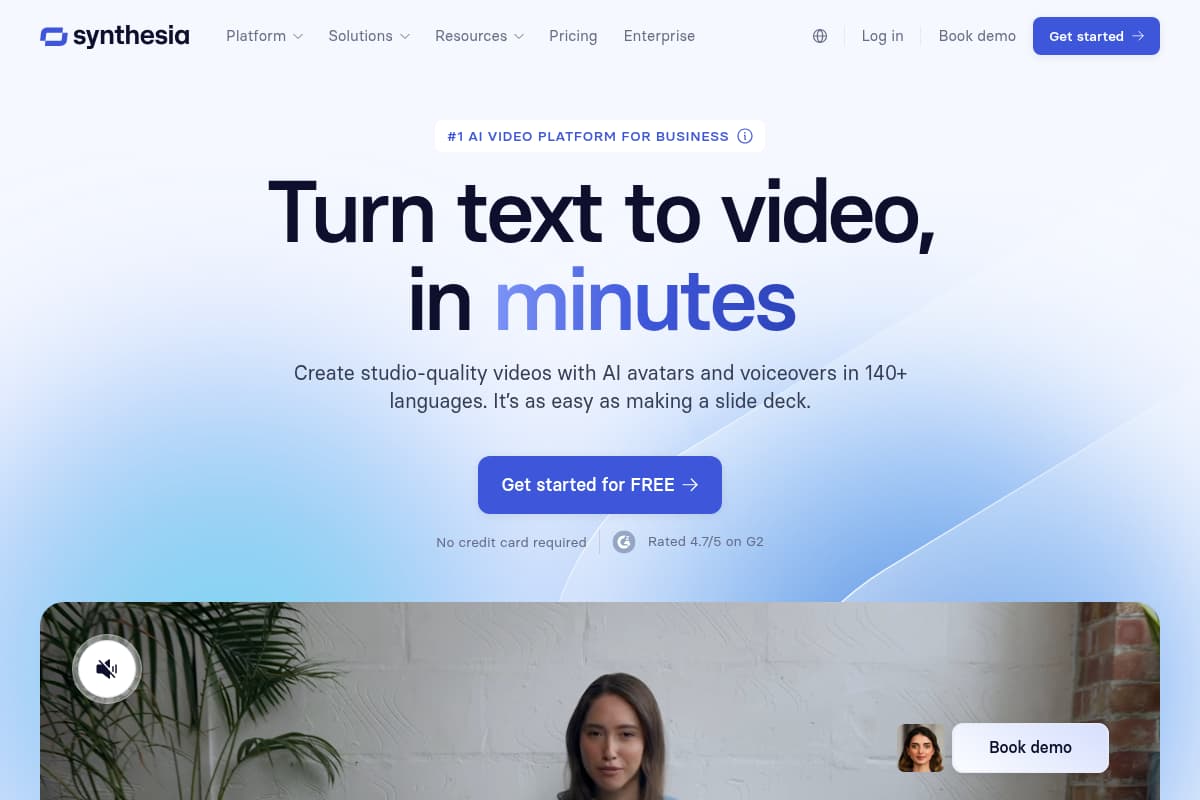
What do you do when you need to record training videos, but everyone in the office is camera-shy? If an actor isn't an option, then Synthesia is my second-best choice:
You can browse through a library of dozens of digital, realistic-looking avatars from around the world. Then you choose the voice that best fits the body and enter your text. It's even possible to create your own avatar of yourself.
The user interface is simple and focuses heavily on this core function. Once you've added the script, Synthesia begins making the avatar move its lips and body convincingly.

You can quickly translate all the text into another language by clicking a dropdown menu. The avatar switches from English to French faster than you can say "quoi?".
You might wonder: How natural are these avatars? They're good but can't replace humans. When watching in full-screen mode, you can detect some unnatural movements.
In addition to choosing your favorite avatar, Synthesia lets you add additional scenes to the video, so you can add a few slides with text from a range of pre-made layouts. You can customize the text and appearance to match your brand. You can also upload your own footage and place the avatar in a corner of the video while demonstrating features of your app.
We tested three other AI avatar apps for this article, but Synthesia is by far the best solution. The text-to-speech video generation and avatar movements are the most natural. It's state-of-the-art when it comes to avatar-based AI videos.
Pricing
Synthesia offers two tiers with the Starter plan at $20 and the Creator plan at $59 per month, which differ significantly in scope. However, you get your "Digital Twin" in both offers.
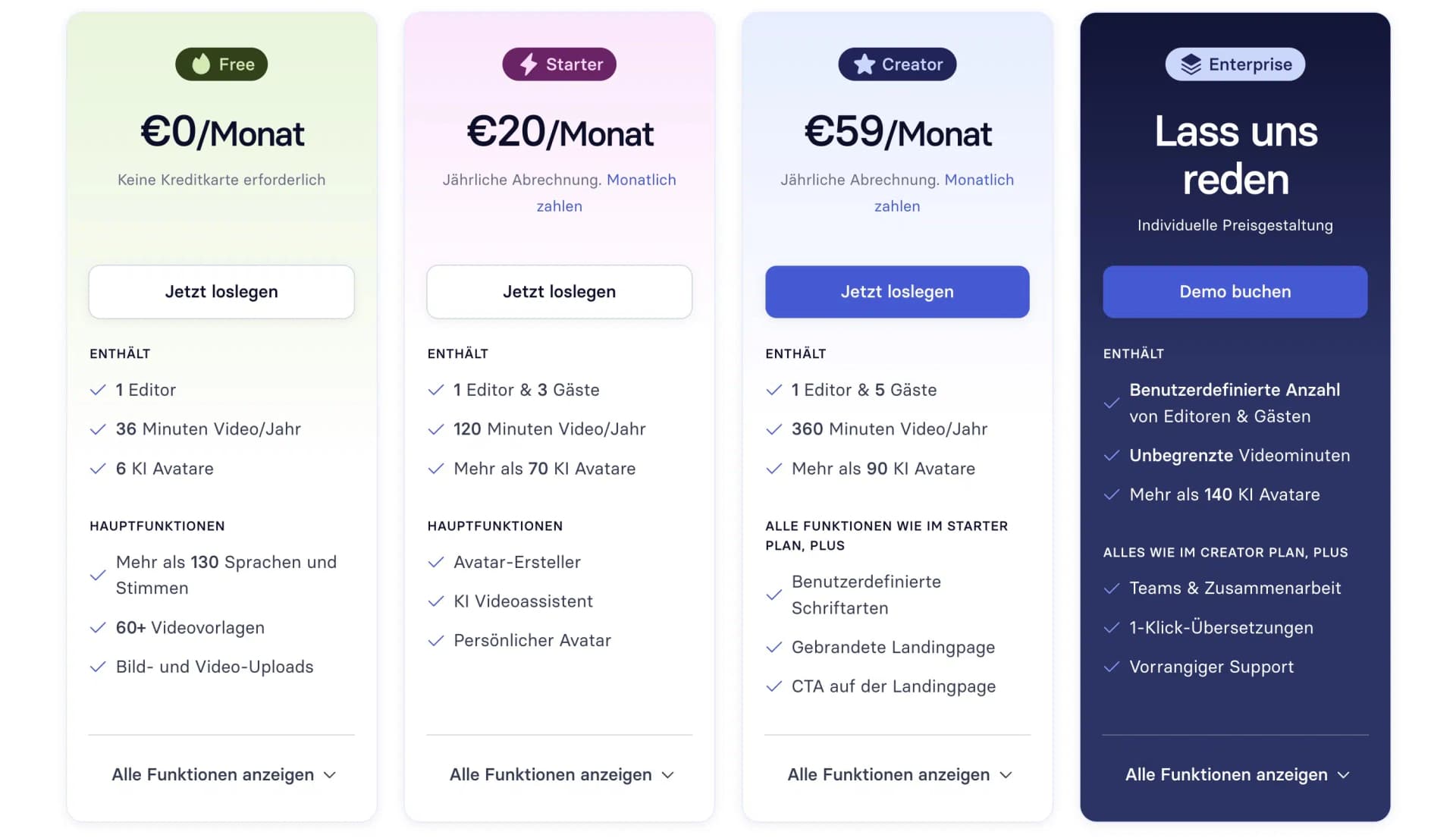
To clone your voice and use it in combination with your avatar, the Enterprise tier is required, for which there's no flat rate price information, meaning it's probably in the three-digit range.
2. Descript
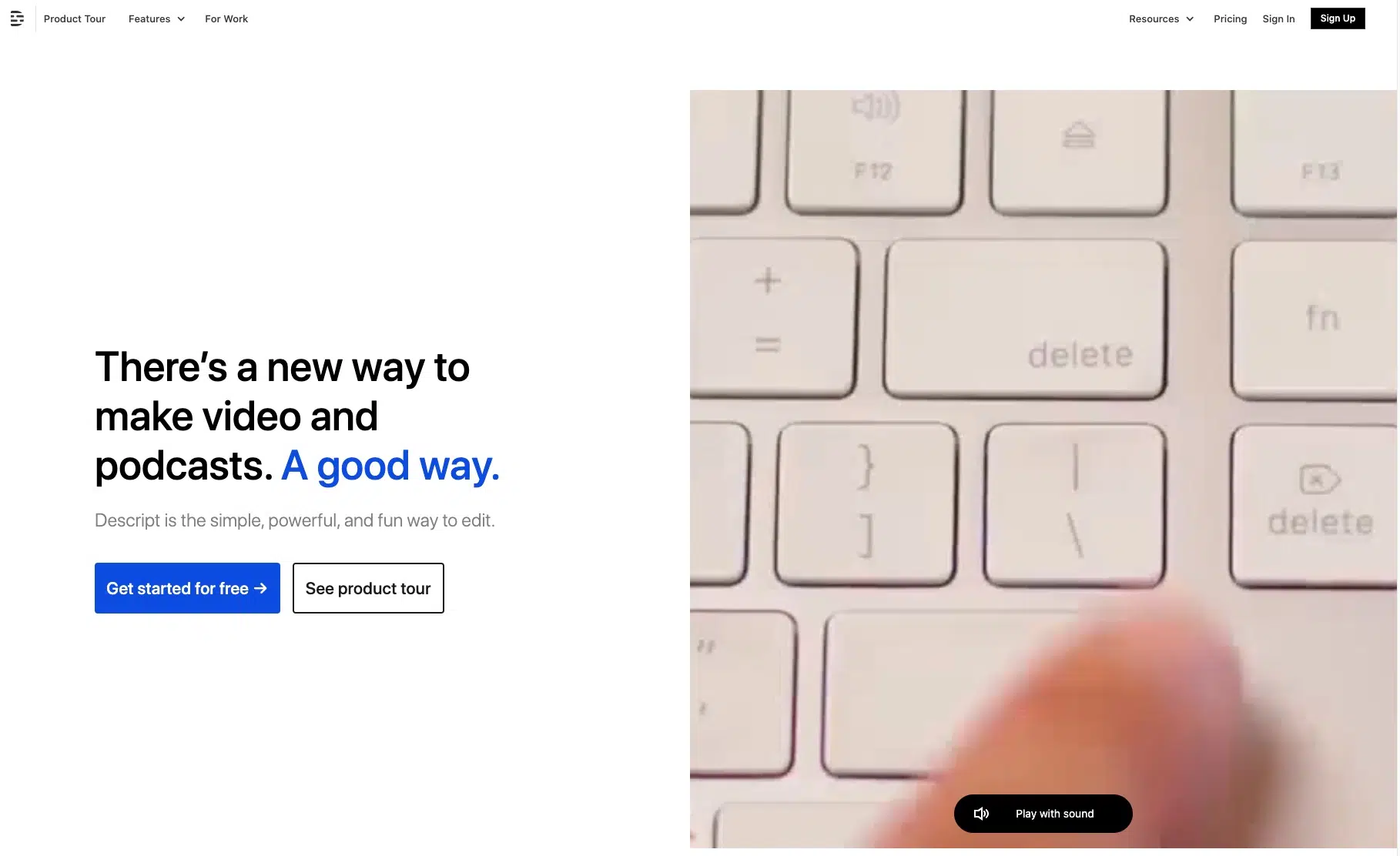
Descript is my favorite when it comes to cutting videos – by simply working on the script.
Sounds cool? It is!
Imagine you record a video and just talk away. Afterwards you realize: Wow, that was maybe a bit much.
About 10 to 20 times more content than you actually need. That often ends in hours of reviewing raw footage, marking good spots, and then juggling back and forth to cut everything correctly. It's fun at first, but when the deadline approaches, the world looks different.
If you know this, Descript will change your life. First, it creates a transcript of everything you say and automatically splits the video into scenes.
Instead of scrolling through the timeline and tediously cutting, you simply highlight in the transcript what can go, and whoosh, Descript cuts it out for you. No more back and forth on the timeline to check if the cut is right: You edit your video as if it were a Word document.
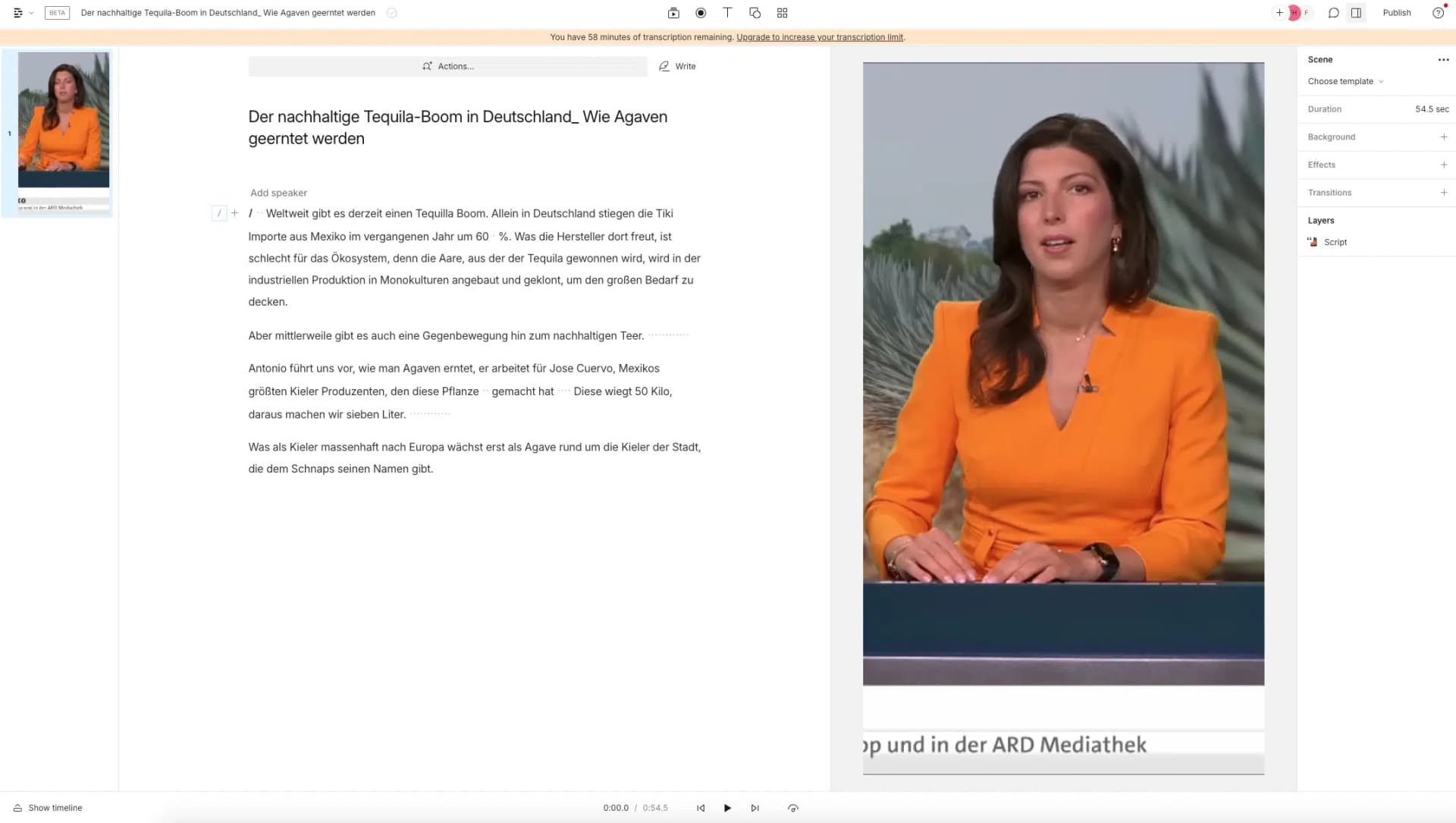
Using the script, you can divide your video into scenes. Just type a slash into the script to separate them and the video is divided in the vertical timeline on the left.
Now you can add B-roll footage, for example: Click on the scene image and then on the media library at the top. Search for high-quality stock videos and add them directly to your project in the editor window.
When you press play, you'll see that Descript switches to B-roll exactly at the marked spots. The user experience for adding jump cuts, visual elements, and SFX is the same.
This way you can gradually edit your entire script and later add all the good stuff. This workflow saves massive time in my tests. But if you prefer the classic timeline – no problem: AtSign the bottom of the screen you'll find everything you need.
Pricing
Descript offers a free version with 1 hour of transcription and 1 watermark-free video in 720p.
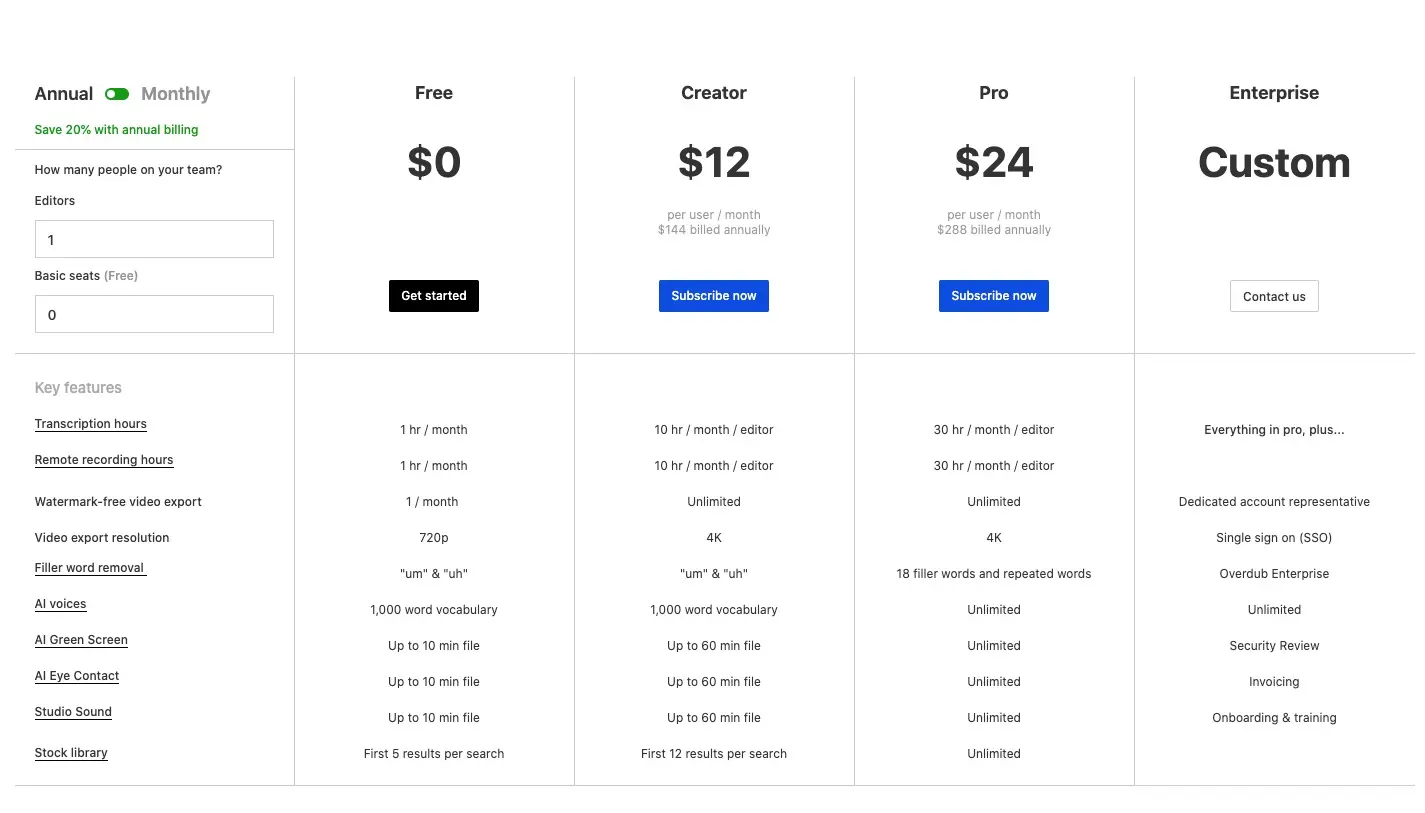
The Creator Plan starts at $12/month, offers 10 hours of transcription and unlimited (watermark-free) video exports in up to 4K resolution. If you're a heavy user, I recommend the Pro tier, which costs twice as much but offers much more than double.
3. Opus Clip
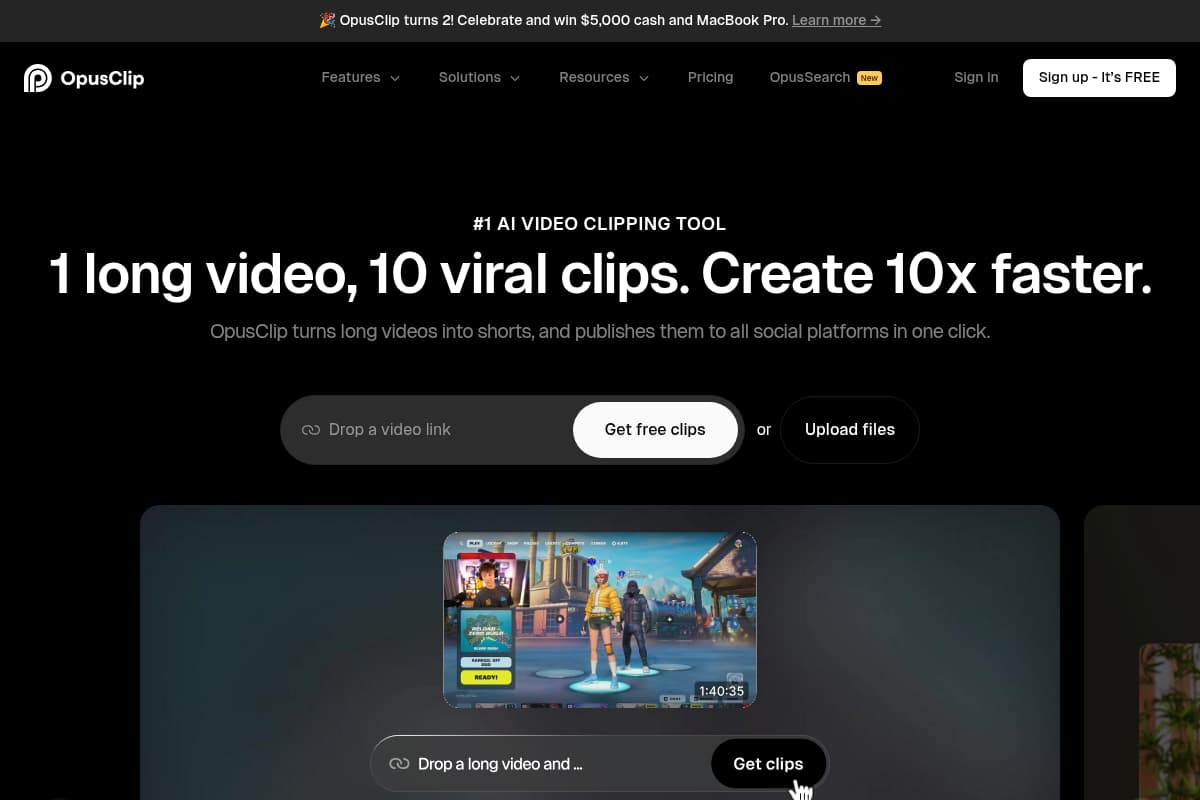
If you've ever tried to manage just one video content channel, you know how tricky it can get. From idea to upload, there's a lot of work involved – creative and otherwise. But wait, if you now also want to expand to other platforms or formats like TikTok, a content recycling routine threatens to blow up your schedule.
Fortunately, your pace doesn't have to suffer here. Opus Clip is for me the wonder child among tools – equipped with AI power to:
- Find the viral moments in your video.
- Pack them into short clips, perfect for TikTok, YouTube Shorts, or Instagram Reels.
- Manage everything that makes videos successful on these platforms – a captivating title and automatically styled subtitles with emojis to get your message across.
Using it is child's play. You simply submit the URL of the video you want to repurpose (or upload a video). Then take a little coffee break – or take care of other work if you prefer. Opus Clip works in the background and creates magic. When it's done, an email notification arrives.
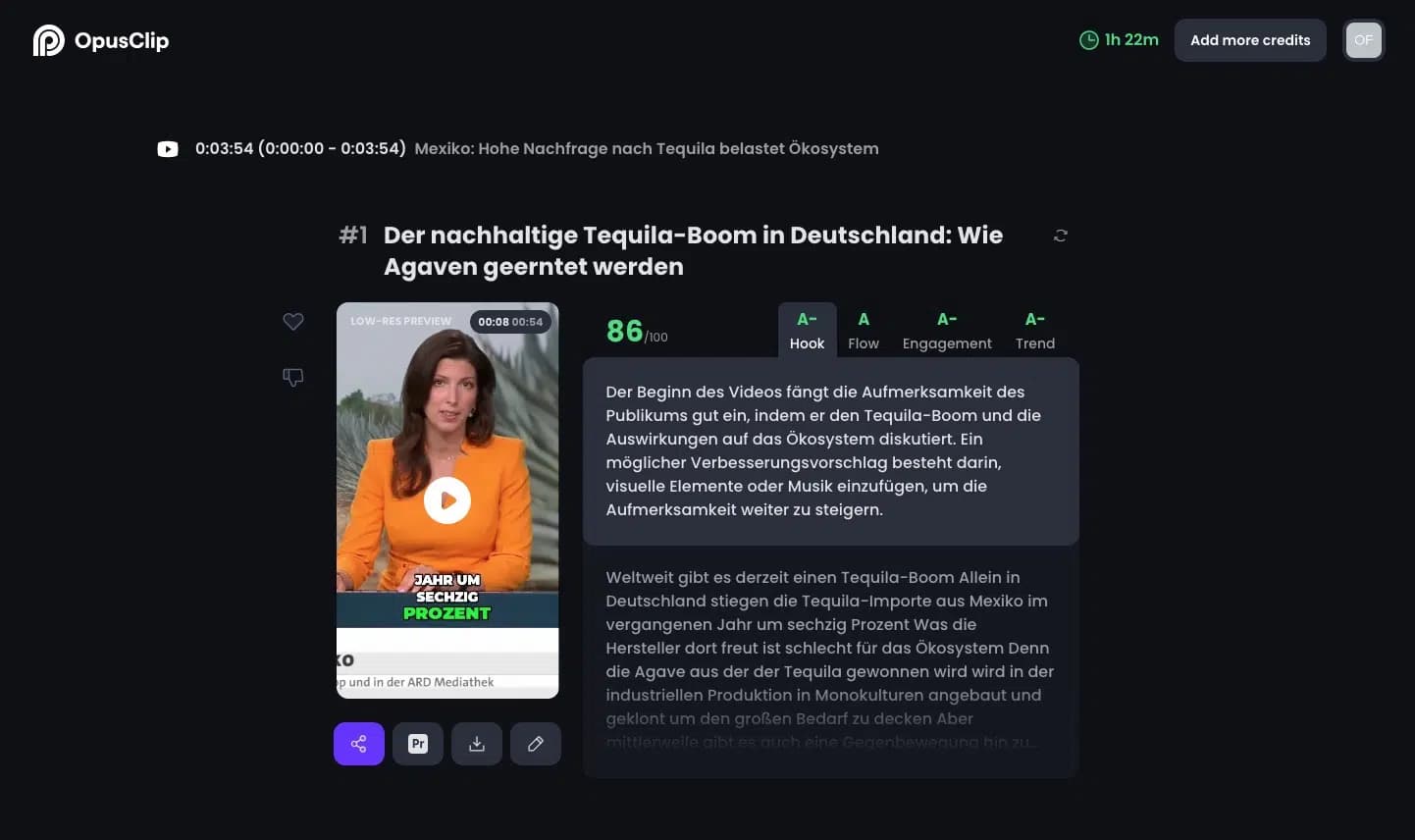
The results list is sorted by virality score, a metric the developers created to estimate how likely a clip is to take off online. The engine is powered by OpenAI's GPT models, which are really good at understanding the content of the video:
The titles aren't simple variations of the topic, and sometimes really interesting angles and side topics come out that I wouldn't have expected. This understanding is also reflected in a concise summary of each video that hits the mark and suggests how it might affect the viewer.
You can play all clips on the results page to see how they work. Not satisfied with it? One click is enough, and you can crop the selection or adjust the subtitle settings. Opus Clip works well with most topics and video styles but might not be the first choice if you're making vlogs, gaming, or music videos.
Pricing
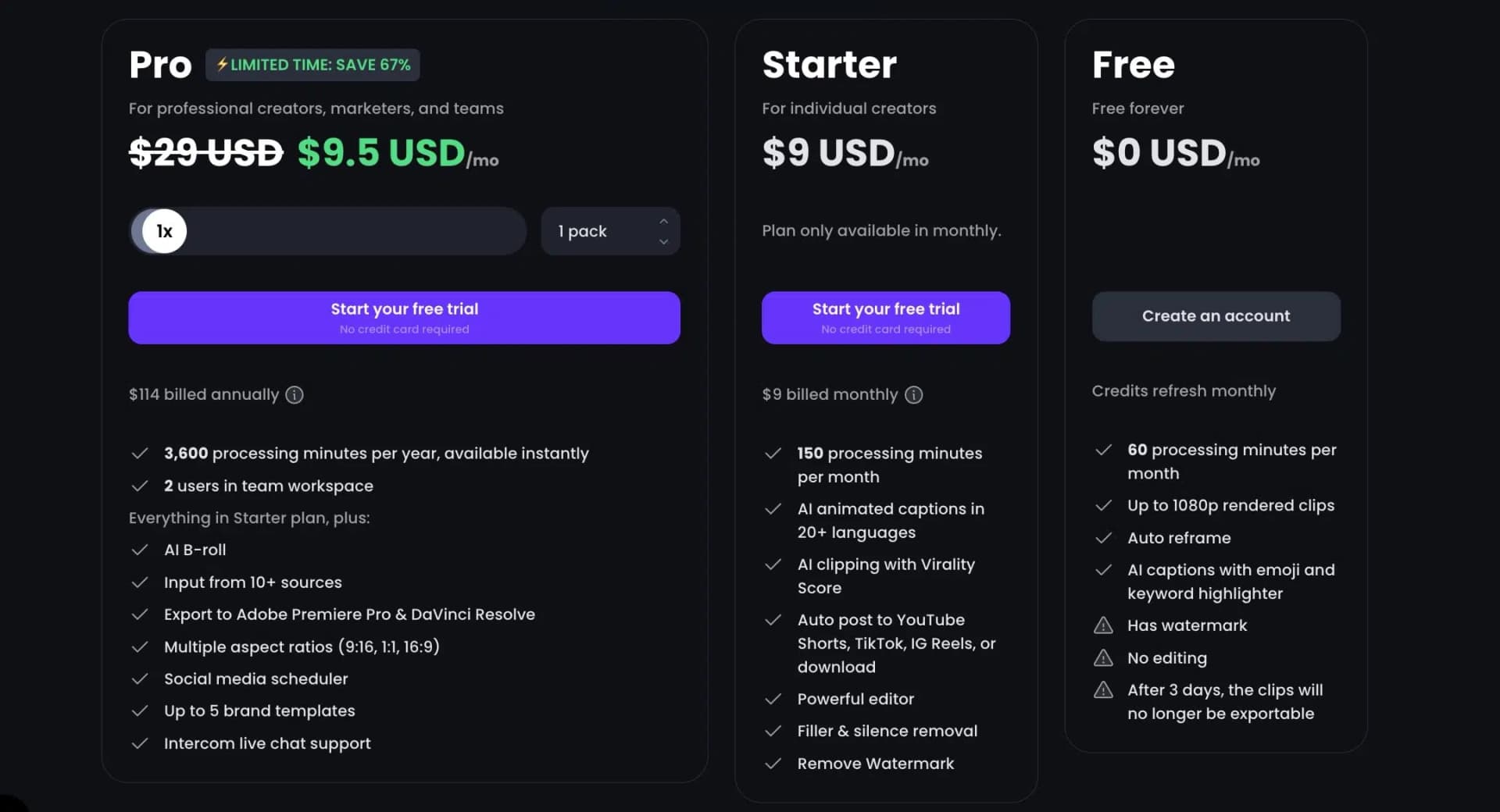
The Free tier is actually free and offers you 60 processing minutes every month. Unfortunately, you can't edit the videos and they're watermarked.
The Starter Plan costs $9/month, offers 150 upload minutes, AI curation and automatic posting to YouTube, TikTok, and Instagram, plus access to the good editor and export of videos without watermarks.
My tip: The Pro tier isn't much more expensive and can do so much more. The only catch is that you commit to OpusClip for a year, meaning instead of $9 monthly for the Starter tier, you pay $9.50 monthly but in a lump sum for a year, so $114 for 3,600 processing minutes (equivalent to 60 hours of video material), 2 accounts for any employees, and much more.
4. Runway
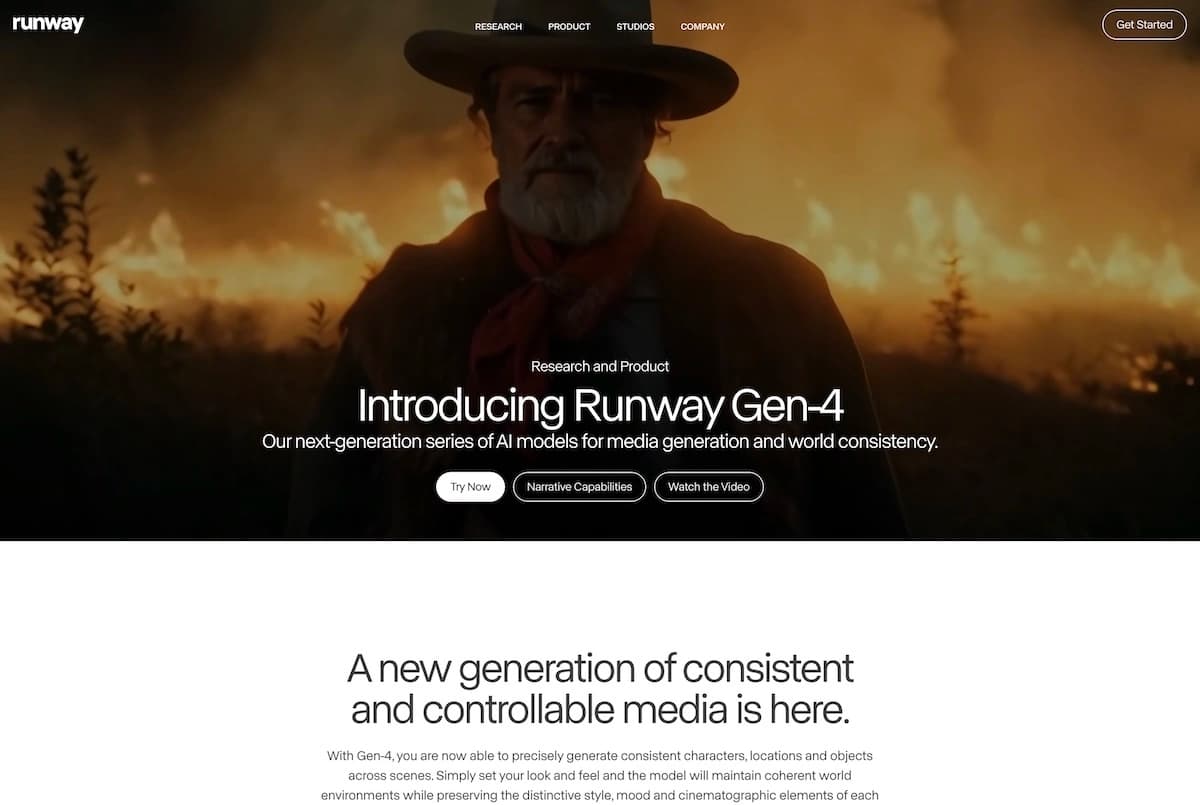
Imagine you're holding a magic wand. Runway is exactly that in the world of video editing.
But as with all things magical, it's more about the wizard than the wand. Here there's an impressive palette of possibilities, but the final result depends heavily on how you apply it.
It requires a bit of tinkering before you see the desired results. But when they're there, they are, for me, among the best the industry has to offer.
The user interface feels like a professional video editing tool but isn't too complicated. The video tutorials are first-class and explain the features clearly with examples.
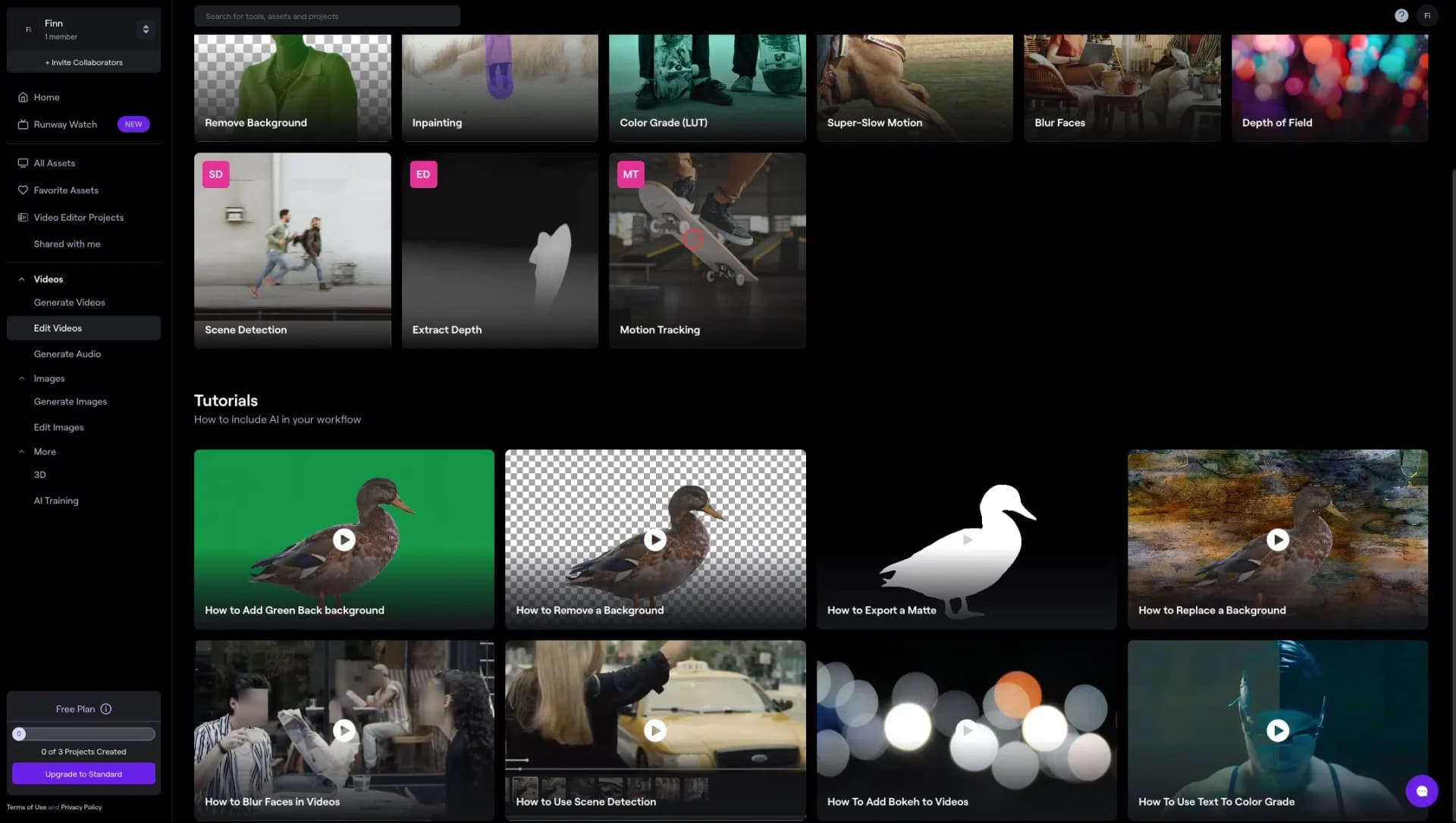
In addition to the AI video enhancement features, Runway offers:
- Green screen, so you can completely change or remove the video background.
- A whole arsenal of generative AI tools like text-to-video, image-to-image, and the ability to train your own AI models for image generation.
- Object removal and replacement, so you can change the vase of a flower bouquet or turn a soccer ball into a watermelon.
- Image section replacement, where you can change parts of an image with text prompts. The results range from amazingly good to frighteningly bad, depending on what you type.
Runway will initially frustrate inexperienced users, so take some time to learn all the nuances. Still, you'll master it faster than its big brother, the mighty Adobe After Effects, and get a respectable amount of possibilities in exchange.
Pricing
There's a free plan with 125 credits (for AI features), 3 projects, and 720p export. The Standard plan for $12/month offers 625 credits and allows export up to 4K.
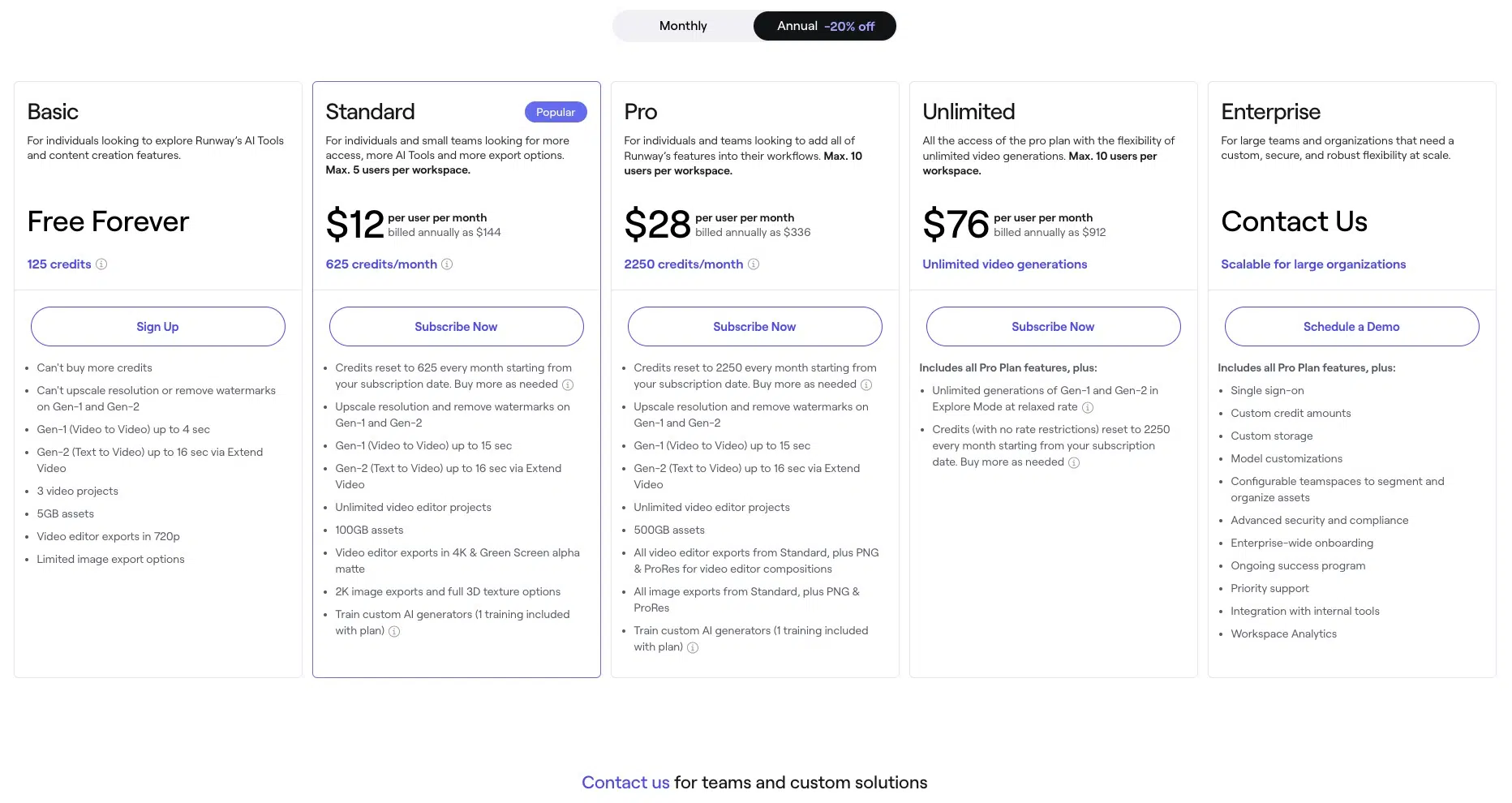
Beyond that, Runway also offers a Pro tier for $28 per month, the Unlimited tier for $76 per month, as well as a custom solution for large enterprises.
5. Gling
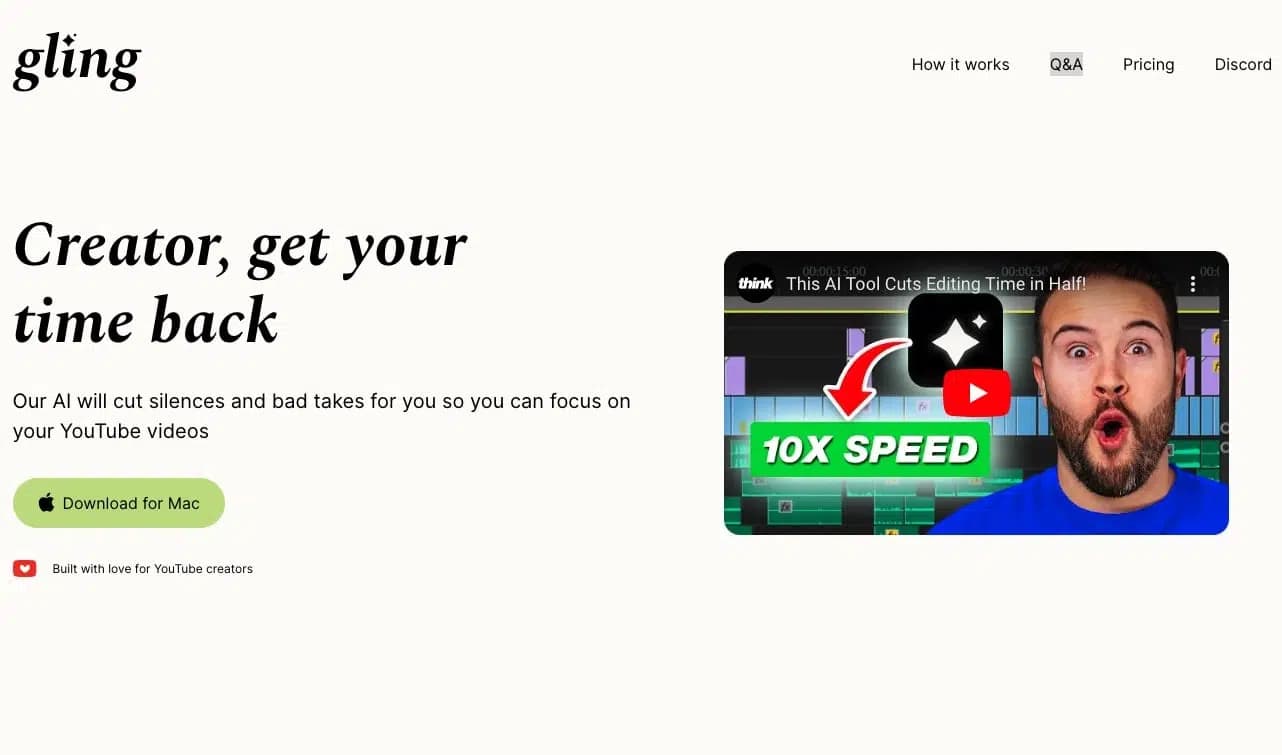
Gling is my secret tip for anyone who wants to give their videos the finishing touch with AI tools.
The software automatically removes bad takes and unnecessary silence, saving you a lot of time. Particularly practical for projects with multiple camera angles is the multi-cam editing process, which is simplified by Gling. An additional feature is automatic transcription, which converts spoken content into text and thus enables more precise cuts.
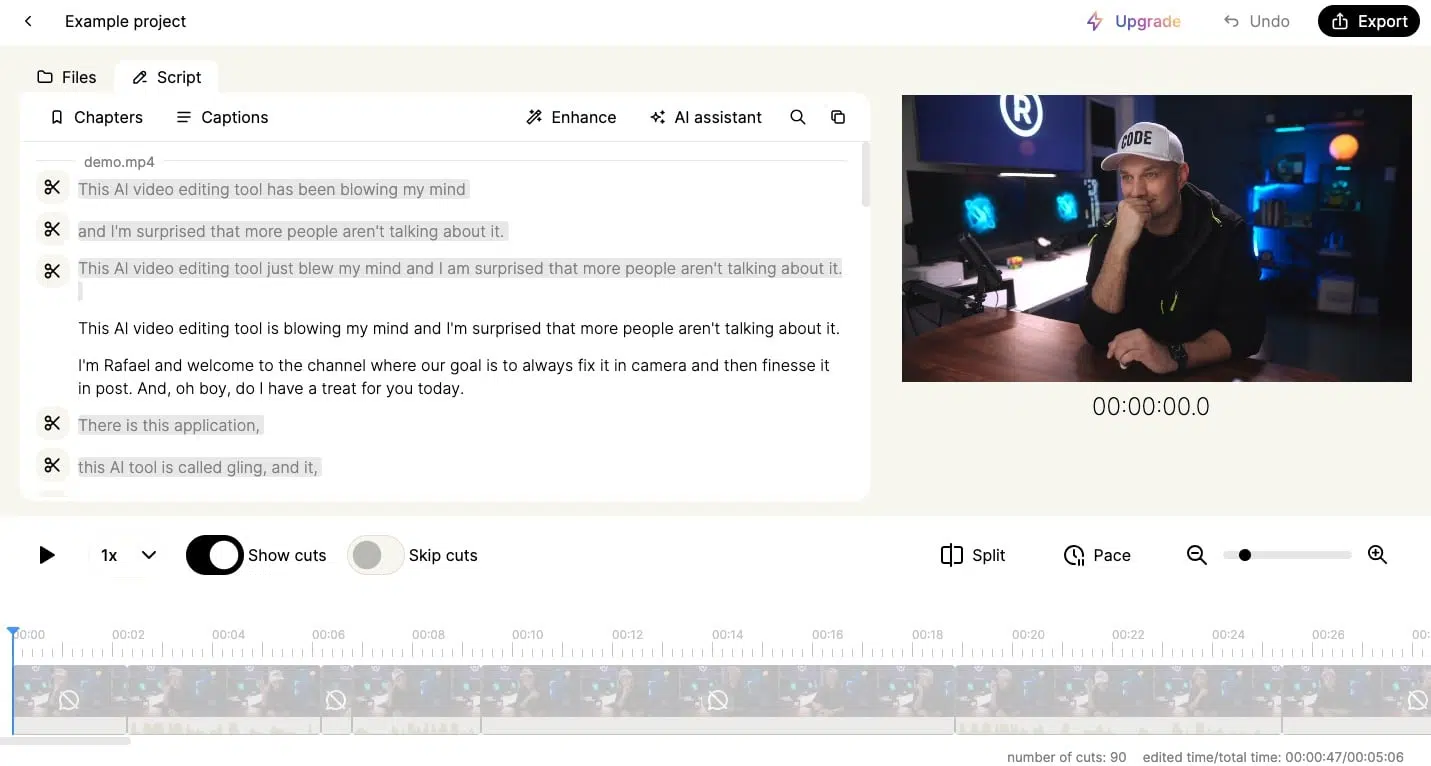
The platform works non-destructively, so your original files remain unchanged, and is compatible with popular video editing software like Final Cut Pro, Adobe Premiere, and DaVinci Resolve. Whether you work on macOS or Windows, Gling supports both operating systems and offers flexible export options to optimize your post-production process.
Pricing
With Gling, you can upload, edit, and export exactly one video of your choice (with a maximum length of one hour) for free.
For users who need more extensive use, Gling offers a Premium tier that costs $15/month or $10 per month with an annual subscription. The tier allows processing up to 10 hours of footage per month at no additional cost. Each video minute processed beyond the 10-hour limit costs an additional fee of $0.04 per minute.
6. InVideo
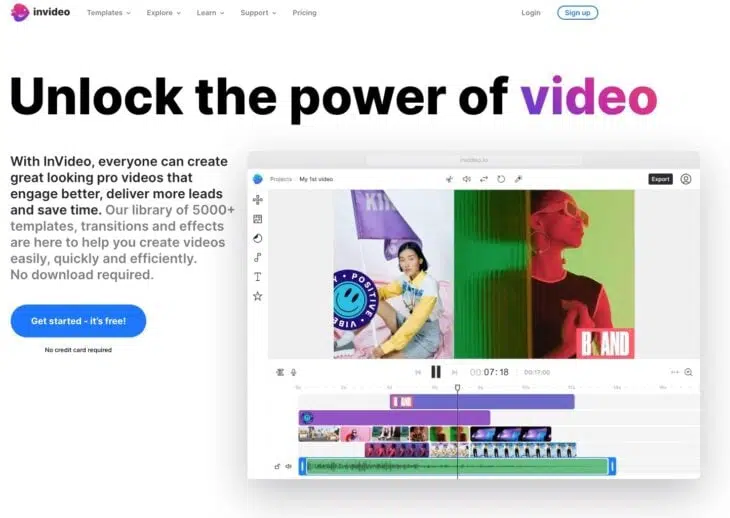
InVideo is a powerful video editing software that can also transform text into videos. It gives you access to over 6,000 templates, iStock media, a music library, filters, and more.
InVideo also provides access to over 8 million stock media and artificial intelligence (AI) that can help you transform text into videos or generate scripts.
With Invideo, you can create a wide range of videos, such as video ads, promos, YouTube videos, intros, and much more. InVideo offers many features for video editing, such as:
- Cutting, rotating, flipping, or changing the speed of clips
- Adding transitions, masks, overlays, and other effects
- Applying color corrections or preset color filters
- Adding music or voice recordings from the integrated library or your own files
- Removing the background from product images with one click
- Creating multiple brand kits and applying them to any video with one click
- Adding your team and collaborating on your video.
Pricing
InVideo currently offers three different tiers, one of which is free (but watermarks the videos).
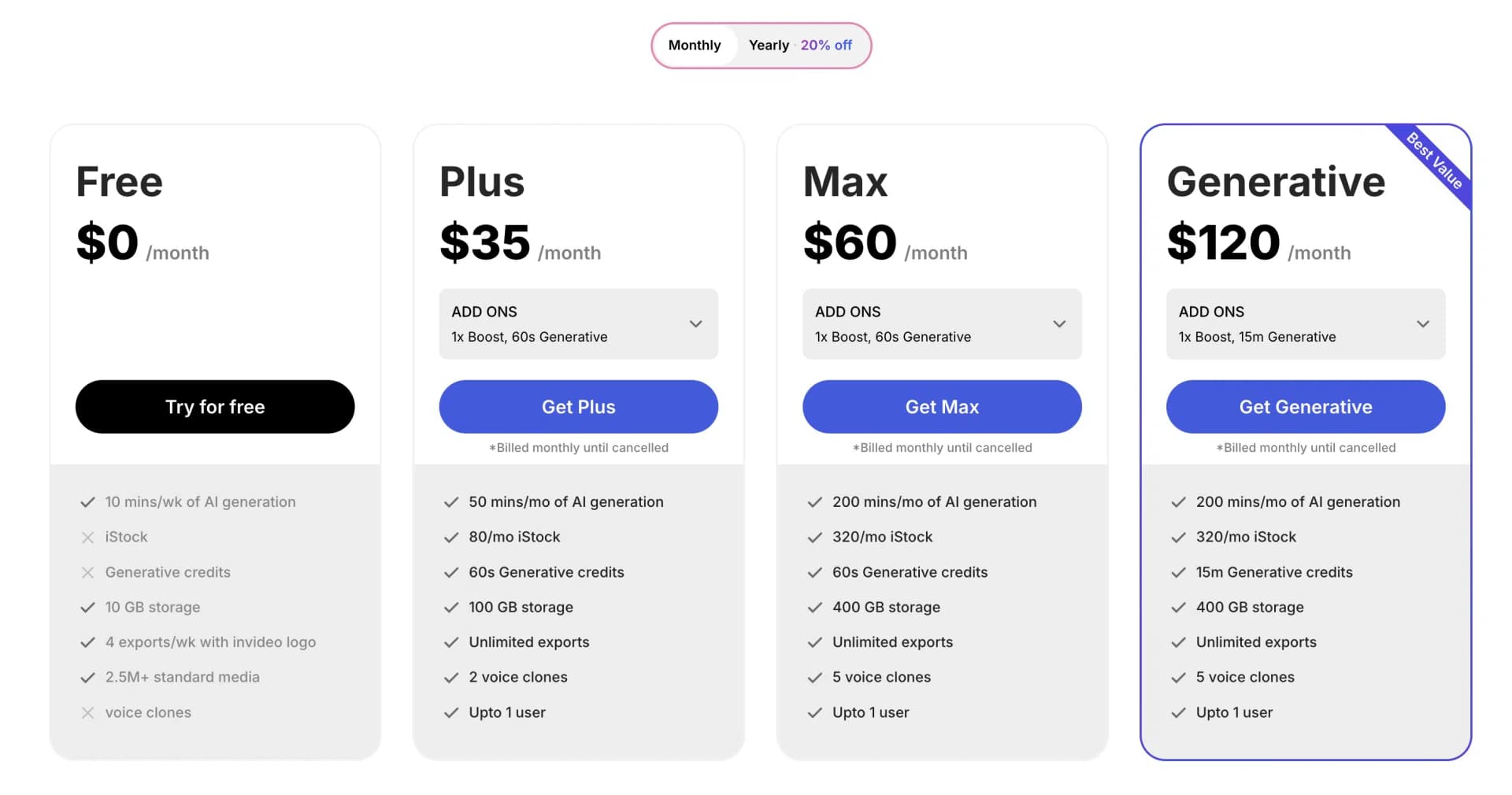
There's currently even the option to purchase the Business tier in the Lifetime variant for $399, which is a very good price.
7. VEED.IO
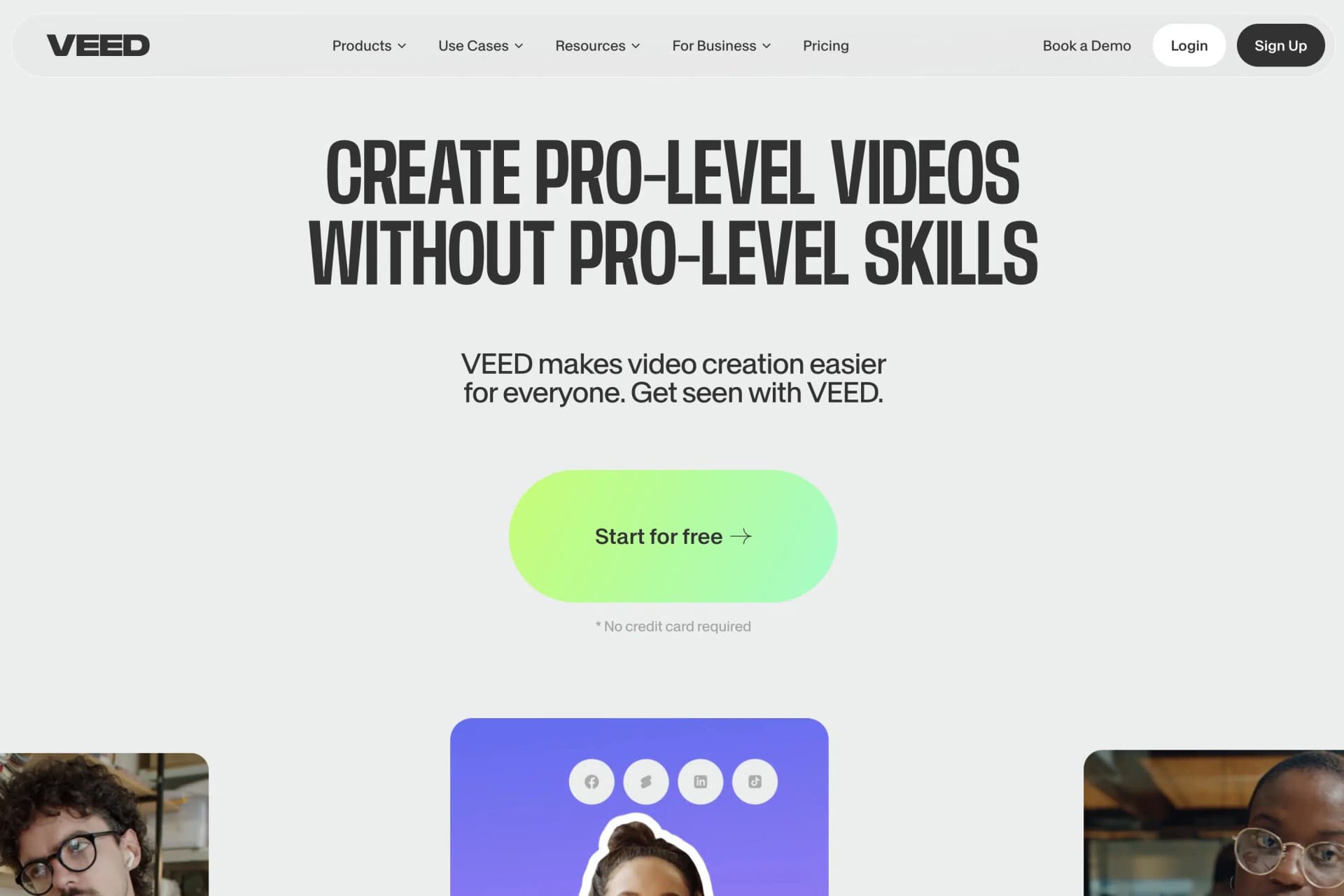
VEED.IO is a powerful AI online video generator that helps you create professional videos in minutes with a simple user interface. You can excellently use VEED.IO as a video editor for cutting, cropping, adding subtitles, and much more.
And here's how it works:
- Upload your video or choose one of the existing videos
- Edit the video by adding text, images, etc.
- Export and download the video
Pricing
VEED.IO offers the following pricing packages:
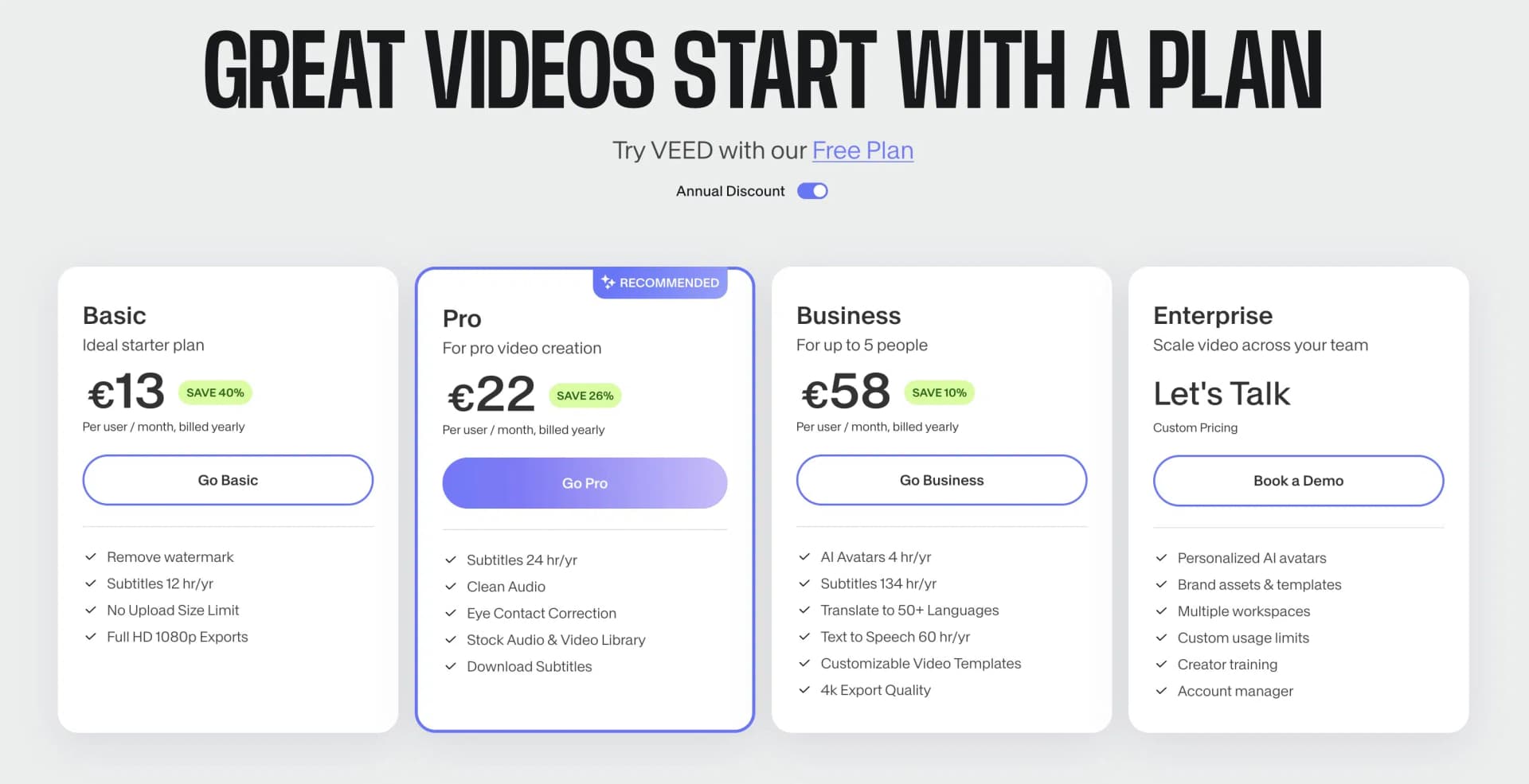
If you're only planning short projects with videos under 10 minutes, you can opt for the free tier. However, it includes a watermark that's permanently visible.
The Basic tier is for everyone who needs simple online video editing features. It costs you $13 per month. Beyond that, there's also the Pro tier. This is perfect for anyone who needs video translations, plenty of storage space, and special brand tools. It costs you $22 per month. If the Pro tier isn't enough for you, you can take a closer look at the Business solution for $58 per month or the customized Enterprise version.
8. What Should a Good Video Editor Offer?
In the previous chapter, I introduced you to some of the best AI video editing programs, each with their strengths and weaknesses.
As additional decision guidance, I'd like to mention some must-haves that shouldn't be missing in video editing software:
Comprehensive Editing Tools
A powerful AI video editor must be versatile to edit different types of video projects. Whether for social media, marketing campaigns, or educational content, the ideal tool should offer all necessary features.
Make sure the software offers a wide range of editing tools and effects.
Fair Price and Transparent Usage Limits
Before you decide on video editing software, you should understand the pricing structure and any usage limits. Some software sets limits on the number of projects you can edit monthly, others might limit export quality.
Consider what makes the most sense for your needs and what kind of projects you'll mainly be editing.
AtSign Gradually AI, we're currently not focusing on producing long-form videos, so we would rather pay attention to the quality and features of the software than the quantity of projects.
Intuitive User Interface
For me personally, the user interface of AI video editing software can't be intuitive and clean enough.
I want to be able to navigate easily through a clear and simple menu structure and find all essential features quickly. The editing process itself should be designed as simply as possible without the editor being overloaded with too many buttons and setting options.
Efficient Video Editing and Fast Rendering
What frustrates me most about AI video editing is when rendering a finished video takes forever.
Sometimes the editing time is only a fraction of the required rendering time.
Of course, this also depends heavily on your input and desired output. Rendering a 4K video recording logically takes longer than creating a video in lower resolution or a simple text-to-speech video.