MCP Server Directory
Discover 1065+ MCP servers for Claude, ChatGPT, Cursor and other AI assistants. Find the perfect server for your project.
Last synced: Jan 22, 2026, 06:58 AM
MCP Server Guide
Everything you need to know about Model Context Protocol
MCP stands for Model Context Protocol. It is an open standard (a protocol) that was introduced by Anthropic in late 2024.
The idea behind it:
AI models (like ChatGPT or Claude from Anthropic) should be able to connect more easily with external data sources and tools – in a standardized way.
You can think of MCP as a "USB-C port for AI applications".
Just as USB-C unifies how different devices connect, MCP standardizes the connection between AI models and various data sources or services. The following graphic by Norah Sakal illustrates this:
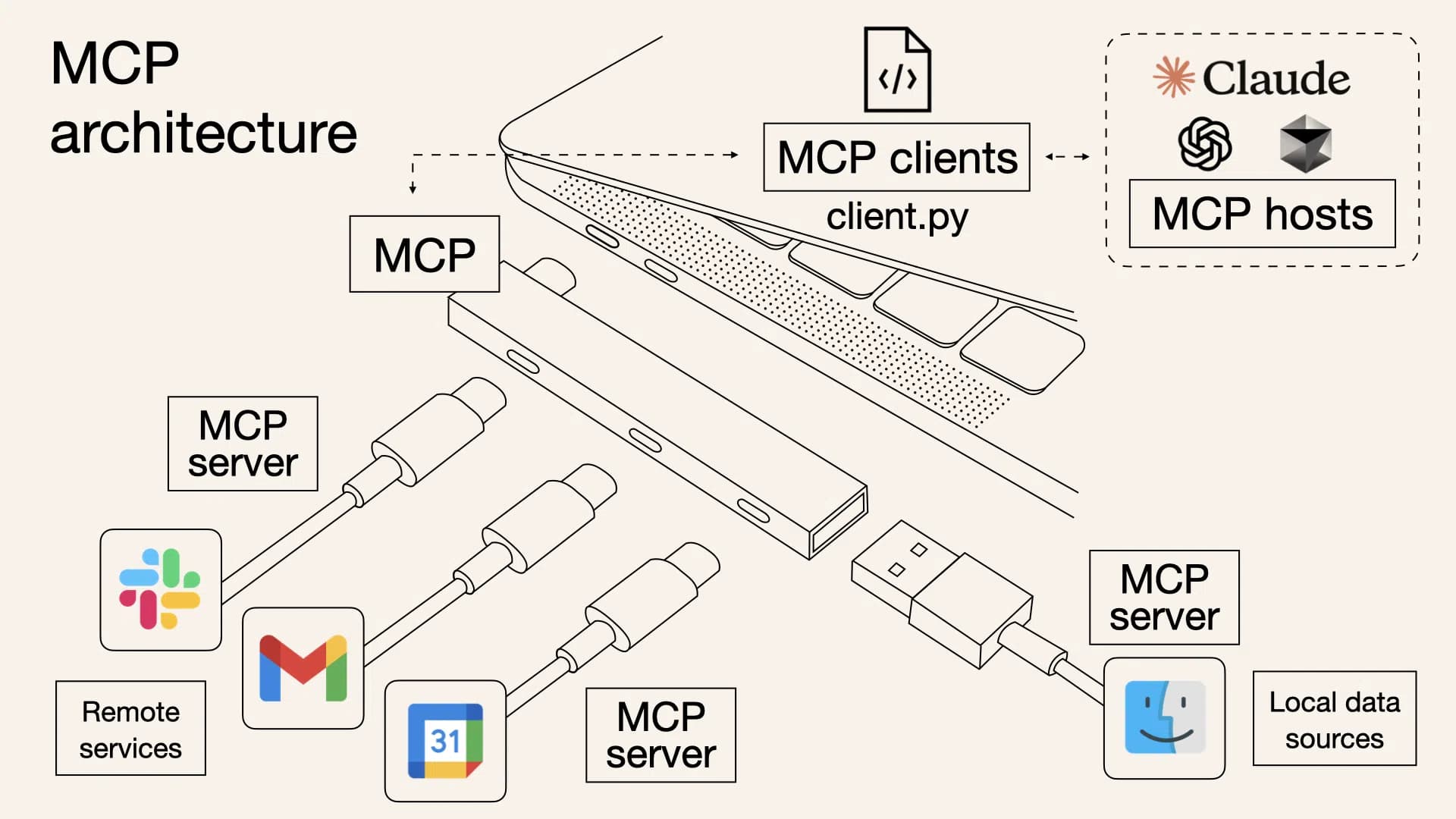
An MCP server in this context is a small helper program (server sounds like a huge system, but here it's usually a lightweight program).
This server offers the AI special capabilities or information. It "speaks" the MCP protocol, so the AI (or the MCP client in the AI application) knows how to communicate with the server.
An MCP server can, for example, have access to a specific data source or provide functions that the AI is allowed to use. The AI sends requests according to the MCP standard to the server and receives responses or actions from it – all according to established rules.
MCP servers act as adapters to remote services (e.g., Slack, Gmail, Google Calendar) or local data sources (e.g., files on your computer).
The MCP client (part of the AI app) acts as a "translator" between the AI host and the MCP servers, ensuring everyone speaks the same "language".
They come into play whenever an AI needs context or capabilities that go beyond what it knows on its own (its training data).
But maybe you want it to work with current or personal data – for example, searching your emails, reading appointments from your calendar, accessing a database, or even controlling an application.
MCP servers make exactly this possible without having to reinvent the wheel for every AI tool and data source.
Everything stays modular and secure:
The AI host only talks to the server (according to fixed rules), and the server takes care of the rest. When a new service needs to be integrated, you just need to add a suitable MCP server instead of completely reprogramming the AI.
Here are some examples of what you can achieve with MCP servers:
- Fetch information: There are MCP servers connected to external APIs or services. For example, a weather server could provide an AI with current weather info when asked about the weather. Or a web search server could provide internet search results.
- Use files and data: Other servers allow the AI to search local files or cloud storage, e.g.: "Find the PDF with my resume on my PC." A suitable MCP server could handle this search and deliver the content to the AI. For Google Drive, there's this ready-made MCP server that can find and read files.
- Control apps and tools: MCP servers can even execute actions. There's an impressive example called Blender-MCP, where Claude can actually control the 3D software Blender. This shows that MCP servers not only deliver data but can also serve as bridges to programs.
- Query databases: There are also MCP servers for database access (e.g., for SQLite or PostgreSQL). An AI could ask questions about your data, and the server translates that into a DB query and returns the result.
MCP sounds great – but it only brings value if applications actually support it. Since MCP is still relatively new, mainly modern AI applications and developer tools are implementing it.
Here are some well-known tools and platforms that already support MCP:
- •Claude Desktop (Anthropic): The desktop version of Claude offers full MCP support. This means you can have Claude use local MCP servers on your computer. (Important: The web version of Claude at claude.ai currently does not support MCP, only the desktop app.)
- •Continue (VS Code Extension): Continue is an open-source extension for Visual Studio Code that uses AI for coding. Continue was one of the first clients with full MCP integration.
- •Microsoft Copilot Studio: Microsoft's Copilot Studio has integrated MCP support in a beginner-friendly way: You can add ready-made MCP connectors in a graphical interface.
- •Cursor: The code editor Cursor also supports tools like debuggers, file access, etc. via MCP.
- •Custom Applications: Since MCP is an open standard, any application or custom project can be built as an "MCP client" if you implement the protocol rules. There are SDKs in various programming languages (Python, TypeScript, Java, etc.) if you want to build custom tools.
A complete list can be found in the "Tools with MCP Support" table on this page.
You might be wondering:
Do I have to program such an MCP server myself?
Fortunately not – unless you want to build something very specific. There are already plenty of pre-built MCP servers that you can use directly or easily customize. A list with hundreds of MCP servers can be found in the MCP Server Directory above.
Another resource is the official GitHub repository from Anthropic for MCP servers.
There you'll find a huge collection of reference implementations and community servers. Some categories of existing MCP servers include:
- Filesystem and Data: Access to local files or databases, e.g., a Filesystem server (for file operations on your computer), a Google Drive server, or SQLite/PostgreSQL servers.
- Developer Tools: Connections to developer services like Git servers, GitHub/GitLab servers, or Sentry servers (for reading error logs).
- Web and APIs: Servers that search or browse the internet – Brave Search server, Fetch server, or Puppeteer server for browser automation.
- Productivity and Communication: Slack server, Gmail, Google Calendar, and many more community servers.
Many are published as npm packages (for Node.js) or Python packages, making installation easy. For example, the Filesystem server is provided as the npm package @modelcontextprotocol/server-filesystem.
The Continue community also offers a directory for MCP servers.
💡 Tip: Always read the description of an MCP server before using it. It states what it does, what permissions it needs, and what requirements (e.g., Node.js, Python) are necessary.
Now let's get practical: How do I get my tool to talk to an MCP server?
The exact setup can vary depending on the tool, but the basic idea is always:
- Make the MCP server available – Either install/start the corresponding server (if it runs locally) or have access to it.
- Configure the tool – Tell your AI tool that it should use an MCP server (often through a configuration or settings dialog).
- Test and use the connection – Make sure everything works, then go ahead.
Let's say you want to give Anthropic Claude (Desktop version) the ability to access your local files. There's a pre-built Filesystem MCP server for this.
The setup works like this:
- 1First install the Claude Desktop App (if you haven't already) and make sure Node.js is present on your computer (the Filesystem server is a Node-based program).
- 2Then go to Claude Desktop settings under Developer and open the configuration file
claude_desktop_config.json. - 3
Add an entry that instructs Claude to start the Filesystem server on launch. It looks something like this:
"mcpServers": {
  "filesystem": {
    "command": "npx",
    "args": [
      "@modelcontextprotocol/server-filesystem",
      "path/to/folder1",
      "path/to/folder2"
    ]
  }
}
This entry says: Start via
npxthe packageserver-filesystemand give it two folder paths that it should have access to. - 4
After saving the file, restart Claude Desktop. The app will now start the Filesystem MCP server in the background.
If everything worked, you'll see a small hammer icon 🔨 (bottom right in the input field) in the Claude interface. Click on it to see the Tools that the Filesystem server provides.
Now you can ask Claude: "Can you show me the first lines from file XYZ?" – Claude recognizes that it needs to use the file reading tool from the server, calls it, and gives you (after your confirmation) the content back.
Important: Claude always asks for permission before actually making changes, like creating or moving a file. So you stay in control.
Let's say you're a developer and want to give your AI in the editor access to a database so it can answer questions about it. With Continue (the VS Code extension), this is very easy via MCP.
- 1
First make sure the desired MCP server is installed. In our case, e.g., mcp-server-sqlite:
pip install mcp-server-sqlite
- 2
Then open the Continue configuration in VS Code (usually a
config.jsonin your user folder). Enter that Continue should use an MCP server:"experimental": { "modelContextProtocolServer": { "transport": { "type": "stdio", "command": "mcp-server-sqlite", "args": ["--db-path", "/Users/YOURNAME/test.db"] } } }Transport: stdio means that communication goes through the input/output pipelines (the classic way, similar to language servers in VS Code).
- 3When you now use Continue in VS Code, you can enter
@MCPin the chat context, and Continue will offer you the resources/tools that the SQLite server provides. The AI could then, for example, automatically execute an SQL query.
For non-programmers, this is perhaps the easiest way. Microsoft Copilot Studio (a kind of construction kit for AI workflows) has MCP integrated. Here you don't even have to install anything manually.
- 1Go to your agent configuration, click on "Add action" and search for the desired MCP server in the list.
- 2Let's say you want to use an existing "Google Drive" connector – you would find it in the list, add it, and possibly go through an auth step.
- 3After that, the Google Drive MCP server is immediately available to your AI agent. Without a single line of code, you've given your AI new superpowers.
Copilot Studio takes care of securely connecting the MCP server in the background (including all necessary cloud infrastructure, security, etc.).
Regardless of the tool, there are a few general points to keep in mind when connecting MCP servers:
- Access and Security: An MCP server can potentially do a lot – it has access to data or is allowed to perform actions. Therefore, you should only use servers from trusted sources and only give them the permissions that are necessary.
- Check requirements: Some servers require additional software. A Node.js-based MCP server needs Node, a Python-based one needs Python. Make sure these requirements are met, otherwise the start will fail.
- Connection type (Transport): Behind the scenes, client and server communicate via a so-called transport – often STDIO (the client starts the server as a subprocess), sometimes also via WebSocket or HTTP. The standard reference servers mostly use STDIO, which runs automatically.
- Use multiple servers: You can also connect more than one MCP server in parallel. If your tool allows it, multiple servers can be configured (e.g., one for files, one for web search, one for emails). The AI client handles them separately, and depending on the AI's request, the appropriate server is contacted.
Frequently Asked Questions about MCP Servers
Everything you need to know about the Model Context Protocol
1,000+ MCP Servers Reached
- •Over 1,000 MCP servers now available
- •New database integration servers (PostgreSQL, MongoDB, Redis)
- •Cloud platform servers (AWS, GCP, Azure)
- •E-commerce servers (Shopify, WooCommerce, Stripe)
Tools Directory and MCP Guide Added
- •21 tools with MCP support compared
- •Detailed MCP guide with 8 sections
- •Sortable table with feature comparison
- •Mobile-friendly card view
200+ New MCP Servers Added
- •200+ new servers from community awesome lists
- •New category: DevOps and CI/CD
- •New category: Monitoring and Observability
- •GitHub statistics (stars, forks) for all servers
MCP Server Directory Launched
- •500+ MCP servers from 4 awesome lists
- •Filter by category, language and popularity
- •GitHub statistics (stars, forks, last update)
- •Official Anthropic MCP servers